
UI Enhancements
dsh-mcp-manager-ui
Imzl-zl/dsh-mcp-manager-ui · ★ 47
 Imzl-zl
Persistent MCP server management UI (FAB + settings tab + host Remote) for DeepSeek Harness Web
Manifest details
安装
dsh plugin --profile web add github:Imzl-zl/dsh-mcp-manager-uiGitHub 源码安装:首次需按提示配置 allowBuilds 构建授权后重试
For install and environment setup, plus plugin development tutorials, see DSH community docs ↗
README
Table of contents
Click the floating button or the sidebar's "Toolbox" entry: the panel floats above the session, so changing configuration or reading skills never interrupts the conversation you are in. Two ability panes live in the same panel — MCP and skills.
The panel follows the DSH interface language: when DSH is set to English, every label, button, and status string in the panel is English too (the dictionary is
EN_DICTinlib/client.js); with Chinese selected — or on a Host that ships no locale service — the original Chinese copy is shown. The language switch lives in DSH, not in the panel: Settings → General → Language. The panel deliberately has no switch of its own — the Host is the single source of truth for language, and two switches would inevitably disagree. Until you pick a language explicitly, the Host infers it from your browser language (an English browser means an English panel; pick Chinese once in Settings and the choice is remembered).
Screenshots
MCP market
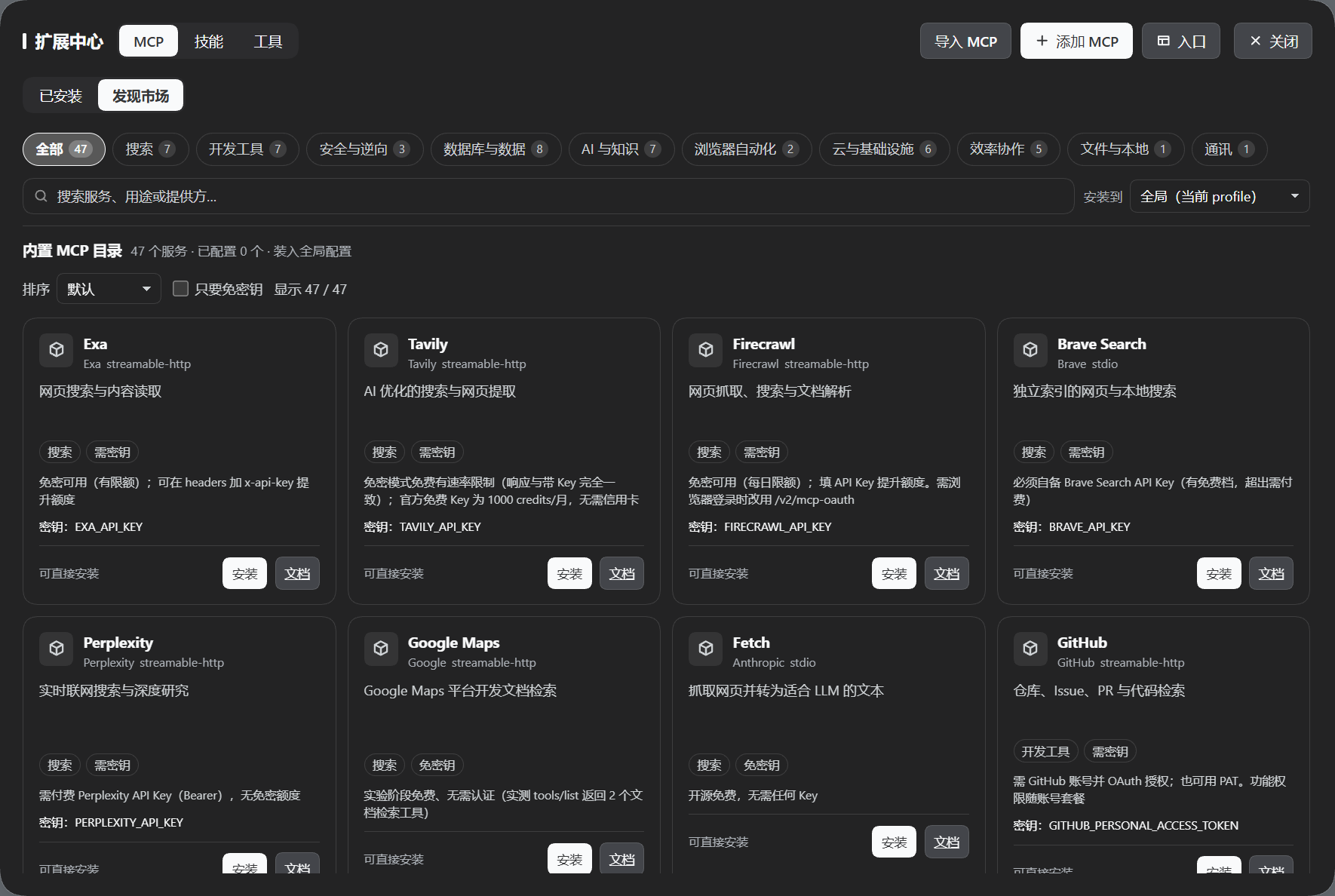
47 services, each verified against first-party sources, across 10 categories. Search-first, with a "keyless only" filter and sorting. Every entry states its free tier honestly and what you must supply (key / connection details / arguments to edit after install); one click installs from the card, and already-configured entries are recognised and skipped.
Skills pane
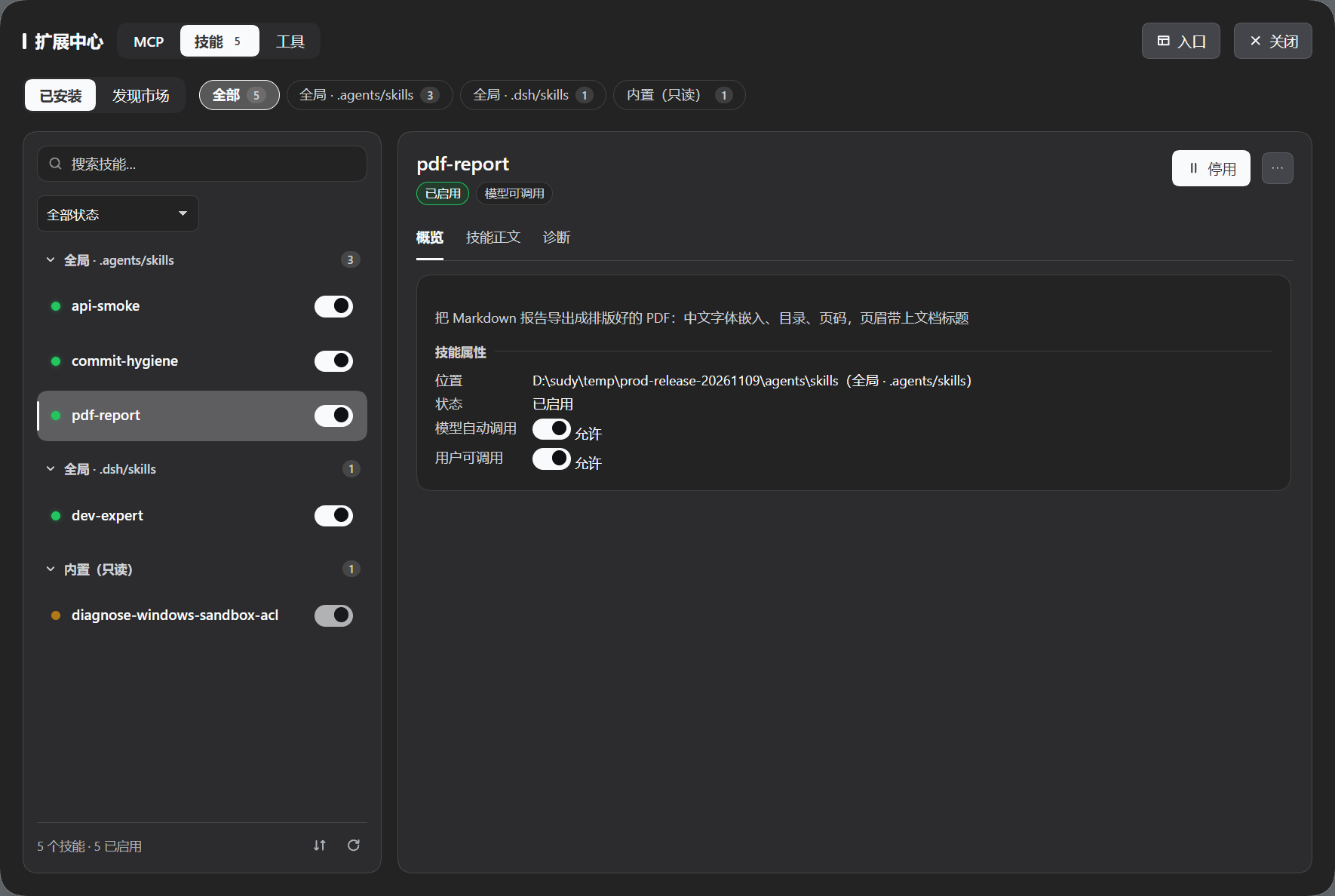
See every installed skill's real scope and cross-scope shadowing, enable/disable, remove, read the body and diagnostics — and flip model auto-invocation with one switch, which edits disable-model-invocation in SKILL.md in place, touching only that one line.
Features
MCP
- Per-entry status, transport, connection settings and the registered tools; expand a tool for its full input JSON Schema (required/optional, types, enums, defaults)
- Enable, disable, reconnect, add, edit, remove; credential fields are masked by default — reveal the effective runtime value temporarily and copy it in one click
- Global + project scopes: global writes the Web profile (available to every project), project writes that project's
.dsh/mcp.json(visible only to its sessions); a project can also block a global MCP - Import configuration from other clients installed on this machine: Claude Code, Codex, OpenCode, pi, Claude Desktop, Cursor, Windsurf, VS Code, Gemini CLI, Roo Code and the cross-tool shared config — or paste JSON directly. Previewed before writing, with merge and replace modes
- Move servers between workspaces: copy this project's MCP servers into another registered workspace (done inside the Host, so credentials never pass through the browser), or export the whole project config as JSON
- Deferred tool loading (ToolSearch): a server's tools no longer have to stay resident in context every turn — the model first sees a name-only catalog and, once
tool_searchfinds a tool (by keyword orselect:<exact name>), its full parameter schema enters the tool list and becomes directly callable. Off by default: click the "Deferred / Resident" chip on a row to flip it (or use "Defer all" above the list); setDSH_MCP_TOOL_SEARCH=offto fall back to full injection everywhere. Its three limits (tools per search, catalog lines, discovered-set size) are adjustable under "Deferral settings" and stored asconfig.toolSearchin the profile patch
Skills
- Real scope and cross-scope shadowing: the same name in different scopes is a legal configuration; the panel lists each copy and marks which one wins
- Enable/disable (by writing the two invocation fields in the skill file, without touching the file itself), remove, read the body and diagnostics — the reason a skill "does not take effect" is right there in the panel
- Model auto-invocation switch: edits
disable-model-invocationinSKILL.md; turning it off deletes that line (off → on round-trips byte-for-byte). The state always comes from the skill file itself — when it cannot be read the panel says "unknown" instead of guessing - Located by its real position on disk (never by skill name): skills whose file or directory name differs from the frontmatter
namecan still be read, toggled and removed - Market backed by skillhub.cn: publisher verification and security-scan findings are disclosed before install, followed by one explicit confirmation (validated server-side)
Shared
- Pick one or both entry points: the floating button (draggable, position remembered) and the sidebar "Toolbox" entry — at least one stays on
- Follows the DSH dark/light theme and adapts to narrow widths
- Update notice and one-click upgrade: at most one npm check per day, dismissible, never auto-updates; after an upgrade it explains what changed, without any network request
Install
# Recommended: from npm — `dsh plugin update` then upgrades within ^1.x
dsh plugin --profile web add dsh-toolbox-ui@^1.9.0

# Or pin a GitHub release tag (no automatic upgrades; re-add with a new tag)
dsh plugin --profile web add github:Imzl-zl/dsh-toolbox-ui#v1.9.0
Then restart dsh web. To uninstall (your existing MCP entries stay):
dsh plugin --profile web remove dsh-toolbox-ui
Do not add
mcp-manager-uito the profile'scordis.patch.yml, an agent preset, or an extra--patchfile by hand — the plugin command already does it, and assembling it twice fails loudly.
Upgrade
dsh plugin --profile web update dsh-toolbox-ui
When a newer version exists the panel shows a dismissible banner; pressing Upgrade runs DSH's official pluginManager.
⚠️ 1.6.1 and earlier will not announce 1.6.2 or anything after it. Their update check read this repository's release feed, whose only
latestentry was held by the legacy packagedsh-mcp-manager-ui(frozen at 1.5.5) during that period — so it always answered "up to date". 1.6.2 fixed that by querying this package's latest on npm, and the fix can only ship inside a newer version: upgrade once by hand, then the banner works again.dsh plugin --profile web update dsh-toolbox-uiStill on the legacy package (≤1.5.5)? 1.5.5 keeps a permanent banner at the top of its panel — press "Migrate" and it installs this package and removes the old one. If the panel's Upgrade button reports
ERR_PNPM_NO_MATCHING_VERSION, the legacy upgrade source has been retired (this repository'slatestpoints at this package since v1.8.2); use the two commands instead:dsh plugin --profile web remove dsh-mcp-manager-ui dsh plugin --profile web add dsh-toolbox-uiSee Install & upgrade.
Quick start
Open the panel: the floating button at the bottom right, or "Toolbox" at the bottom of the sidebar. It floats above the session; Esc or "Close" hides it without touching the session.
Two scopes:
| Tab | Stored in | Visible to | Takes effect |
|---|---|---|---|
| Global | the Web profile's cordis.patch.yml |
every project | DSH hot-reloads, usually immediately |
| A project | that project's .dsh/mcp.json |
only that project's sessions | on write — no need to reopen the session or restart the Host |
serverName is unique per scope: different projects, and global vs. project, may share a name and connect independently.
Adding MCP: use "Add MCP" for the form, or "Import MCP" to paste another client's configuration (previewed before writing). Common servers ship with presets.
FAQ
When does a change in a project take effect? The moment you save: new entries attach to live sessions, removed ones retract their tools, edits reload the connection in place — no need to reopen the session or restart the Host. Editing .dsh/mcp.json by hand is picked up when the next session mounts.
The connection follows the configuration, not the session. When the last session ends the connection is not torn down; it goes idle and the next session reuses it, so it is already there when you need it. Two knobs live on the server entry: idleTimeoutMs (how long an idle connection is kept, default 5 minutes, 0 = never reclaim) and readyTimeoutMs (the total budget for waiting until ready on mount, default 5s, 0 = do not wait). See Design & limits.
What do the project row's status strings mean? They separate two independent facts: whether a connection exists (已连接 · 当前无会话使用(连接保留,下次直接用) / 已连接 · N 个会话在用 / 连接中… / 连接失败 / 尚未建立连接(新会话自动挂载)) and how many sessions are using it — the old "waiting for a session to mount" wording merged both into one sentence and read like "not connected yet".
The panel says "disabled" but the model reports unknown tool "mcp__xxx__…". That MCP is disabled, so it registers no tools. Enable it in the panel.
With "Deferred" on, can the model still find those tools? Yes, just not by full visibility: the prompt carries a name-only catalog plus one line of guidance (no descriptions, no parameter schemas), and once tool_search finds a tool by keyword or select:<exact name>, its full schema enters the tool list and it becomes directly callable. Calling a not-yet-loaded tool from memory is refused, and the refusal hands back the exact query string to copy. Servers with only two or three tools save next to nothing (a guidance paragraph is still paid every turn); it pays off with many tools. To fall back to full injection everywhere: set DSH_MCP_TOOL_SEARCH=off. Note the "Deferred / Resident" chip on each row shows your configuration (that server's defer value) — click it to flip; it does not mean the mechanism is in effect in a given session right now.
How do I defer a single server? Every row carries a chip: "Resident" means that server's tools stay in context, "Deferred" means they load on demand. Click it to toggle — no need to open the edit form (global entries shown inside a project tab must be changed on the "Global" tab); "Defer all" at the top flips everything in the current scope at once. Servers with few tools still take effect when ticked; the panel just says the savings will be small.
Where do I tune the two limits? Panel → MCP → "Deferral settings" at the top: maxResults (tools returned per search, default 10) and maxDiscovered (discovered-set size, default 20). There is also a "Limit catalog size" switch (maxCatalogChars) that is off by default — off lists every tool in the catalog; turn it on only with very many tools and a need to trim context (it prefills 12500, a suggested starting point only). Saving writes them into config.toolSearch of the profile patch and takes effect in the current session immediately (no restart); values equal to the defaults are not written, so a future default change reaches you. You can also edit that config block by hand — then it applies after restarting dsh web. ⚠️ A misspelled key makes the plugin fail to load and reports the exact path (it is not silently ignored); fix it and restart.
How do I tell "mount failed", "connection failed" and "scope isolation failed" apart? Three different things: mount failed = it never attached during session mount; connection failed = mcp-client cannot connect or ran out of retries; scope isolation failed = the connection is fine but its tools are not in the shared scope layer. The detail pane gives the specific reason; see Design & limits.
Will it touch my other configuration? No. Global edits only touch the entries declared by @deepseek-ai/dsh-mcp-client and managed by this plugin, preserving other plugin entries, comments and !!js expressions. Uninstalling leaves your existing MCP entries and project .dsh/mcp.json alone.
Compatibility
| Item | Verified |
|---|---|
| DeepSeek Harness | 0.2.0-rc.1 and above (0.2.0-rc.2, 0.2.1-rc.2, 0.2.1-rc.3 and 0.2.1-rc.5 all run the full suite; the cordis 4.0.5 / loader 1.0.6 pair that ships with 0.2.1 is covered too) |
| Node.js | the runtime DSH ships with / supports |
| Platform | Windows; Linux and macOS use the same DSH Web contract |
Requires 0.2.x or newer: ToolSearch depends on the per-agent presentation mode (ctx.tools.modeFor(agent)) and the tools:sdk manual section, and neither exists on 0.1.x. No downgrade branches are kept for older hosts.
The supported surface is the 0.2.0 and 0.2.1 lines: between them the host swapped loader generations (1.0.3 → 1.0.6), which changed startup-error propagation and what a dispose writes to disk. The plugin adapts to both explicitly, each with a standing test.
Development
npm test        # full suite, including host-level integration tests (real cordis / dsh-tools / dsh-scope / dsh-mcp-client + a real stdio MCP child process)
dsh web         # start the Web app for hands-on verification
Documentation
- Install & upgrade — three install flavours, release flow, troubleshooting
- Skills — scopes and shadowing, enable/disable, invocation policy, the skill market
- JSON import — field mapping and limits
- Project MCP lifecycle — mounting, the shared connection, scope alignment
- Design & limits — shared connection model, connection-state semantics, known limits, dependency details
- DeepSeek Harness plugin publishing guide
Friend link
License
MIT
Related plugins
dsh-web(原 dsh-web-ui)
 zhu1090093659
/dsh-web-ui
dsh-web(原 dsh-web-ui):任务看板、git 图、右侧面板、远程移动端 UI、桌宠、实时 token 统计与皮肤中心的全家桶。仓库已更名 zhu1090093659/dsh-web,根目录声明 dsh.bundle.patch,支持根 Git 入口安装。
dsh plugin --profile web add github:zhu1090093659/dsh-webdsh-web-all 聚合包(原 dsh-web-ui-all)
zhu1090093659zhu1090093659/dsh-web-ui/packages/dsh-web-ui-all
旧整包路径 packages/dsh-web-ui-all 已随仓库更名 dsh-web 迁移:现聚合目录为 packages/dsh-web-all,npm 聚合包 @linxin666/dsh-web-all。与总仓根 Git 入口是同一产品的两种整包方式,不重复计数。
dsh plugin --profile web add @linxin666/dsh-web-all@latestdsh-TUI
 ccch1mneyyy
/dsh-TUI
Claude Code 风格全屏终端 UI:像素鲸鱼顶栏、实时工作状态行、思考流式展开。
dsh plugin --profile web add github:ccch1mneyyy/dsh-TUIdsh-cc-tui
ccch1mneyyyccch1mneyyy/dsh-cc-tui
一个美观且实用的 Claude Code 风格 TUI 插件:像素鲸鱼顶栏、双流光大字、实时工作状态行、思考流式展开、双击 Esc 时间回溯、蓝白上下文进度条 + TPS 仪表。 零核心改动,纯插件挂载。安装插件即可启用,卸载后不会留下核心补丁。 献给钟爱tui的各位极客们 A beautiful, practical Claude…
dsh plugin --profile web add github:ccch1mneyyy/dsh-cc-tuideepseek-balance-whale-widget
 meteornox
/deepseek-balance-whale-widget
DSH 小鲸鱼余额挂件(DeepSeek Balance Whale Widget)
dsh plugin --profile web add github:meteornox/deepseek-balance-whale-widgetDSH-better-sidebar
 omdsh-dev
/DSH-better-sidebar
侧边栏完整工作台:内置文件渲染编辑、终端、Git 与子代理,支持三方插件注册新 Tab。
dsh plugin --profile web add github:omdsh-dev/DSH-better-sidebar