
UI Enhancements
dsh-task-lens
apoclota/dsh-task-lens · ★ 1
 apoclota
Always-on draggable task lens for DeepSeek Harness: context-reconstructed steps with 7-phase coding plans, in-phase progress, a focused done/doing/next panel with full steps in detail…
Manifest details
安装
dsh plugin --profile web add 'github:apoclota/dsh-task-lens#074a59f7b6fb06446e8214b539fe238b57f0ff94'GitHub 源码安装:首次需按提示配置 allowBuilds 构建授权后重试
For install and environment setup, plus plugin development tutorials, see DSH community docs ↗
README
Table of contents
English | 中文
A "task lens" plugin for DeepSeek Harness: it reconstructs steps from your request, the model's plan, tool calls and errors, translates what the agent is doing into plain Chinese, shows status lights and one honest progress bar, and remembers the mistakes of past runs for the next one. No model calls, no extra token spend.
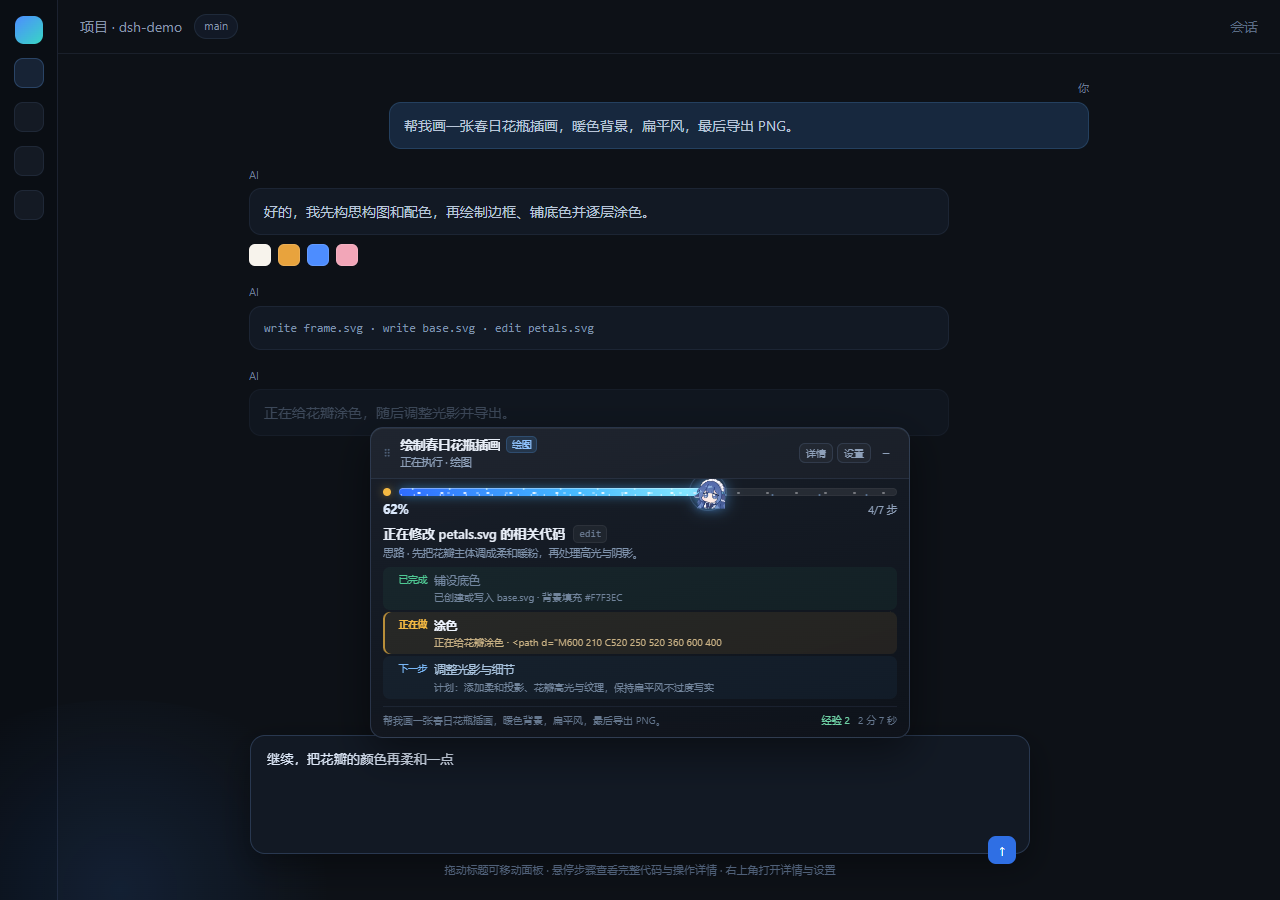
What you get
- Steps that follow the task — it first classifies the request as drawing, coding, document, data, research or setup, then shows the matching steps. A drawing request walks through "plan composition and palette → draw frame and outline → lay down base colours → paint → adjust light and detail → export"; a coding request walks through "locate the problem → read code → edit → add tests → run tests → check the build → wrap up". Coding, setup and general tasks also reconstruct steps from actual tool calls: frontend and backend are split, consecutive writes in one area are merged, and verification steps that have not happened yet are added. It also reads the model's reasoning and numbered plan to advance the active step — no extra model calls.
- Tool calls in plain language —
pwsh,read,grep,edit,web_fetchand friends become "running tests", "editing login.tsx", "searching for «submitting»", with the command, file or query kept in view. - One honest progress bar, with a little cosmos — driven by the todo list when the model writes one; otherwise by the active step's position in the plan. Reaches 100% on a normal finish and never fakes completion after an abort. The thick filled section glows and streams tiny stars left to right, while a gently swaying DeepSeek mascot image rides the current position and turns green when done.
- One status light, right by the bar — blue for reads, searches and analysis; amber for writes, edits and installs; teal for runs and tests; green when done; red for errors or a lost connection. Step rows use text and check marks instead of extra lamps.
- Three focused rows on the main panel — the panel always shows "done / doing / next" instead of a long
list you have to scan. Concise mode keeps those rows too. A single changing "thinking" line below them
summarizes the current intent. Each row carries the concrete action ("writing frame.svg", "editing
petals.svg") plus the first line of code, command or target file.
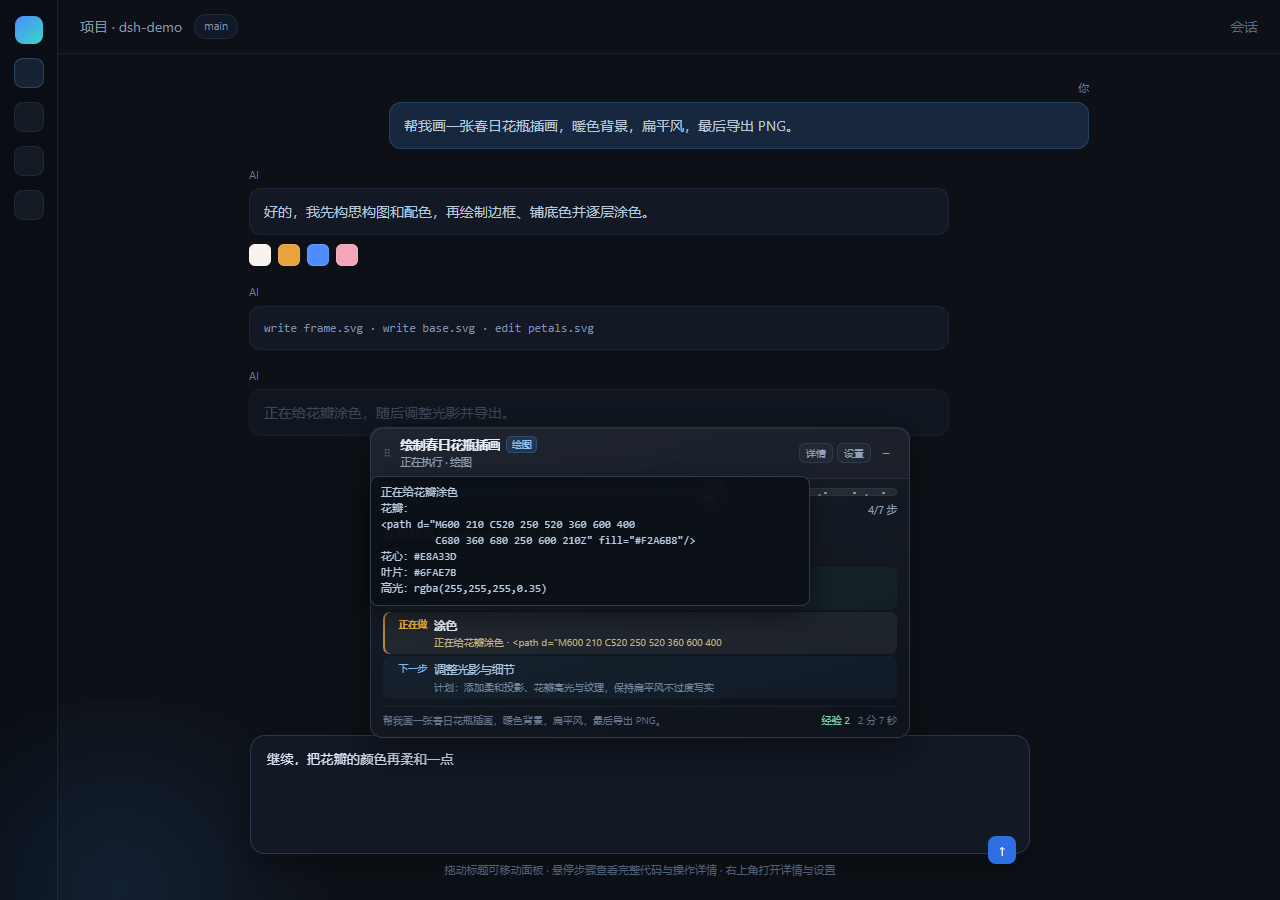
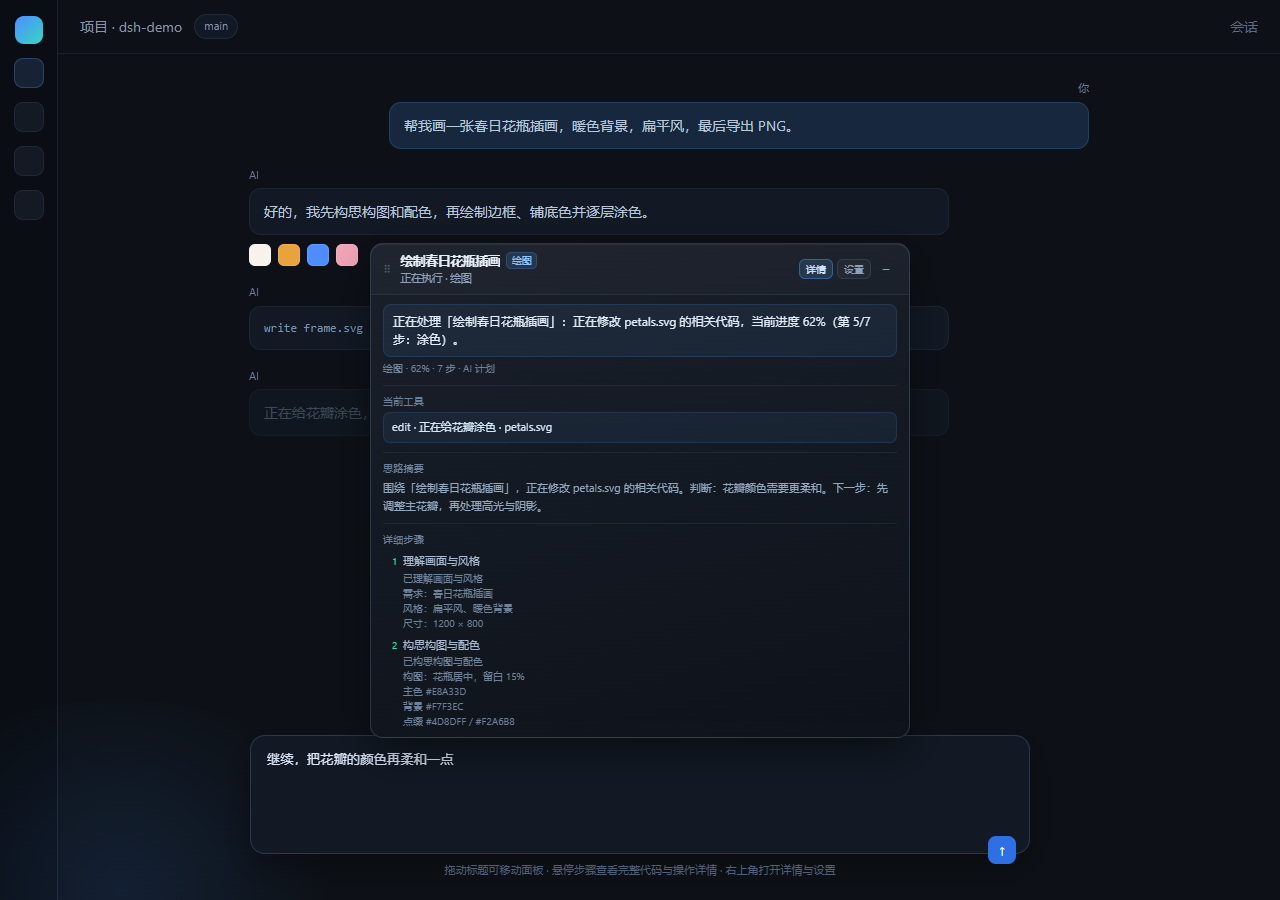
ops_bashalso shows its command, script, cwd and timeout. Hover for the full content; secrets are redacted automatically. - The detail page shows every step — click "详情" for a longer thinking summary of the current judgement and next move, then all steps, their status and detailed actions. Raw reasoning is not exposed. For full-stack work you can see which files were read, which layer changed, and whether tests and build steps have been added.
- Progress keeps moving — coding uses 7 phases; document, data, research and setup use 6–7. The active phase advances with tool-call count and elapsed time, so long-running commands do not freeze at one percentage. A new instruction during a running turn triggers a fresh estimate: progress dips for the added work, then climbs again with the next tool calls.
- Always-on panel — once enabled it stays visible. With no active task it drops into a ready state instead of disappearing. It starts above the composer; drag the title bar anywhere and the position is remembered, or double-click the title bar to reset. Narrow or multi-thread windows get a smaller panel capped at 55% of the viewport height, and duplicate panel hosts are cleaned up.
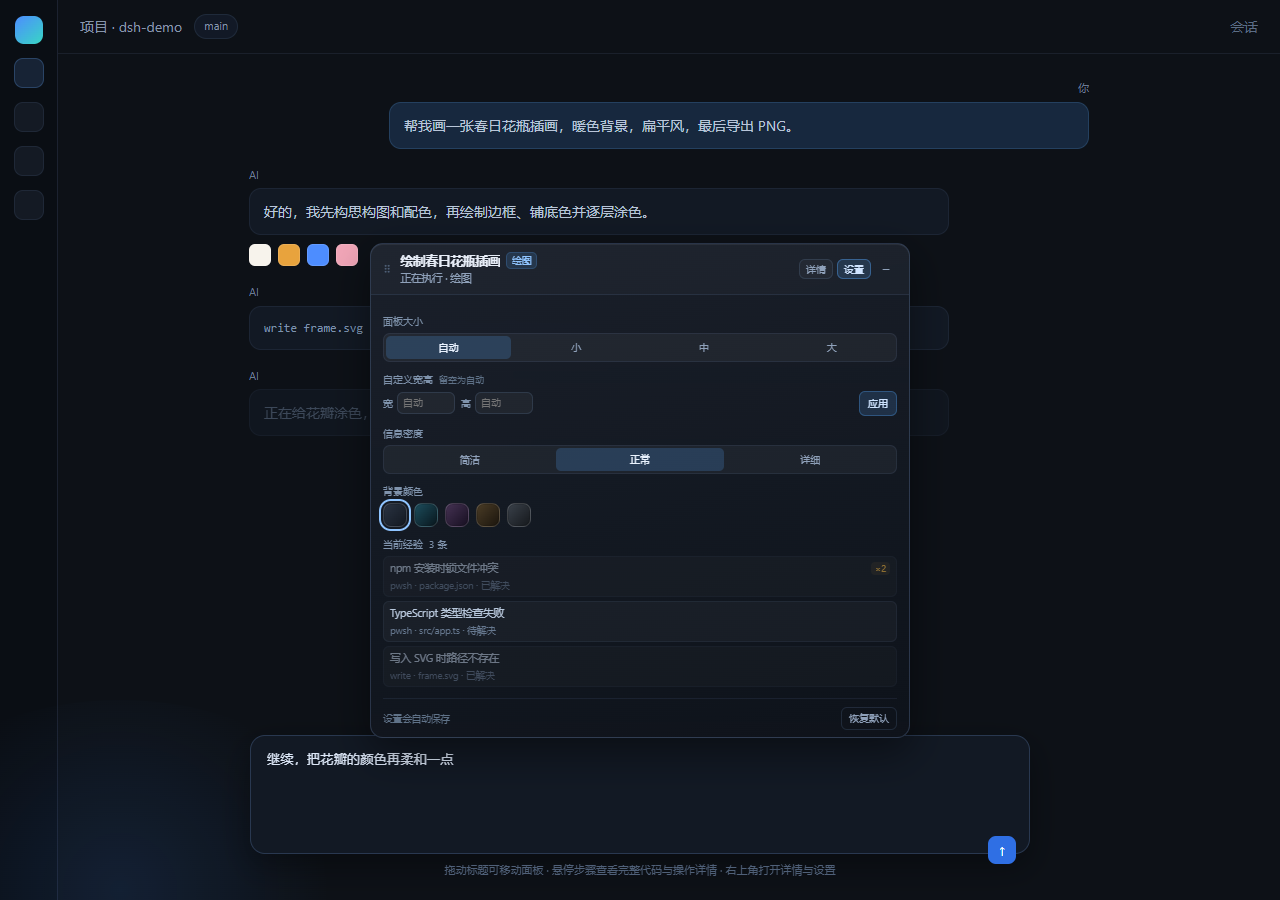
- Detail page and settings — the "详情" button shows the task translation, current tool, a longer thinking summary, every step and recent actions. "设置" adjusts panel size, custom width/height (320–900 × 220–900), information density (concise / normal / detailed) and one of five background colours, and shows the current lessons. Preferences save automatically. The detail page reuses local context — it never makes an extra model call or network request.
- Collapsed view keeps the essentials — status light, starry progress bar, percentage and a one-line task report. Expand it whenever you want the rest.
- Automatic error memory — failures are classified in Chinese (missing file, permissions, port in use, missing dependency, timeout, rate limit, …), duplicates are merged with a counter, and a successful retry marks the entry fixed.
- Next run avoids them for free — lessons land in a managed block inside
~/.dsh/AGENTS.md, which the host already loads (10 entries / 1200 chars by default). - Zero token cost — translation, planning, progress and lesson handling are pure local rules. No model calls, no network requests.
Install
Desktop: Settings → Plugins, search for dsh-task-lens, install, reload.
CLI:
dsh plugin --profile web add dsh-task-lens
Use your own profile name instead of web (a desktop profile is owned by the app — install it from the
app's plugin page instead).
The panel appears above the composer once installed. Drag its title bar to move it; double-click the title
bar to reset. To preview the hover detail on its own, open assets/demo.html?hover=1; to see the
no-task ready state, open assets/demo.html?idle=1:
Configuration
In the profile's cordis.patch.yml:
- id: dsh-task-lens
  name: dsh-task-lens
  config:
    showPanel: true
    showThinking: false
    lessonsEnabled: true
    lessonsMax: 10
    lessonsMaxChars: 1200
| Key | Default | Meaning |
|---|---|---|
showPanel |
true |
Inject the floating panel above the composer (lessons are still recorded when off) |
showThinking |
false |
Also show a line while the model is thinking without tool calls |
lessonsEnabled |
true |
Record errors and write them to AGENTS.md |
lessonsMax |
10 |
Max entries written to AGENTS.md |
lessonsMaxChars |
1200 |
Char budget of the managed block |
pollMs |
400 |
Panel polling interval (local read only, no token spend) |
keepDoneMs |
120000 |
How long finished task data stays before the panel returns to its ready state (the panel itself stays visible) |
instructionsFile |
$DSH_HOME/AGENTS.md |
Instruction file receiving the managed block |
lessonFile |
$DSH_HOME/dsh-task-lens/lessons.json |
Lesson store |
How the memory works
- Tool errors are classified from
error.codeplus the message. - Same tool + same target + same error merge into one entry with a repeat counter.
- Entries are ranked and written into the managed block in
~/.dsh/AGENTS.md(<!-- dsh-task-lens:begin -->…<!-- dsh-task-lens:end -->); nothing outside the block is touched. - A later success for the same tool on the same target marks the entry fixed; once only fixed entries remain, the block is removed entirely.
- Raw records stay in
~/.dsh/dsh-task-lens/lessons.jsonfor manual inspection.
Privacy and security
- Everything runs locally; the plugin makes no network requests and uploads nothing.
- Paths in lessons are masked:
$DSH_HOMEand the user home become$DSH_HOMEand~. - The local HTTP endpoint only accepts
GETand requires a loopback host, a same-origin request and a non-cross-siteSec-Fetch-Site.
Development
npm test
Syntax-checks lib/ and runs the dependency-free smoke test (fake host composition, simulated session
events, task classification, step plans, progress, translation with redacted previews, lesson persistence,
the managed block, and endpoint security).
Preview the UI by opening assets/demo.html in a browser — it ships with demo data and needs no host.
Add ?hover=1 to auto-open the hover detail.
License
MIT
Related plugins
dsh-web(原 dsh-web-ui)
 zhu1090093659
/dsh-web-ui
dsh-web(原 dsh-web-ui):任务看板、git 图、右侧面板、远程移动端 UI、桌宠、实时 token 统计与皮肤中心的全家桶。仓库已更名 zhu1090093659/dsh-web,根目录声明 dsh.bundle.patch,支持根 Git 入口安装。
dsh plugin --profile web add github:zhu1090093659/dsh-webdsh-web-all 聚合包(原 dsh-web-ui-all)
zhu1090093659zhu1090093659/dsh-web-ui/packages/dsh-web-ui-all
旧整包路径 packages/dsh-web-ui-all 已随仓库更名 dsh-web 迁移:现聚合目录为 packages/dsh-web-all,npm 聚合包 @linxin666/dsh-web-all。与总仓根 Git 入口是同一产品的两种整包方式,不重复计数。
dsh plugin --profile web add @linxin666/dsh-web-all@latestdsh-TUI
 ccch1mneyyy
/dsh-TUI
Claude Code 风格全屏终端 UI:像素鲸鱼顶栏、实时工作状态行、思考流式展开。
dsh plugin --profile web add github:ccch1mneyyy/dsh-TUIdsh-cc-tui
ccch1mneyyyccch1mneyyy/dsh-cc-tui
一个美观且实用的 Claude Code 风格 TUI 插件:像素鲸鱼顶栏、双流光大字、实时工作状态行、思考流式展开、双击 Esc 时间回溯、蓝白上下文进度条 + TPS 仪表。 零核心改动,纯插件挂载。安装插件即可启用,卸载后不会留下核心补丁。 献给钟爱tui的各位极客们 A beautiful, practical Claude…
dsh plugin --profile web add github:ccch1mneyyy/dsh-cc-tuideepseek-balance-whale-widget
 meteornox
/deepseek-balance-whale-widget
DSH 小鲸鱼余额挂件(DeepSeek Balance Whale Widget)
dsh plugin --profile web add github:meteornox/deepseek-balance-whale-widgetDSH-better-sidebar
 omdsh-dev
/DSH-better-sidebar
侧边栏完整工作台:内置文件渲染编辑、终端、Git 与子代理,支持三方插件注册新 Tab。
dsh plugin --profile web add github:omdsh-dev/DSH-better-sidebar