Memory
dsh-session-menu
big-head-pigeon/dsh-session-menu · ★ 1
 big-head-pigeon
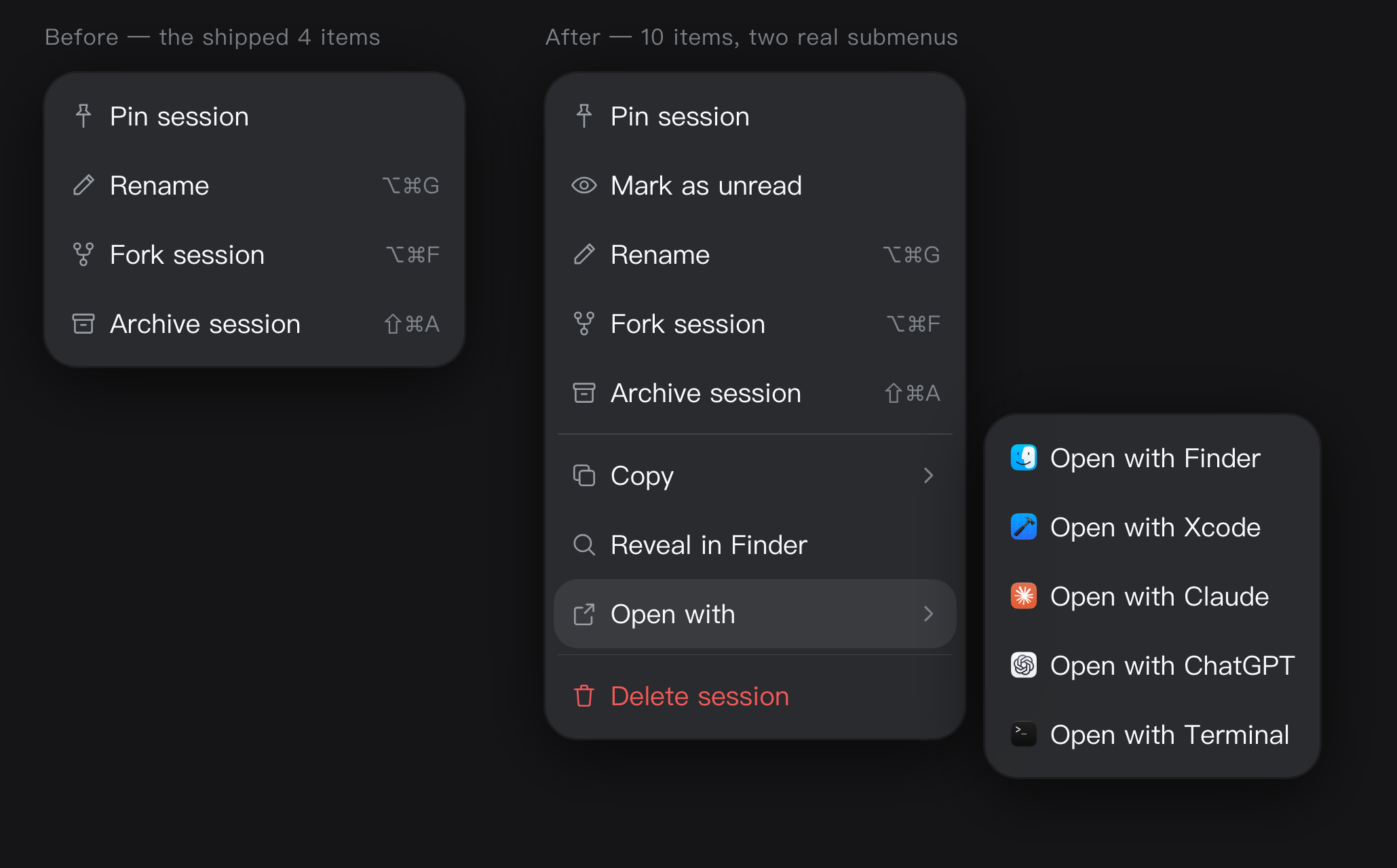
Session context menu for the DeepSeek Harness sidebar: mark unread, copy session info, open with your IDE, and permanently delete sessions.
An English summary is not available; the Chinese summary is shown.
安装
dsh plugin --profile web add 'github:big-head-pigeon/dsh-session-menu#a9c6abee408b6c4917d83779f9862de5473041e9'GitHub 源码安装:首次需按提示配置 allowBuilds 构建授权后重试
For install and environment setup, plus plugin development tutorials, see DSH community docs ↗
README
Table of contents
dsh-session-menu
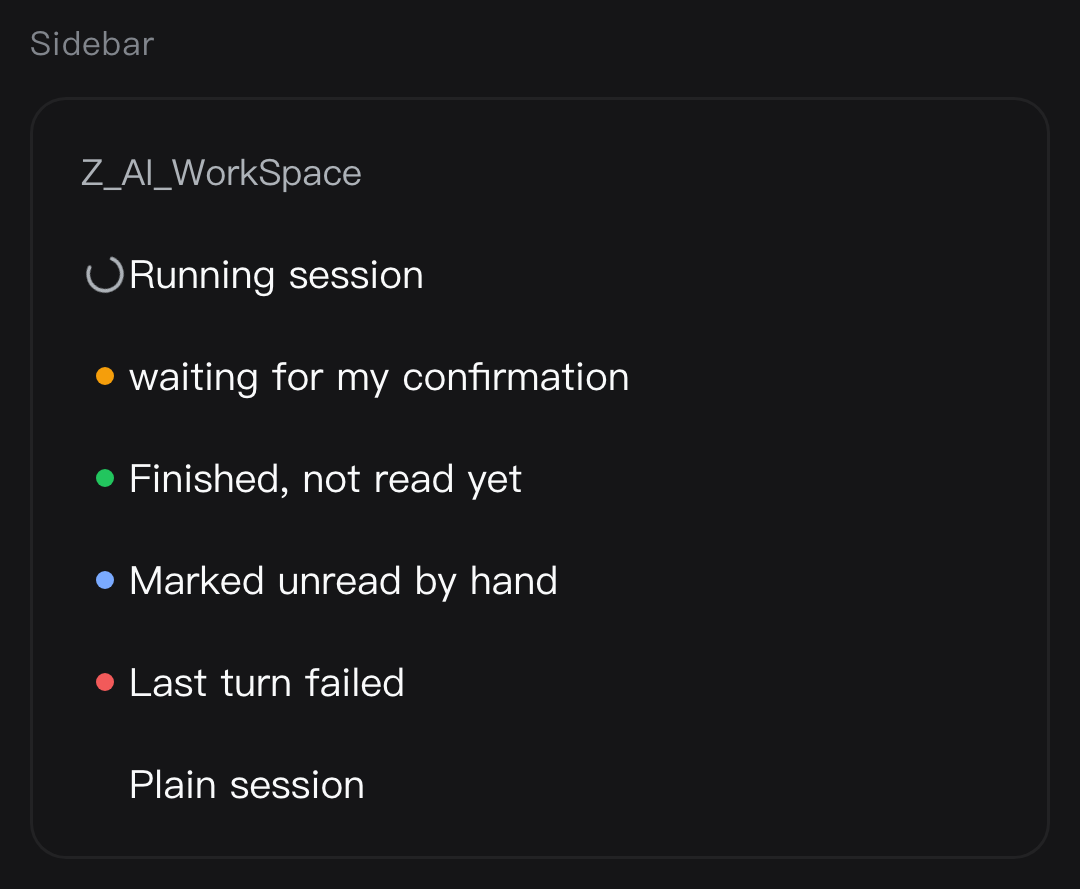
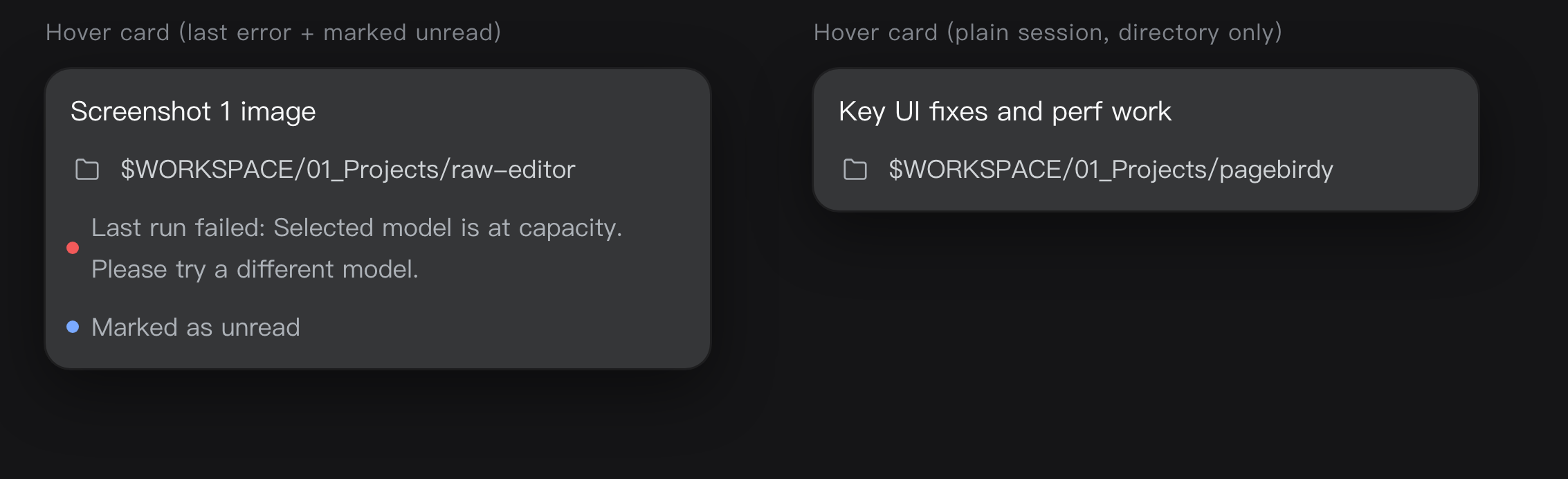
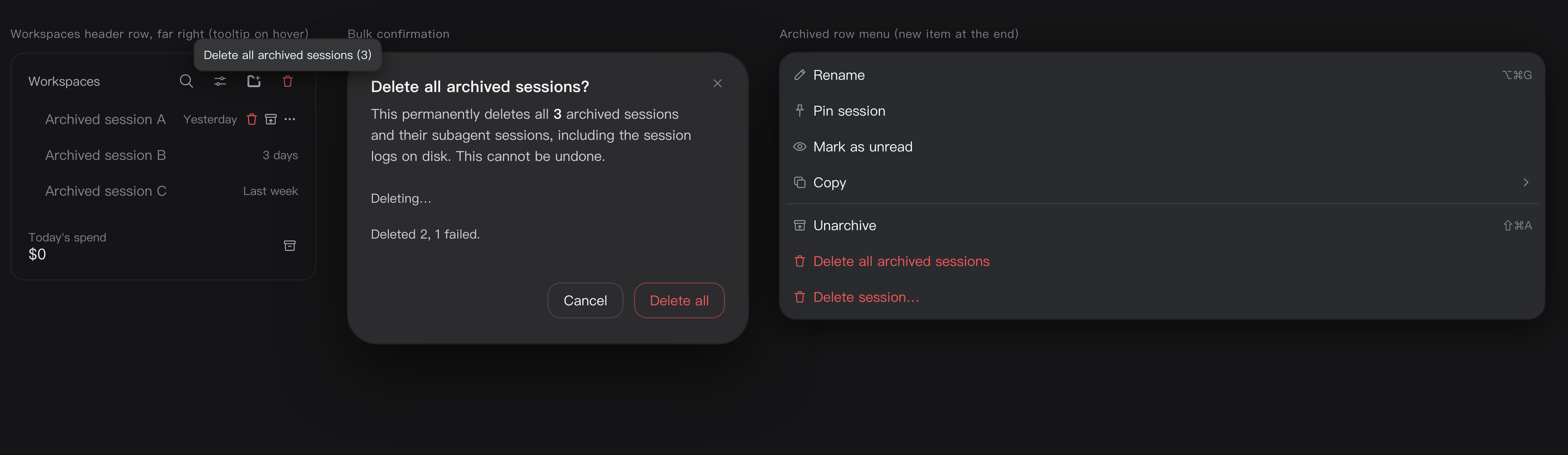
Adds mark-unread, copy session info, reveal in Finder or open with your IDE, and permanent delete to the DSH (DeepSeek Harness) sidebar session menu — plus status dots, hover-card details and one-click delete for archived rows.



UI · Install · Uninstall · Settings · Configuration
UI
| Session menu | Status dots |
|---|---|
 |
 |
| Hover card | Archived rows: one-click delete + bulk entry |
|---|---|
 |
 |
| Delete confirmation | Archived row menu |
|---|---|
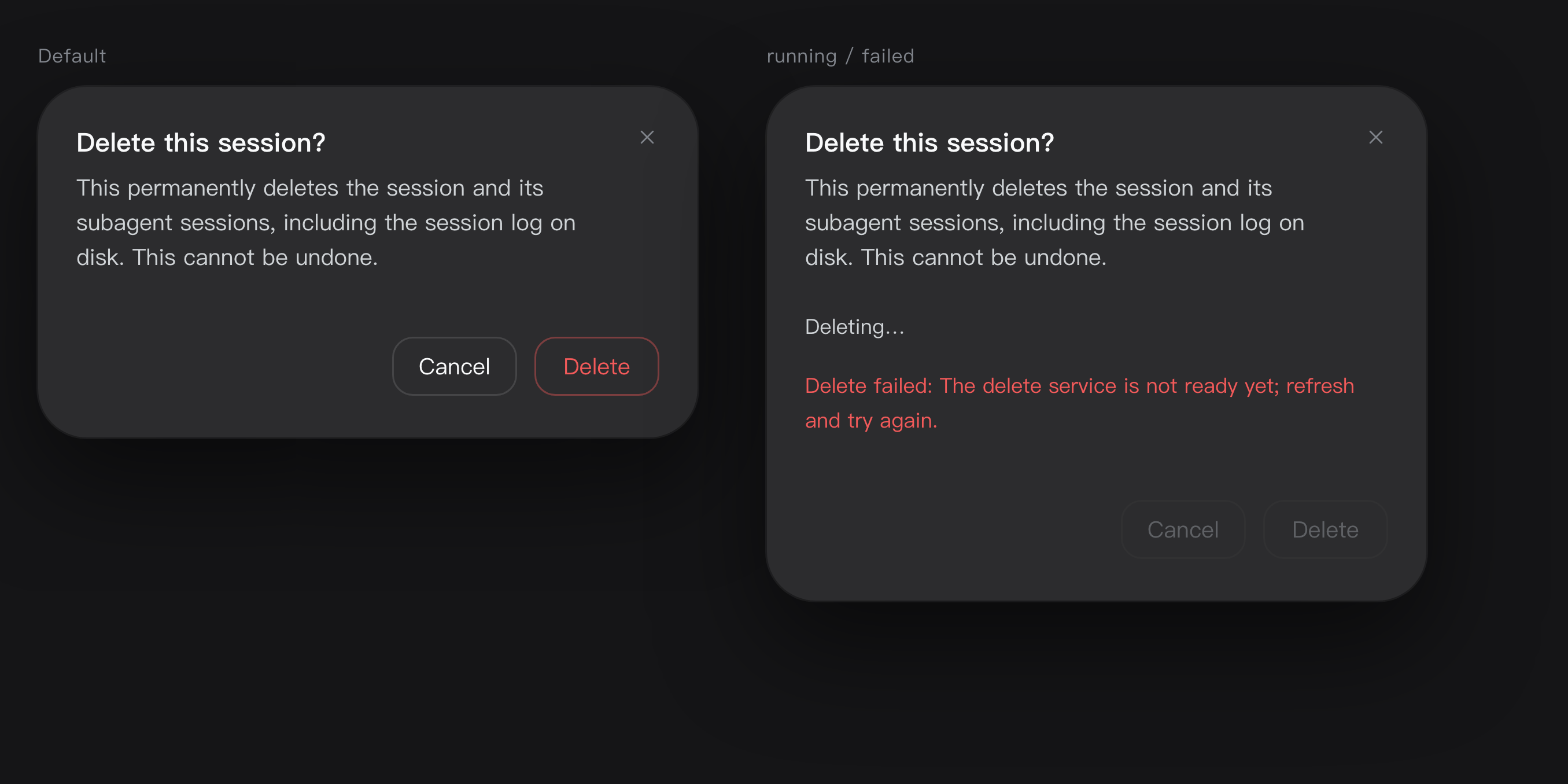 |
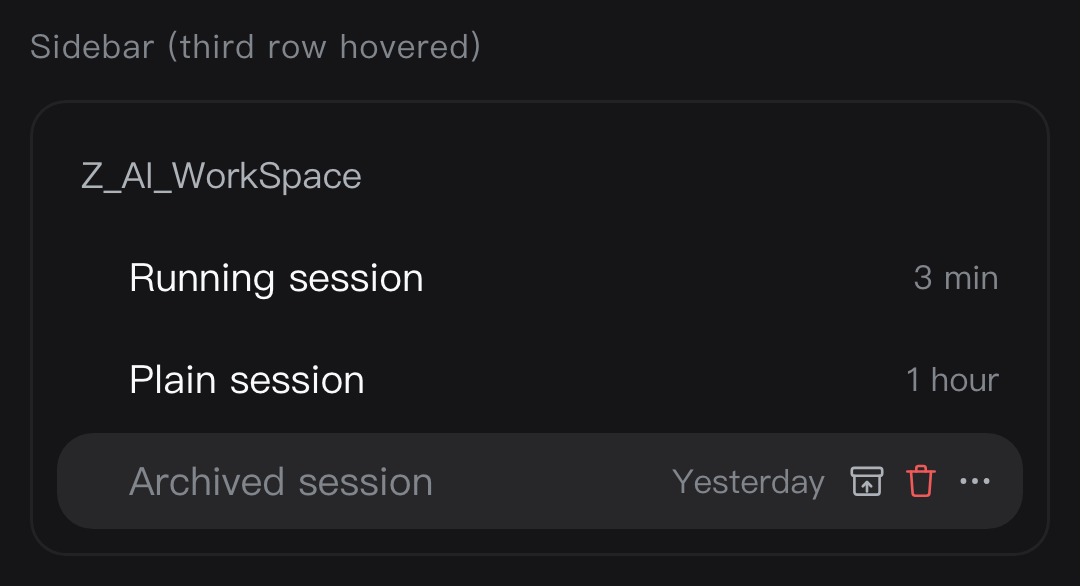 |
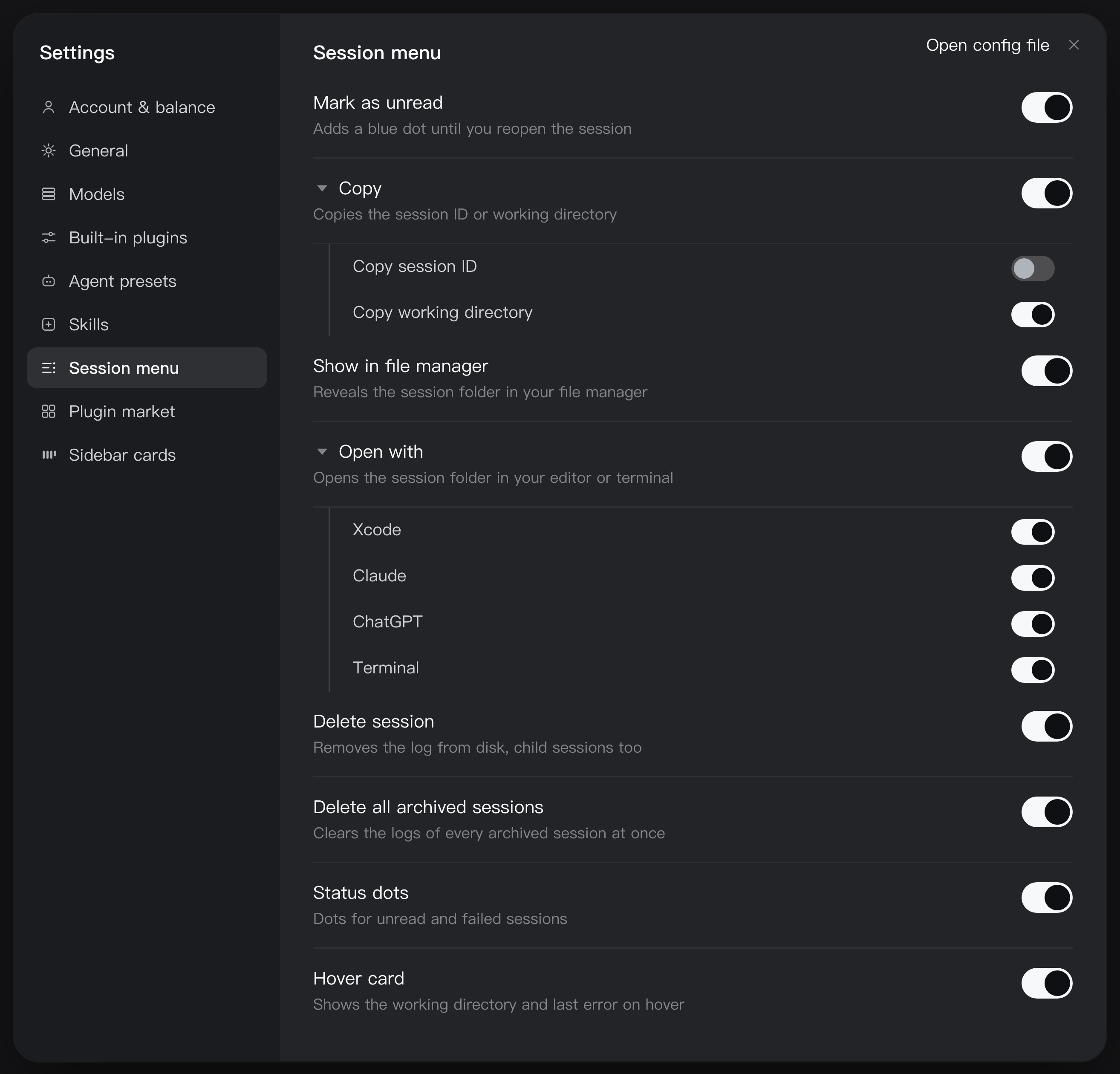
Once installed, it looks like this under Settings → Plugins → Installed:

Install
All three ways install the dsh-session-menu package from npm.
Option 1 — install it inside DSH (recommended)
- Open DSH and click Plugins in the left sidebar
- Click Add plugin in the top right
- Type
dsh-session-menuand click Install - Restart the DSH app
Option 2 — let the Agent install it
Send this to the Agent inside DSH:
Install the plugin dsh-session-menu with the plugin manager, then remind me to restart DSH.
Option 3 — install it from the terminal
If you are comfortable with a command line: open macOS's Terminal app (⌘ + Space, search
"Terminal"), paste this line and press Enter.
dsh plugin --profile desktop add dsh-session-menu
Replace desktop with your own profile name (ls ~/.dsh/profiles lists them; desktop and web
are the common ones). Either way, restart the DSH app afterwards.
Uninstall
Settings → Plugins → Installed, click the trash icon on the dsh-session-menu row and confirm.
Settings
Once installed, the plugin adds a Session menu section under Settings with 8 switches:
Mark as unread · Copy · Show in file manager · Open with · Delete session · Delete all archived sessions · Status dots · Hover card
Turning one off hides it from the context menu and the session rows immediately — no restart. The switches live in this browser.
The triangle next to Copy and Open with expands them, so every sub-item can be switched on its own; turning a parent off greys its children out.
Copy Session ID is newer than this plugin in the kernel itself: when the kernel already ships that row, our identical sub-item starts switched off and Copy collapses into a single row. Switch it back on to keep both.
Running a community build that already ships some of these? Turn the duplicates off here.
Configuration
The apps inside the Open with › submenu are configurable. Add a block to your profile's
cordis.patch.yml:
config:
  applications:
    - kind: editor
      paths:
        - /Applications/Visual Studio Code.app
    - kind: terminal
      paths:
        - /System/Applications/Utilities/Terminal.app
Each entry takes the first path that exists, and only the matching one shows up in the menu.
config replaces the whole list, it does not append. Restart DSH after editing.
License
Related plugins
hindsight#coding-agents
 vectorize-io
/hindsight/hindsight-integrations/coding-agents
Hindsight:会学习的 Agent 长期记忆系统,自动召回/保存、知识页、深度反思与按仓库隔离的记忆银行。
Added:
dsh plugin --profile web add github:vectorize-io/hindsight#path:/hindsight-integrations/coding-agentsdsh-memory-plugin
 volcengine
/OpenViking/examples/dsh-memory-plugin
面向 DeepSeek Harness 的 OpenViking 记忆与上下文插件:pre-step 自动召回与画像注入、会话捕获、`viking://` URI 防护,以及对接 OpenViking 服务端的 recall/write 记忆工具。
Added:
dsh plugin --profile web add @openviking/dsh-memory-pluginmemos
 memtensor
/memos
给你的 Agent 持久记忆与成长能力
Added:
dsh plugin --profile web add @memtensor/memos-cloud-dsh-plugin@latestdsh-context
 bowenliang123
/dsh-context
上下文洞察面板:一眼看清模型上下文窗口的组成与变化——构成对照窗口大小、按请求历史趋势、压缩/注入事件、消息级 token 统计。
Added:
dsh plugin --profile web add dsh-contextdsh-purge-kingchar
 kingcharleslzy-ai
/dsh-purge
让 AI 更专注地辅助学习与动手实验:DSH 附加组件,提供状态自检、提示词与规则管理、本机备份与回滚。
Added:
dsh plugin --profile web add 'github:kingcharleslzy-ai/dsh-purge#27919a326b6615b1968661a3e749760cec3a2e07'memsearch
 zilliztech
/memsearch/plugins/dsh
MemSearch plugin for DeepSeek Harness: shared markdown memory across agents, with capture, on-demand recall, memory-recall skill, and a skill-candidate review panel.
Added:
dsh plugin --profile web add '@zilliz/memsearch-dsh@0.1.8'