
Sessions & Messages
dsh-config-manager
xiajiajun516/dsh-config-manager · ★ 343
 xiajiajun516Curated
Backup / export / import / migrate your DeepSeek Harness (DSH) configuration - dual-face Cordis plugin (host engine + Web UI). One-click restore on any machine.
Manifest details
安装
dsh plugin --profile web add github:xiajiajun516/dsh-config-managerGitHub 源码安装:首次需按提示配置 allowBuilds 构建授权后重试
For install and environment setup, plus plugin development tutorials, see DSH community docs ↗
Screenshots
README
Table of contents
- What is this? 🤔
- 🎯 Use Cases
- Backup DeepSeek Harness configuration
- Restore DeepSeek Harness on another machine
- Migrate DSH configuration to a new computer
- Sync DSH configuration across machines
- Schedule automatic full backups
- Discover & install configurations from the marketplace
- Import from another AI agent (Claude Code, Cursor, Codex, …)
- Go back to a moment in a conversation (rewind)
- 🆚 How it differs from the other DSH backup / sync plugins
- ✨ Highlights
- 📸 Screenshots
- 🔄 How it works?
- Export (pack it up)
- Import (restore the environment)
- Rewind (go back to a moment in a conversation)
- 📥 Installation
- Installing from the GitHub source (git+https://...)
- 🚀 Quick start (3-minute tour)
- 🧩 Features
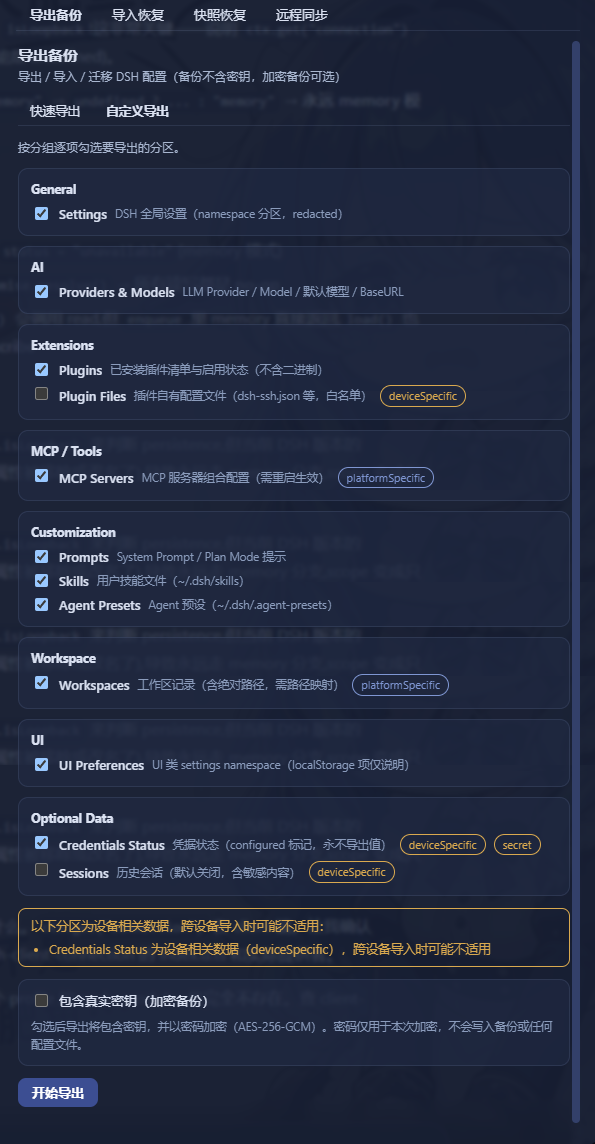
- 📤 Export (one flow + a content picker)
- 📥 Import (safe flow)
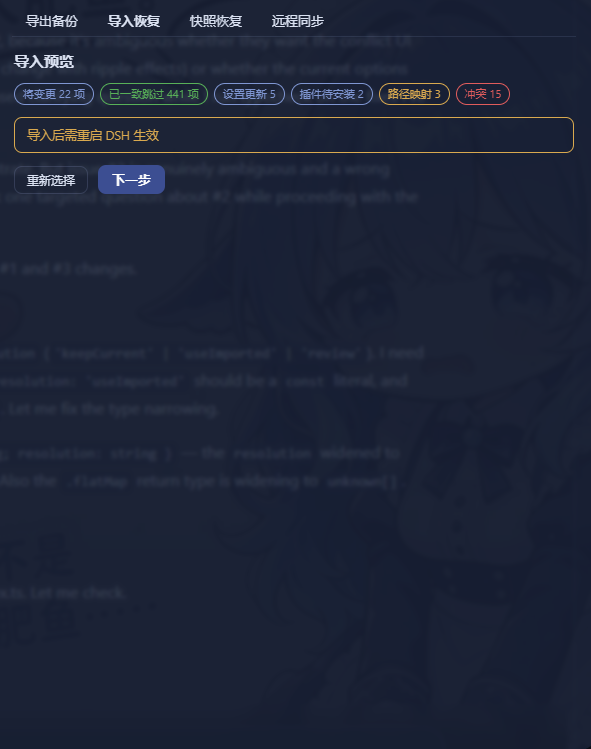
- 👀 Import Preview (dry run)
- ⚔️ Conflict handling
- 🗺️ Path mapping
- 🧳 Import from other AI agents (config + chat history)
- 🔒 Secrets
- 🔄 Remote Sync (four channels)
- 🛒 Configuration Marketplace
- 🗂️ Profiles (= DSH's own profiles)
- ↺ Rewind (go back to a moment)
- 📸 Snapshot restore (undo an import)
- 🚨 CLI — the first line of defense when DSH is broken




DeepSeek Harness Backup, Restore & Migration Plugin.
Backup, restore, export, import, migrate and sync your complete DeepSeek Harness (DSH) configuration — settings, model providers, plugins, MCP servers, skills, agent presets and workspaces — and restore your whole environment on a new machine with one click.
- 🔄 Backup & Restore DeepSeek Harness configuration
- 📦 Export / Import complete DSH configuration
- 🚚 Migrate DSH to another machine
- ⏰ Scheduled full backups — automatic, on your own cadence (6h / 12h / 24h / 7d / custom weekly), secrets never included
- 🔌 Backup installed plugins and plugin configuration
- 🧩 Backup MCP servers and Skills
- 🔐 Encrypted backups with optional credentials
- ☁️ Git / WebDAV configuration sync
- 🛒 Configuration market — browse & one-click install shared configs
- 🧳 Import from other AI agents — Claude Code, Cursor, Codex, Hermes, Antigravity … config and chat history
- ↩️ Automatic snapshot and rollback before restore
What is this? 🤔
DSH is your AI assistant workbench — it holds your settings: model configs, plugins, skills, workspaces…
DSH Config Manager is its "moving service":
┌──────────────┐   ① one-click    ┌─────────────────┐   ② one-click    ┌──────────────┐
│  Machine A    │ ──── export ───► │ dsh-config.zip   │ ──── import ───► │  Machine B    │
│  my config    │                  │   (one file)     │                  │  all restored │
└──────────────┘                  └─────────────────┘                  └──────────────┘
⚠️ Security first: no secrets (API Key / Token / Password) are exported by default. See Security.
🎯 Use Cases
Backup DeepSeek Harness configuration
Create a portable backup of your DSH settings, model providers, plugins, MCP servers, skills, agent presets and workspace — one ZIP file, no secret values included by default. (DSH's own profiles — $DSH_HOME/profiles/<name>, i.e. which plugin stack to boot — are machine-local and are not part of the backup; the Environment → Profiles view manages them instead — list / create / rename / delete, plus launching or stopping an independent instance for one.)
Restore DeepSeek Harness on another machine
Export your current DSH environment as a single ZIP and import it on a new Windows, macOS or Linux machine. One click brings back settings, plugins, MCP servers, skills and global instructions (AGENTS.md).
Migrate DSH configuration to a new computer
Move your complete DeepSeek Harness setup without manually reinstalling plugins, MCP servers and skills. Dead absolute paths are detected and remapped automatically (batch prefix mapping supported).
Sync DSH configuration across machines
Keep portable configuration synchronized between machines through a private Git repository, WebDAV, an S3-compatible object store (AWS S3 / Alibaba OSS / Tencent COS / MinIO / Qiniu Kodo) or GitHub Gist — secrets do not sync by default (the payload is run through the SecretScanner); check "Export secrets" with an encryption password and ~/.dsh/.credentials.yaml travels as scrypt + AES-256-GCM ciphertext inside the encrypted snapshot, so another machine can restore the credentials while the remote (Git host / WebDAV / object store / Gist) only ever sees ciphertext.
Schedule automatic full backups
Turn on scheduled backups in the Home → Scheduled backup card (6h / 12h / 24h / 7d — or a custom weekly weekday & time) and DSH quietly keeps a fresh full backup of your configuration in the background — secrets are never included, so it stays safe on disk without a password. How many are kept is decided by the retention policy in the same card (last N + one per month + one per year), and consecutive failures are highlighted in red.
Discover & install configurations from the marketplace
Browse the built-in official market for ready-made configurations (model providers, plugins, MCP servers, skills, agent presets…), preview what would be imported (dry-run), and install with one click — supply-chain warnings are always shown and every section must be explicitly approved before anything is written.
Import from another AI agent (Claude Code, Cursor, Codex, …)
Your setup — and your chat history — already live in another AI coding agent on this machine? Pick the source and DSH Config Manager translates it into a standard bundle (MCP servers, skills, global instructions, conversations and the workspaces they belong to) and hands it to the same review-first import flow: preview → per-item conflict decisions → automatic snapshot → apply → rollback. 30 sources are recognized and 29 of them can migrate chat history too. Secret values are never read — only the key names, so the import plan can ask you to re-enter them.
Go back to a moment in a conversation (rewind)
Mid-conversation realisation — "that message sent us down the wrong path, I want to start again from there"? Every user message carries ↺ rewind to here: it opens a new branch conversation from that moment and leaves the original intact (archived, never rewritten); if you want, the workspace files are reverted along with it — you see the per-file diff and line counts before anything happens. Rollback points are captured automatically per turn, so there is no manual snapshot to take.
🆚 How it differs from the other DSH backup / sync plugins
Several DSH plugins live in this space and they solve different problems — pick the one that matches your situation; they can also coexist.
| Plugin | Strongest at | Where DSH Config Manager goes further |
|---|---|---|
| xiaoyuyu6420/dsh-backup | One-command ~/.dsh snapshots from the CLI, plus session doctor / upgrade snapshots / rescue console |
Review-before-write GUI flow (dry-run preview, per-item conflict decisions, automatic rollback), cross-machine path remapping, encrypted credential payload, configuration marketplace |
| muyifc/dsh-config-sync | Export / import DSH configuration to a portable, password-encrypted file, callable from tool calls | 13–14 sections (plugins / MCP / skills / workspaces / session logs …), scheduled backups, four sync channels (Git / WebDAV / object storage / Gist), session migration with path rebase |
| dickpy/dsh-cloud-sync · weibaohui/dsh-sync | Keeping machines consistent through WebDAV / S3 or a private Git mirror | Sync is one of five capabilities here — alongside export/import, scheduling, marketplace and profile instance launch/stop |
cp -r ~/.dsh (or Git on the home dir) |
Free, zero setup, fine for a purely textual config | No secret handling, no path remapping, no capture of link: / file: plugin installs, no session-log work, no conflict handling or rollback |
Short version: for a one-command snapshot of everything, dsh-backup is excellent. If what you want is move this working environment to another machine — and keep it in sync — with a review step before anything is written, that is exactly what this plugin is for.
✨ Highlights
| Icon | Feature | In one line |
|---|---|---|
| 🚀 | One-click Export | Open the export flow — the recommended sections are pre-ticked — and package a ZIP in one click (adjust section by section, item by item if you want) |
| 📦 | One-click Import | Restore your environment on another machine |
| 👀 | Preview before import | Read the migration consult verdict and its evidence first, then pick content item by item and resolve conflicts one by one — never touches your config silently |
| ⚔️ | Conflict handling | Keep current / Use backup — you decide (with bulk buttons) |
| 🗺️ | Path auto-mapping | Detects dead absolute paths and lets you remap them |
| 🔒 | Secret safety | API Keys are not exported by default — non-encrypted imports ask you to re-enter; encrypted backups restore them with the password |
| ↩️ | Automatic rollback | Failed import restores everything automatically |
| 📸 | Snapshot restore | In the Library, hit "Restore" on a pre-import snapshot: review the line-by-line restore plan, then whole-file restore + uninstall added plugins (CLI & GUI) |
| ↺ | Rewind a conversation | Every user message carries "rewind to here": a new branch conversation takes over while the original is archived intact; tick the checkbox to revert workspace files too, with a per-file diff before you confirm (this is not the same as "Snapshot restore") |
| 🔄 | Remote Sync | Push/pull portable config via Git private repo / WebDAV / S3-compatible object storage / GitHub Gist — each channel is configured on its own (secrets do not sync by default; encrypted snapshots can optionally carry encrypted credentials) |
| ⏰ | Scheduled backups | Full backup on a fixed cadence (6h / 12h / 24h / 7d, or a custom weekly time) — set-and-forget, secrets never included |
| 🛒 | Config Marketplace | Browse & one-click install community configs — supply-chain warnings + per-item content selection (change summary + in-place high-risk flags); entry: Library footer "Browse market / Publish to market", or ⌘K |
| 🗂️ | Profiles (DSH profiles) | Under Environment → Profiles, manage $DSH_HOME/profiles/<name> directly: list / create from a shipped template / rename / hard delete / launch this profile (independent instance) / stop the instance (the row button flips between Launch and Stop with the running state) |
| 🌐 | Bilingual UI | Interface, reports and error details follow the DSH app language (中文 / English) |
| 🧩 | Local plugin migration | link: / file: development plugins are packed into the backup, so switching machines does not lose them |
| 🗄️ | Configurable retention (GFS tiers) | "keep the last N + one per month + one per year" — the defaults are equivalent to the previous behaviour |
| 🤖 | Agent tools | Backup / snapshot / restore / sync right from an agent session |
| 💾 | Disk usage report | Environment → Maintenance & Diagnostics shows how much space the plugin's own artifacts take (backups / snapshots / sync copies / caches / staging) with a three-tier cleanup policy; one-click cleanup only touches regenerable caches and expired backups — snapshots and sync data are never removed there |
| ⬆️ | Update check | The About panel (top-right nav icon) reads the latest version from npm (read-only, cached 10 minutes); when there is a newer one it offers a copyable upgrade command and a one-click Update now that installs exactly that version — DSH must then be restarted, and the plugin never restarts it for you. Offline failures are reported honestly and affect nothing else |
| 🧭 | Compatibility explained | Before importing you see "source DSH version / platform → local" plus structured reasons for the score (cross-platform / missing sections / newer source …) instead of a bare "partial" |
| 🧳 | Import from other AI agents | Read Claude Code / Cursor / Codex / Hermes / Antigravity … configuration and chat history on this machine, translate it into a standard bundle, then import through the usual preview / conflict / rollback flow |
📸 Screenshots
| Home | Library |
|---|---|
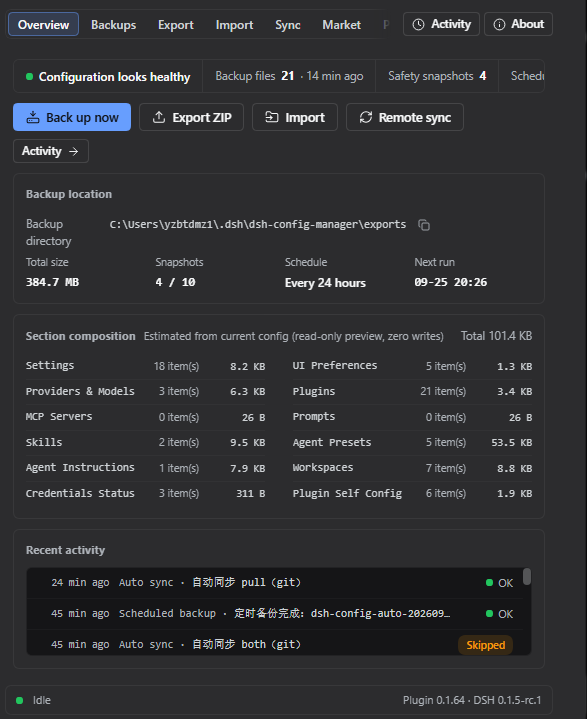 |
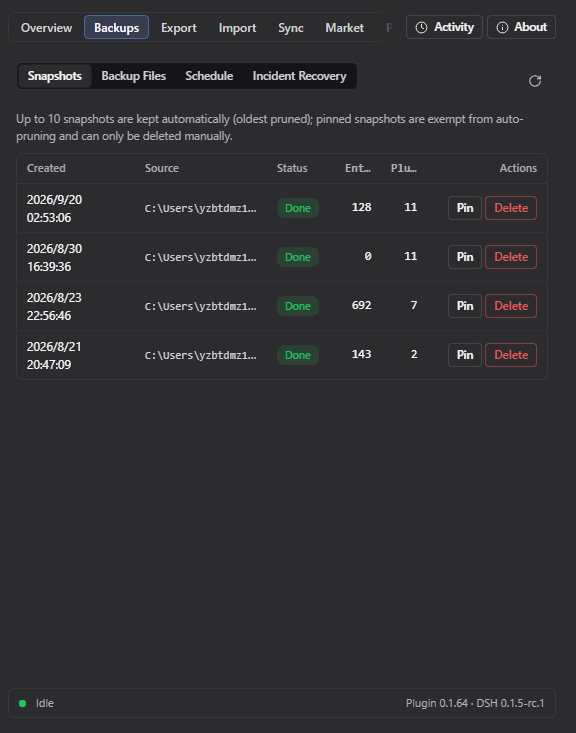 |
| Sync (four channel cards) | Environment · Maintenance & Diagnostics |
|---|---|
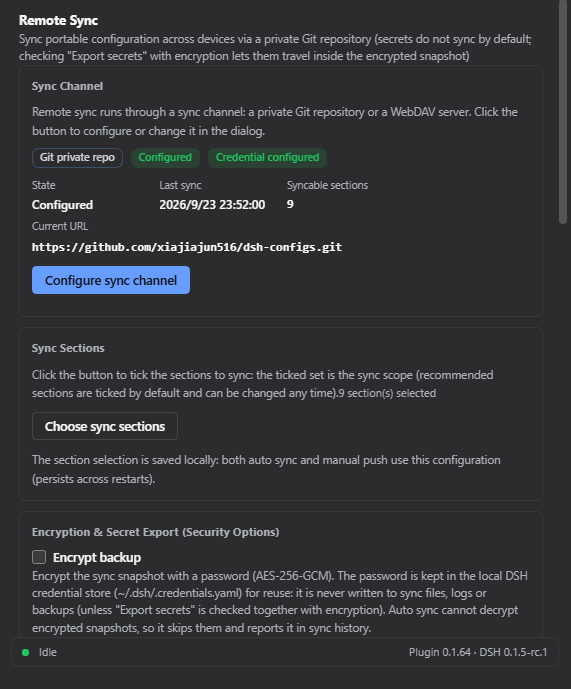 |
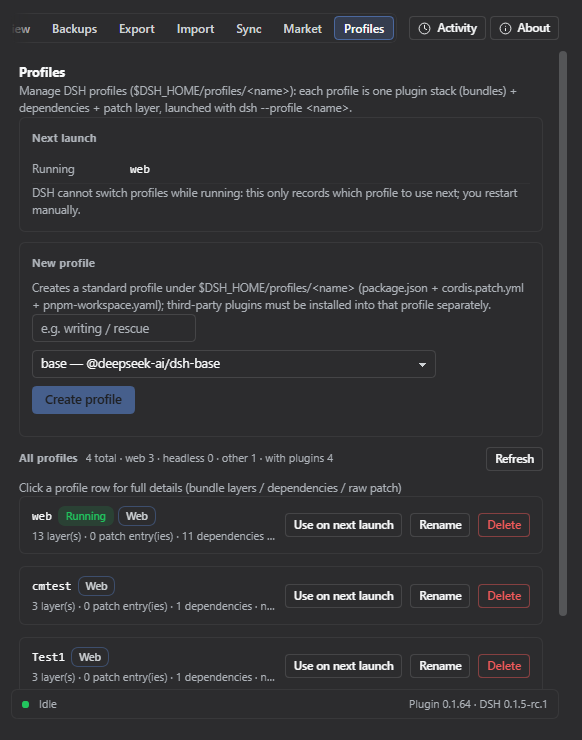 |
🔄 How it works?
Export (pack it up)
Read your config → strip secrets (safe) → build manifest → compute checksums → pack into ZIP
Import (restore the environment)
Every step confirms and backs up first — it never modifies your config directly:
Select ZIP → validate file → check integrity → check schema → compatibility check
    → scan contents → build import plan → migration consult (verdict + evidence)
    → choose what to import → per-item conflict decisions → path mapping / secrets re-entry
    → confirm import → auto-backup current config → apply → validate → done
                      │
                      └─ failed midway? → automatically restored (rollback, can be switched off on the confirm page)
Rewind (go back to a moment in a conversation)
One rollback point is captured automatically per turn (its workspace state is the one from before that turn), so you can always go back to that moment:
Click "↺ rewind" on a user message → preview which files change and how many lines
    → confirm → a new branch conversation continues from that moment, the original is archived
    → rewound too far? the "rescue point" captured before the rewind can undo it
📥 Installation
It's a standard DSH plugin — two steps:
# ① Install the plugin
dsh plugin --profile web add dsh-config-manager@latest

# ② Restart DSH (a "Backup & Migration" entry appears in Settings)
💡 Just copy-paste the command:
@latestensures you get the newest build.🐛 If
@latestinstalled an old version: that's pnpm'sminimumReleaseAgesupply-chain policy (not a cache issue). The gate is evaluated per version, at resolution time: a release younger than the threshold (~30 days) stays invisible to@latestuntil it ages past it — and the clock restarts for every future release. Installing an exact version once fixes that one version only; the next release published is invisible to@latestagain. It is not a one-time fix.Permanent fix (recommended) — exempt this single package from the age gate. Add to the profile's
pnpm-workspace.yaml(~/.dsh/profiles/web/pnpm-workspace.yaml):minimumReleaseAgeExclude: - dsh-config-managerAfter that
@latestresolves the newest release normally — including every future release.One-off fix — ask npm which version is actually latest and install exactly that. Repeat it each time a newer version has been published:
# Windows (PowerShell)
$v = (npm view dsh-config-manager version).Trim(); dsh plugin --profile web add "dsh-config-manager@$v"
# macOS / Linux dsh plugin --profile web add "dsh-config-manager@$(npm view dsh-config-manager version)"After restarting DSH, Settings → Backup & Migration → the About icon at the top right shows the version you are actually running (and pops up the release notes whenever it changes).
- Or disable the age gate entirely with a one-liner (adds
minimumReleaseAge: 0at the top of the profile'spnpm-workspace.yaml):$f = "$env:USERPROFILE\.dsh\profiles\web\pnpm-workspace.yaml" $c = Get-Content $f -Raw if ($c -notmatch '(?m)^minimumReleaseAge:') { Set-Content -LiteralPath $f -Value ("minimumReleaseAge: 0`n" + $c) -Encoding utf8 Write-Output "Added minimumReleaseAge: 0" } else { Write-Output "Already present, nothing to do" }🐛 Install rejected for a version you never installed? Symptom: pnpm logs
+ dsh-config-manager ^0.1.66, yet DSH reportsPlugin dsh-config-manager@0.1.44 is incompatible with dsh …and rolls the install back.The cause is neither pnpm nor version resolution. After installing, DSH runs a compatibility check that reads this plugin's
cordis.patch.ymlmount row (name: 'dsh-config-manager') and resolves that package again — and Node's resolution chain honoursNODE_PATH. If your global npm root (npm root -g) still holds an old copy of the same package (for example anpm i -g dsh-config-managerof 0.1.44 from earlier), the check compares that copy'speerDependenciesand reports a version pnpm never installed.Confirm and fix:
npm ls -g dsh-config-manager         # output means a global copy exists
npm i -g dsh-config-manager@latest   # upgrade it (or npm uninstall -g dsh-config-manager to remove it)
Then retry the install. As long as that global copy exists and is incompatible with your DSH, every profile (
web/desktop/ custom) is rejected the same way.
Installing from the GitHub source (git+https://...)
When installed from a git source, pnpm first runs this package's prepare script (= npm run build) inside that clone to produce lib/ — npm ships a prebuilt lib/, a git install builds it on the spot. pnpm 11 blocks that script by default, so the install fails with dsh: plugin command failed and this in the log:
ERR_PNPM_GIT_DEP_PREPARE_NOT_ALLOWED  Failed to prepare git-hosted package ...
The git-hosted package "dsh-config-manager@x.y.z" needs to execute build scripts
but is not in the "allowBuilds" allowlist.
Fix: copy the exact line pnpm prints (it includes the full git URL and commit sha) into the profile's pnpm-workspace.yaml:
# ~/.dsh/profiles/web/pnpm-workspace.yaml
allowBuilds:
  dsh-config-manager@git+https://github.com/xiajiajun516/dsh-config-manager.git#<sha printed by pnpm>: true
The key must be copied verbatim — the bare package name
dsh-config-managerdoes not work (the allowlist matches on source + version). The simpler path is the prebuilt npm release above (dsh-config-manager@latest), which needs no allowlist at all.
🚀 Quick start (3-minute tour)
Where things are: there are only 4 top-level pages — Home (how this machine is doing, plus the four actions Back up now / Export / Import / Remote sync), Library (local snapshots / backup files / remote snapshots / marketplace configs — every "thing" lives in this one list), Sync (four channel cards: Git / WebDAV / object storage / Gist) and Environment (Profiles / Maintenance & Diagnostics). Export, import, browse market and publish to market are flow panels: open them from the Home toolbar or the Library footer, switch pages to collapse, switch back to continue. The four icons at the top right are the ⌘K command palette, activity, migration history and About.
Machine A (export)
  1. Open DSH → Settings → "Backup & Migration" → Home
  2. Click "Export" in the toolbar → the recommended sections are already ticked (change them via "Choose what to export")
  3. Click "Start export" → the ZIP is downloaded automatically as dsh-config-<date>-<random>.zip (the report confirms no secrets inside)

Copy the ZIP to Machine B (import)
  1. Open DSH → "Backup & Migration" → click "Import" on Home (or "Import from file" in the Library footer)
  2. Select the ZIP → wait for analysis → read the migration consult verdict and evidence → "Next: choose what to import"
  3. Tick the content you want (anything unticked is neither imported nor snapshotted)
  4. Path issues? → fill in new paths under "Path mapping" (batch prefix mapping supported)
  5. Conflicts? → pick "Keep current / Use backup" per item (bulk buttons included)
  6. "Confirm import" → wait (a safety snapshot is taken first; "roll back everything on failure" can be switched off on the confirm page)
  7. Re-enter any missing API Keys as prompted
  8. ✅ Settings / plugins / MCP / skills / workspace / global instructions (AGENTS.md) are back
🧩 Features
📤 Export (one flow + a content picker)
Open the Export flow panel (Home toolbar → "Export", or the Library footer → "Manual export") and do it on one screen:
| Area | Description |
|---|---|
| Choose what to export | Opens the content picker: section → smallest splittable unit, ticked item by item; the recommended sections (portable, not device-specific) are pre-ticked and can be changed any time |
| Security options | Two independent switches: "Encrypt backup" (scrypt + AES-256-GCM) and "Export secrets"; ticking Export secrets auto-enables encryption (secrets are never plaintext) |
| File name & note | Your own file name plus a note (the note makes it findable in the Library); illegal characters are pointed out right at the field |
| What will be exported | An always-visible composition card: every section that will really go in, its item count and total size; unreadable sections say "loading / read failed" instead of a fake 0 |
| Result | On completion the ZIP is downloaded automatically to your browser's download folder (the report offers it again); the report lists sections and warnings item by item |
Export is read-only — it writes no configuration. The file carries a manifest + per-section data + SHA-256 checksums and defaults to
dsh-config-<date>-<6 random chars>.zip(a name clash increments instead of overwriting an existing backup).
Export extras:
- Preview before export — see what will be packaged (section count + estimated size, no secrets) before anything is written
- Custom file name & note — name the ZIP yourself (auto-naming is the default) and attach an optional note that shows in the Backup Files list (the note travels with the self section when you sync/backup the config)
📥 Import (safe flow)
- Nothing is written before confirmation — analyze & preview are zero-write
- Backup before applying — the target config is snapshotted automatically
- Automatic rollback on failure — full rollback or skip-and-continue, your choice
- Next-steps checklist after import — the result page lists what needs a DSH restart (per plugin/MCP), credentials to re-enter, and failed/skipped items you can retry
👀 Import Preview (dry run)
Shown fully before importing:
✓ 18 settings will be updated    ✓ 6 plugins already installed
⚠ 2 plugins need installation    ⚠ 3 secrets need re-entry
⚠ 1 path needs mapping           ⚠ 2 conflicts need attention
⚔️ Conflict handling
When the target already has a same-named item, you choose:
| Option | Meaning |
|---|---|
| Keep current | Leave the target's config untouched |
| Use backup | Overwrite with the backup's value |
There are also two bulk buttons at the top of the list ("Keep all current" / "Use all from backup").
Note: a "decide later / review" option is intentionally not offered — an undecided conflict would block the import from proceeding. Every conflict must be resolved before continuing.
🗺️ Path mapping
C:\Users\alice\projects doesn't exist on the new machine? The plugin:
- Detects the dead absolute paths automatically
- Lets you pick new paths
- Supports batch prefix mapping (
C:\Users\alice\→/Users/bob/in one shot)
🧳 Import from other AI agents (config + chat history)
You do not have to rebuild another agent's setup by hand.
- 30 sources recognized — Claude Code, Hermes, Cursor, Codex, Antigravity, Gemini, OpenCode, Mimocode, ZCode, Grok Build, OpenClaw, Pi, Kimi, Kilocode, Qoder, ChatGPT, WorkBuddy, Qwen, Continue, Cline, Goose, Zed, Crush, TeleAgent, Trae, Vibe, Reasonix, Copilot, and DSH itself (importing from another DSH home — its v3 and v4 logs count as two ids). Sources not installed on this machine are still listed (greyed out, not selectable), so "this machine has no such tool" is never mistaken for "the feature is missing".
- Translation, not a second import path — the source is converted into a standard bundle v1 ZIP and handed to the existing import wizard: same preview, same per-item conflict decisions, same pre-import snapshot and rollback, same dry-run.
- What travels — MCP servers, skills, global instructions (as
AGENTS.md), and chat history together with the workspaces those conversations belong to (29 sources; conversations are re-encoded into DSH's session-log format and placed by their recordedcwd). - What does not — secret values are never read: only the key names are recorded so the plan can ask you to re-enter them. Structures DSH has no equivalent for (Claude Code hooks, slash commands, …) are reported as explicit codes rather than silently dropped.
- Honest skips — a conversation with no recorded
cwdcannot be placed and is reported as skipped (never guessed into some other project); known lossy items are listed before the import runs. - Entry points — Home toolbar → "Import" → "Import from another agent" (Home also has a direct entry), the ⌘K command, or the CLI:
dcm import --from <source> [--dry-run] [--out <path>].
🔒 Secrets
| Scenario | Behavior |
|---|---|
| Default backup | No secret values at all — only records which keys are needed |
| Encrypted backup (explicit opt-in) | scrypt + AES-256-GCM, random salt & IV per export; secrets never leave as plaintext, and the password is never written to the file |
| Encrypted backup import | The export-time password is required: enter → verify → credentials are restored; no password, no import |
| After non-encrypted import | "3 secrets need re-entry" — values stay in memory only |
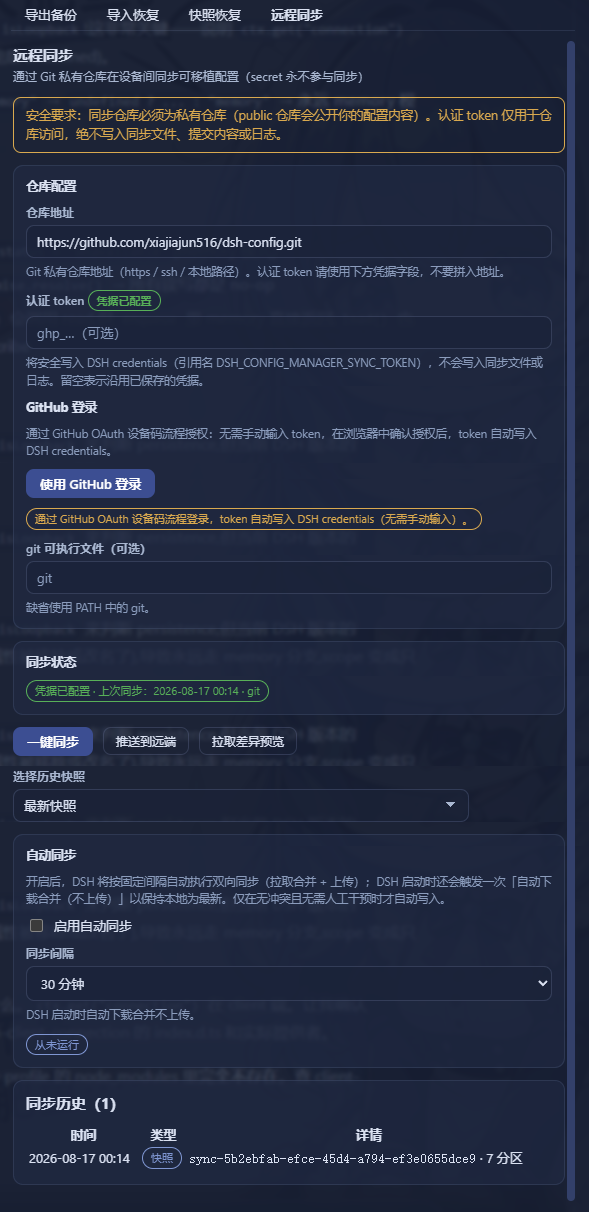
🔄 Remote Sync (four channels)
The Sync page renders one card per channel, all four always visible (unconfigured ones are a short state with the configure button inside) — Git private repo / WebDAV server / object storage (S3-compatible: AWS S3, Alibaba OSS, Tencent COS, MinIO, Qiniu Kodo) / GitHub Gist:
| Channel | Endpoint (non-secret fields) | Credentials (DSH credentials only, never read back) |
|---|---|---|
| Git private repo | repoUrl (pick from the private repos the current token can see, or create a new private one inline) |
access token → DSH_CONFIG_MANAGER_SYNC_TOKEN |
| WebDAV | webdav.url |
username stored in the config (echoed in the UI); password never synced / never logged → DSH_CONFIG_MANAGER_SYNC_WEBDAV_PASSWORD |
| Object storage (S3-compatible) | endpoint / region / bucket / object key prefix / AccessKey ID (an identifier, may be echoed) | AccessKey Secret → that channel's own credential slot (the sync file keeps only a "configured" marker) |
| GitHub Gist | gist id / API base / file prefix | Gist token → that channel's own credential slot |
- Every channel is configured on its own: sync sections, auto sync (switch + fallback poll interval), encryption and "Export secrets", remote snapshots and the encrypt/decrypt passwords are all per channel, inside that channel's own card (configured cards collapse, so four expanded cards cannot overflow the canvas).
- Remote retention follows your backup schedule: by default the newest 10 snapshots, plus optional "one per month / one per year" tiers — and the snapshot you just pushed is always kept; older ones are deleted automatically.
- Switching channels starts fresh: channels do not share snapshots or a common ancestor. When you switch transport (or reconfigure one), sync begins again from the new remote's empty baseline — push a fresh snapshot first.
- Changing a Git repository address just works — and the working copy has a repair entry: the working copy under
<dataDir>/sync/workre-points itsorigin(fetch and push URL) at the configuredrepoUrlon every sync (zero write commands when they already match), so switching between two reachable addresses of the same repository (LAN → VPN/Tailscale, host rename…) no longer leaves sync talking to the old address — the failure used to look like a plain network timeout. The Git card shows the working copy's path and origin plus a warn badge when it still points elsewhere, and offers "re-point repository address" (non-destructive) and "clone working copy again" (deletes<dataDir>/sync/workand re-clones — discards commits that were never pushed, hence the danger confirmation). SSH host-key failures and "the remote is not the same history" now come with actionable messages instead of raw git stderr. - WebDAV auth uses HTTP Basic: the
usernameis stored in the config and may be echoed back into the UI, while thepasswordis read live from the DSH credentials slotDSH_CONFIG_MANAGER_SYNC_WEBDAV_PASSWORD— it never appears in any sync file or log. - Plugins auto-install: when pulling diffs, plugins that are new in the backup are installed automatically on confirm — no manual per-item ticking in the diff list. Only version-conflict plugins still ask you to pick "Keep current / Use backup".
- Push preview before uploading — the Push button first shows a read-only preview of what will be sent (sections + per-section counts + changed-vs-baseline markers, first-baseline notice) and only writes the remote after you confirm.
- Secrets do not sync by default: every section goes through the
SecretScanner(sensitive field values stripped) and the credential section is structurally excluded. With "Export secrets" checked and an encryption password set,~/.dsh/.credentials.yamltravels as scrypt + AES-256-GCM ciphertext in a separate credentials payload of the encrypted snapshot (never inside any section); the receiving side decrypts it into per-ref "credential migration" items that are written back to the local credential store (credentials.set) only after you confirm. The encryption/decryption password is kept in a dedicated local DSH credential slot (~/.dsh/.credentials.yaml): it is remembered once "Encrypt backup" is checked (leave the fields empty to reuse it) and cleared when you uncheck it or press "Delete saved password" — never written to sync files, responses, logs or the exported backup, and never sent back to the browser. The decryption password is only ever used when the pulled snapshot is actually encrypted. Auto sync never carries credentials (it has no password and skips encrypted snapshots).
🛒 Configuration Marketplace
Browse and install ready-made configurations (model providers, plugins, MCP servers, skills, agent presets…) shared by the community. The entry point is the Library footer ("Browse market / Publish to market") (or ⌘K) — it is a flow panel, not a top-level page:
- Built-in official market — read-only, bound to the official public repo (official badge shown, not editable); first open auto-refreshes, manual refresh also available
- Search & filter — keyword search (matches name / description / author / categories), category filter, section filter (items already downloaded list their sections; others are excluded with a hint), source filter (Official / Community), sorting (recently updated / most starred / name A–Z), and a ⭐ badge showing the source repo's star count (queried anonymously, no token involved)
- Impact preview — the detail view shows "what installing this will change" (items updated / identical / conflicts / secrets to re-enter / DSH restart needed) before you approve anything
- Supply-chain warnings always shown — source repo URL, "not officially reviewed", download time; per-item content selection — the selection step lists what each item will change and flags high-risk sections in place (selected by default; unchecking excludes them from the import and the snapshot); high-risk content (sessions / arbitrary files) is still banned from listing outright
- Install reuses the safe import pipeline — analyze → preview → auto-backup → apply → rollback; nothing is written before you confirm
- "My Configs" — sign in with GitHub (device flow), upload a config to your own public repo in one click, and an auto listing PR is opened against the official market repo; manage your listings (status badges: not listed / PR pending / listed), update in one click, install back locally, or delist (auto de-listing PR)
🗂️ Profiles (= DSH's own profiles)
A "profile" here is DSH's own profile ($DSH_HOME/profiles/<name>) — one plugin stack (bundles) + dependencies + patch layer,
launched with dsh --profile <name>. Environment → Profiles reads and writes that directory directly instead of keeping its own config snapshots:
| Action | What it does |
|---|---|
| List / details | Bundle layers, dependencies, patch entries and size, patchReload, node_modules, mtime; details show the raw package.json and cordis.patch.yml (redacted before display) |
| Create | Writes the standard three files under $DSH_HOME/profiles/<name> (equivalent to the shipped initProfile); starting templates: base / web / headless / sdk / sdk-minimal / acp |
| Rename | Directory move + fixes the manifest name field; the running profile is refused |
| Delete | Hard-deletes the whole directory (including node_modules); deleting the running profile needs an extra checkbox |
| Launch this profile | The switch that actually works: starts an independent DSH instance for that profile (free port picked automatically, browser opened automatically); the running instance and its tasks are untouched. Web-shaped profiles only — non-web ones (e.g. the base template) have no browser UI, so the page shows the terminal command instead of failing silently |
| Stop instance | While that profile has a running instance, the row button flips from Launch to Stop (the Runtime card also offers one); it asks the process to exit first (grace period) and terminates the process tree only after that, reporting which path was used. Deleting a profile with a running instance is refused |
| No duplicate launches | “Which profiles are running” = the ledger of instances this plugin started ∪ each instance's own heartbeat (<dataDir>/running/<profile>.json, pid/port only — never the auth token). So even a profile you started by hand with dsh web will not be launched a second time (you get a clear “already running” message); the instance you are using right now offers no Stop button (that would kill your own session — close that window/terminal, or stop it from the instance that launched it) |
Why there is no "set as next launch" (button and marker removed in 2026-09): DSH has no "default / next launch profile" state — the profile comes only from the launch arguments (
dsh <name>/--profile <name>;dsh webis a hard-coded alias), so any "which profile to use next" marker has no consumer at all: thedsh webyou type yourself still boots web after a restart. Only two mechanisms really switch profiles: ① the Profiles view's "launch this profile" (an extra instance, no interruption, stoppable at any time), ② pointing your launch command/shortcut atdsh --profile <name>(ecosystem tools such as dshm and DSH Launcher all spawn instances from an external launcher). Instances started by this plugin are recorded in<dataDir>/launches.json(pid/port/log), which is why they can be stopped; third-party plugins must be installed into that profile separately (dsh plugin --profile <name> add <pkg>). The view lives at Settings → "Backup & Migration" → Environment → Profiles.
↺ Rewind (go back to a moment)
Every user message in the chat carries a "↺ rewind to here" — no trip to Settings, and nothing to export first:
| Action | What it does |
|---|---|
| Back to that moment | Continue from before that message: the plugin opens a new branch conversation to take over while the original is archived intact (its content is never rewritten; the conversation list shows only the rewound one) |
| Conversation only / files too | By default only the conversation is rewound; tick "revert workspace files too" to touch the disk, and you get a per-file diff with line counts first |
| Rewind preview | States up front how many files change, how many lines are added or removed and how many are deleted; clicking a file name shows its "now → after rewind" diff (the same screen appears in the settings rollback panel and in the chat bubble) |
| Automatic rescue points | A protective point is captured before every rewind so a wrong rewind can be undone; 20 per conversation / 50 globally, oldest dropped first |
| Rollback ledger | Environment → Maintenance & Diagnostics → "View rollback points" opens the rollback ledger dialog: every rewindable moment grouped by conversation with real titles, removable one by one |
Capture is automatic: one point (workspace + conversation) is recorded per turn — its workspace state is the one from before that turn — and there is no manual "take a snapshot" step. Points live under $DSH_HOME/dsh-config-manager/rollback-points/; pre-upgrade three-state checkpoint data stays on disk, is no longer read, and is never deleted by the plugin.
Skip directories you choose: drop a .dsh-rollback-ignore file in the project (the usual .gitignore subset) and capture plus rewind skip the matching directories and files (the built-in dependency directory cannot be re-included). When a whole directory is skipped, deleting files created after that point is refused outright rather than done partially.
Two honest boundaries: ① while a conversation is running, only the conversation is rewound by default, never the files (the plugin will not race a running tool for the disk) — reopen the dialog after the turn finishes to revert files too; ② when a point's capture is incomplete the plugin never guesses — only files it can prove did not exist at capture time are deleted, otherwise nothing is deleted and it says so.
Straight from the chat: type /rollback to list this conversation's rewindable moments, then run it again with one of those ids to rewind without leaving the chat.
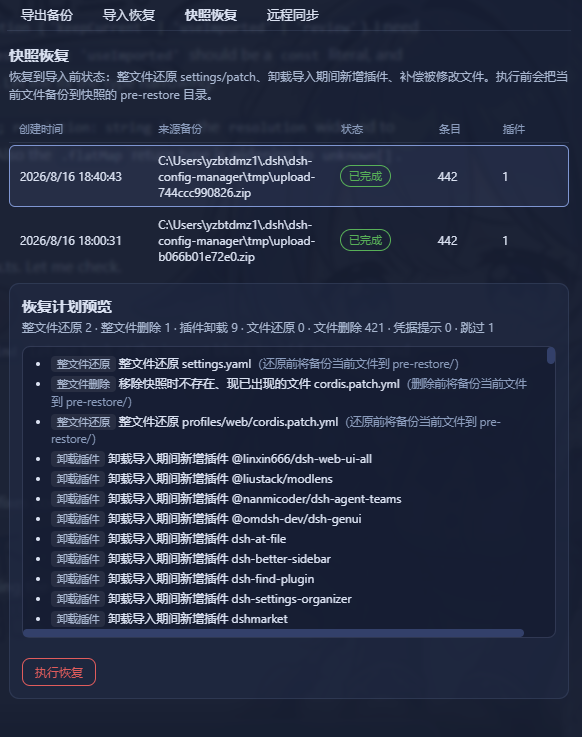
📸 Snapshot restore (undo an import)
Every import creates a safety snapshot first. If something feels off afterwards, restore the target back to its pre-import state:
| Action | What it does |
|---|---|
| Whole-file restore | settings.yaml / settings.json / cordis.patch.yml blobs are written back to $DSH_HOME; files that didn't exist at snapshot time but appeared after import are removed |
| Plugin uninstall | Plugins added during import are removed via the official dsh plugin remove (baseline comparison; old snapshots without a baseline only get a hint) |
| File compensation | skills / agentPresets / agentInstructions / pluginFiles / pluginData / pluginAssets / sessions blobs are written back to their original paths |
| Credentials | DSH never reads credential values back — you get a manual re-entry hint instead |
GUI: Library → switch the source filter to "Local snapshots" → the row's ⋯ menu → "Restore" → review the plan (dry-run, zero writes; a git-style line-by-line comparison) → confirm. The same menu offers "Inspect & compare / Migration consult / Pin / Delete", depending on what that row is.
Snapshot management:
- Retention is visible — how many snapshots are kept is up to your retention policy (Home → Scheduled backup card; the default keeps the newest 10); the hint is shown in the list
- Pin important snapshots — a pinned snapshot is exempt from auto-pruning and can only be deleted manually
- Manual delete — remove any snapshot (danger, confirmed) when you no longer need that rollback point
Backup files (Library → "Backup files" source):
- Every export ZIP in
exports/(manual + scheduled) with its source badge, size, time and your note - Search by file name or note
- Inspect / Compare — read-only preview of what the backup contains (sections + per-section counts) and the diff against your current config (zero writes) before deciding to import
- Download, import straight back, delete
Disk usage (Environment → Maintenance & Diagnostics): the "Disk usage" card lists what this plugin itself occupies (exports, pre-import snapshots, sync config and working copies, marketplace cache, temp staging, logs, transaction log, …) and labels each item's cleanup policy: regenerated on demand (caches/staging), retained (exports for 7 days, scheduled backups keep the latest N), or your data / safety net (snapshots and sync — never auto-cleaned). "Clean now" clears only regenerable caches by default; reclaiming expired backups is an explicit opt-in with a confirmation. Snapshots and sync data are never touched, and unreadable directories are reported as "not measured" instead of a misleading 0 bytes.
🚨 CLI — the first line of defense when DSH is broken
The GUI lives inside DSH — it can't help you if DSH won't start. The dsh-config-manager CLI is completely independent of the DSH runtime (pure Node + the core engine, zero @deepseek-ai/* imports — it runs even when the DSH peer packages are broken or missing). That makes it your first rescue tool when the config is corrupted, the GUI won't boot, or you changed machines and need to bring an environment back.
It is a standalone npm tool, installed separately from the plugin. Install it once on any machine that might need rescuing:
# --omit=peer: the offline CLI only needs js-yaml, not the DSH peer packages
npm install -g dsh-config-manager@latest --omit=peer
⚠️ Installing/updating the plugin (
dsh plugin --profile web add ...) only enables the GUI — it does not create thedsh-config-managercommand. Run the install command above, then any of the commands below.
All commands (also shown by dsh-config-manager help, which groups them by risk; dsh-config-manager <command> --help prints one command's options, exit codes and examples):
# Rescue console (local web page — the least typing)
dsh-config-manager web [--port <n>] [--no-open] [--home <dir>]
                       [--data-root <dir>] [--idle-timeout <min>]

# Inspect (never touches your config)
dsh-config-manager snapshots [--data-dir <dir>]                # list snapshots (newest first)
dsh-config-manager verify [<file|path>] [--json]               # read-only check of backup ZIPs
                           [--data-dir <dir>]
dsh-config-manager sessions list   [--home <dir>] [--json]     # list local sessions
dsh-config-manager sessions doctor [--home <dir>] [--json]     # health check + advice

# Backup & migrate (only writes new files)
dsh-config-manager backup [--sections <a,b,c>] [--out <path>]  # offline file-level backup
                          [--dry-run] [--data-dir <dir>]
dsh-config-manager import --from <source> [--dry-run]          # foreign agent config → bundle ZIP
                           [--out <path>] [--cwd <dir>] [--data-dir <dir>]

# Repair (writes to this machine — preview with --dry-run first)
dsh-config-manager restore [--id <id>] [--dry-run]             # roll back to a pre-import snapshot
                           [--data-dir <dir>] [--data-root <dir>]
                           [--profile <name>] [--settings <path>]
dsh-config-manager sessions repair [--home <dir>] [--fix]      # offline session layout repair
                                   [--keep <dir>] [--map old=new]...
dsh-config-manager recover-stale-lock [--data-dir <dir>]       # clear a leftover lock (see below)

# Dangerous (changes your DSH install / may wipe data)
dsh-config-manager reinstall [--version <v>] [--yes] [--list]
                             [--wipe-config] [--dry-run] [--data-root <dir>]

# Help
dsh-config-manager help [command]                              # overview / one command's detail
reinstall — rescue when DSH is broken. It reinstalls the @deepseek-ai/dsh launcher across platforms (uses the right command per OS: PowerShell on Windows, bash on Unix). By default it reinstalls the launcher + clears global caches; interactively it asks which dangerous clean-up items to include (settings / plugins / session data & credentials) — those are not selected by default, and any destructive choice requires a second confirmation by typing YES before anything runs. Before wiping any ~/.dsh data it makes an emergency backup at .reinstall-backup (the snapshots/ folder is deliberately never touched).
# see the selectable clean-up items
dsh-config-manager reinstall --list

# interactive: pick items, confirm, then reinstall DSH
dsh-config-manager reinstall

# non-interactive: everything checked, skip confirmation
dsh-config-manager reinstall --yes

# wipe config data too (equivalent to checking all data items) — interactive confirm still required
dsh-config-manager reinstall --wipe-config

# preview the exact plan without running anything
dsh-config-manager reinstall --dry-run
Snapshot restore. List and restore the safety snapshots (offline — the restore engine is part of the CLI, so it works whether or not DSH can start):
dsh-config-manager snapshots                                  # list snapshots (newest first)
dsh-config-manager restore --dry-run                          # preview the plan (zero writes)
dsh-config-manager restore --id <snapshot-id>                 # execute (current files are backed up first)
Every overwrite/delete is first copied to <snapshotDir>/pre-restore/ so you can manually change your mind. Exit code is 1 if any action failed; the report honestly lists restored / removedPlugins / manualHints / failed / skipped.
verify — is that old backup still usable? The GUI lives inside DSH, so it cannot answer this when DSH will not start; verify can. It re-reads a backup ZIP from disk without writing a single byte, then reports one verdict per file:
| Verdict | Meaning |
|---|---|
OK |
Structurally valid and every entry matches its SHA-256 in integrity/checksums.json |
MISSING |
The file is not there (wrong path / already deleted) |
CORRUPT |
Damaged or tampered — the message names the exact offending entry |
UNSUPPORTED |
A valid backup this plugin version cannot read (schema too new, or an encrypted container that must be decrypted first) |
VERIFY_ERROR |
The check itself failed (disk I/O); never downgraded to a guess |
With no argument it checks every *.zip in the exports directory; pass a file name or a path to check just one. Exit code is 1 unless all checked backups are OK — which makes it safe to assert from CI or a scheduled task. --json prints the same result machine-readably.
dsh-config-manager verify                # check every backup in the exports directory
dsh-config-manager verify --json         # machine-readable (exit code still 0/1)
dsh-config-manager verify my-backup.zip  # check a single file by name
dsh-config-manager verify C:/backups/dsh-config.zip   # ...or by path
backup — backup even when DSH is down. This is the offline counterpart of the GUI export: it packs the parts of $DSH_HOME that can be read without the DSH runtime (skills, agent presets, agent instructions, and the plugin’s own config) into a ZIP with the same structure as a GUI export (manifest.json + integrity/checksums.json + section directories), then immediately self-checks what it wrote with the same engine as verify — a backup command that never verified its own output would be worse than none.
Credential files never enter a backup. .credentials.*, .env, *.pem and friends are excluded by an explicit blacklist, only whitelisted directories are walked (never the whole home directory), and symlinks are skipped rather than followed.
Offline backup only covers on-disk skills. Skills that live in the plugin registry (the ones the shell loads from a profile's plugin packages — see issue #71) need the DSH runtime to enumerate, so only the GUI export (or a scheduled backup while DSH is healthy) can include them; the CLI backup collects just the files under $DSH_HOME/skills. For a complete skills backup, use the GUI export while DSH is healthy.
Structured sections (settings / UI / providers / plugins / MCP / prompts / workspaces) are not silently faked: they need the DSH service layer to read and redact, so they are left out and marked false in the manifest — the plan printout lists them under “not offline-collectable” so you know exactly what this backup does and does not contain. Use the GUI export when DSH is healthy for a full backup.
dsh-config-manager backup --dry-run                       # list what would be packed (zero writes)
dsh-config-manager backup                                 # write into the exports directory, then self-check
dsh

…
Related plugins
archify
 tt-a1i
/archify
架构图生成 Skill 总仓(多宿主):可校验的自包含架构图、工作流图、时序图、数据流图与生命周期图。DSH 安装不走本仓根——根目录不是 DSH bundle,请用适配包 @tt-a1i/archify-dsh(见 DSH 集成条目)。
dsh plugin --profile web add @tt-a1i/archify-dsh@1.0.0DeepSeek-Bot
 Fei2411
/DS-Bot/ds-bot
DS Bot: a team of long-lived Bots for DeepSeek Harness, with Main Bots, Bot-to-Bot messages and group chats
dsh plugin --profile web add 'ds-bot@0.2.4'Study-Mate
 Miaotofu01
/Study-Mate
StudyMate learning skills and lesson engine for DeepSeek Harness, Google Antigravity, Codex and ChatGPT Work.
dsh plugin --profile web add 'github:Miaotofu01/Study-Mate#d8114f38363272852b339d6788b2f8f007243b43'dsh-plugin-subscriptions
 V1ki
V1ki/dsh-plugin-subscriptions
把 ChatGPT(Codex)、Claude 与 Grok(X Premium)订阅用作 DeepSeek Harness 的 LLM provider——Web UI OAuth 登录,无需 API key
dsh plugin --profile web add github:V1ki/dsh-plugin-subscriptionsRabiRoute
 vb2250158
/RabiRoute/plugins/rabi-dsh-context
Connect DSH lifecycle events and conversation context to Rabi Manager.
dsh plugin --profile web add 'github:vb2250158/RabiRoute#e483f87e68cef2c8f5112b101e333b1a9577a9f7&path:/plugins/rabi-dsh-context'dsh-deepseek-web-login
 cv-superding
/dsh-deepseek-web-login
Unofficial DSH plugin: use chat.deepseek.com web models as a DSH LLM provider (browser login capture + PoW solving + SSE streaming + prompting-based tool calls), provider route deepseek-web
dsh plugin --profile web add 'dsh-deepseek-web-login@1.0.3'