
Tools & Capabilities
dsh-remote
SCSpotato/dsh-remote · ★ 95
 SCSpotato
Native Android client to remotely control DeepSeek Harness (DSH) from your phone
Manifest details
安装
dsh plugin --profile web add github:SCSpotato/dsh-remoteGitHub 源码安装:首次需按提示配置 allowBuilds 构建授权后重试
For install and environment setup, plus plugin development tutorials, see DSH community docs ↗
README
Table of contents
- Table of Contents
- Architecture
- Features
- Home / Dashboard
- Session management
- Chat / Trajectory
- Trajectory panel
- Composer
- Decision cards (inline)
- Workspace files
- Settings
- Goal / Todo / Background jobs
- Notifications & background
- Repository Layout
- Quick Start
- 1. Install the DSH Harness
- Prerequisites
- Install
- 2. Install the Plugins
- Option A: official command (recommended)
- Option B: manual package.json
- 3. Start dsh web
- 4. Tailscale Networking
- 5. Caddy HTTPS Reverse Proxy
- 6. Install & Connect on the Phone
- Building the App Yourself
- How It Works
- Protocol
- App modules
- Server plugin (remote-control)
- FAQ
- Security Notes
- For users
- For developers / deployers
- License
中文 | English
The best remote control under ten million yuan.
Come on, little d, do your thing — buzzzzz~
Hope you enjoy it ^_^
A native Android client that remote-controls DeepSeek Harness (DSH) from your phone. Not a WebView wrapper — it is a from-scratch Kotlin + Jetpack Compose app that talks to the DSH host running on your computer over HTTPS + WebSocket. Keep the conversation going, watch the trajectory, and approve plans, all from your pocket. With Tailscale, it works from anywhere.
Table of Contents
- Architecture
- Features
- Repository Layout
- Quick Start
- 1. Install the DSH Harness
- 2. Install the Plugins
- 3. Start
dsh web - 4. Tailscale Networking
- 5. Caddy HTTPS Reverse Proxy
- 6. Install & Connect on the Phone
- Building the App Yourself
- How It Works
- FAQ
- Security Notes
- License
Architecture
  Android phone (DshRemote App)
        │  HTTPS + WebSocket (/api/events.mux)
        ▼
  Caddy reverse proxy  (https://<your-machine>.ts.net:8443 → localhost:3080)
        │
        ▼
  DSH host  (dsh web, 127.0.0.1:3080)
        │  ┌─ @deepseek-ai/dsh-base
        │  ├─ @deepseek-ai/dsh-web-app
        │  ├─ dsh-better-sidebar        (sidebar enhancement)
        │  ├─ dsh-computer-control      (computer control, for the model)
        │  └─ dsh-remote-control        (this repo: /remote/* API for the phone)
        ▼
  LLM (DeepSeek, etc., including native vision models)
- The phone only renders and interacts. All sessions, tools, and files live on the DSH host on your computer.
dsh-remote-controlis the server-side plugin shipped in this repo; it exposes the/remote/*routes (list dir, upload/download files, delete, rename, copy) used by the app.
Features
Below is everything the app can do, organized by screen (v1.4.4).
Home / Dashboard
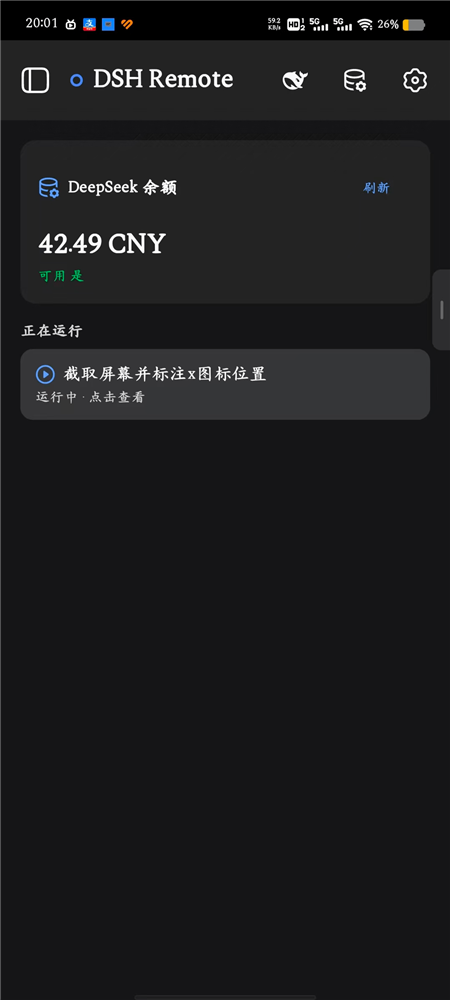
- Connection status: a dot at the top-left of the title bar shows the live connection to your computer (blue = connected, grey = disconnected).
- DeepSeek balance card: shows your current DeepSeek account balance (CNY) and "available" state; tap Refresh to re-query.
- Running: if a task is running on the computer, a "running · tap to view" entry appears here and deep-links to that session.
Session management
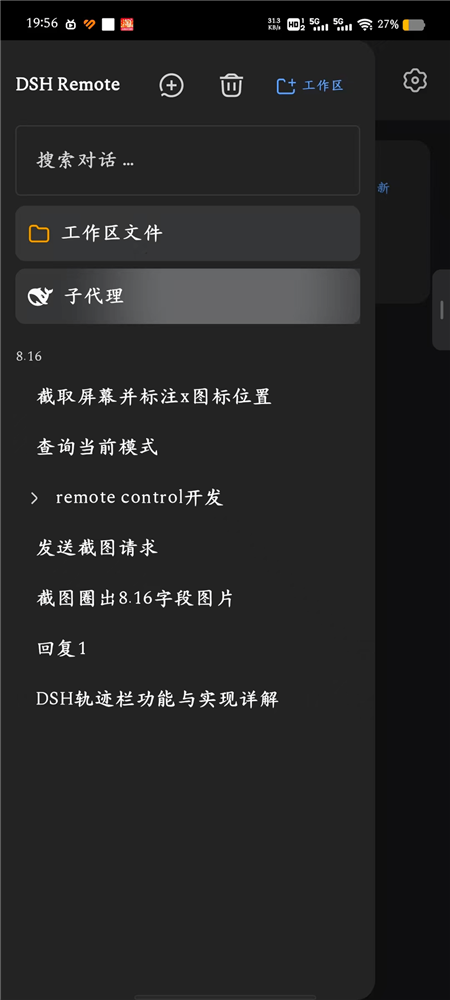
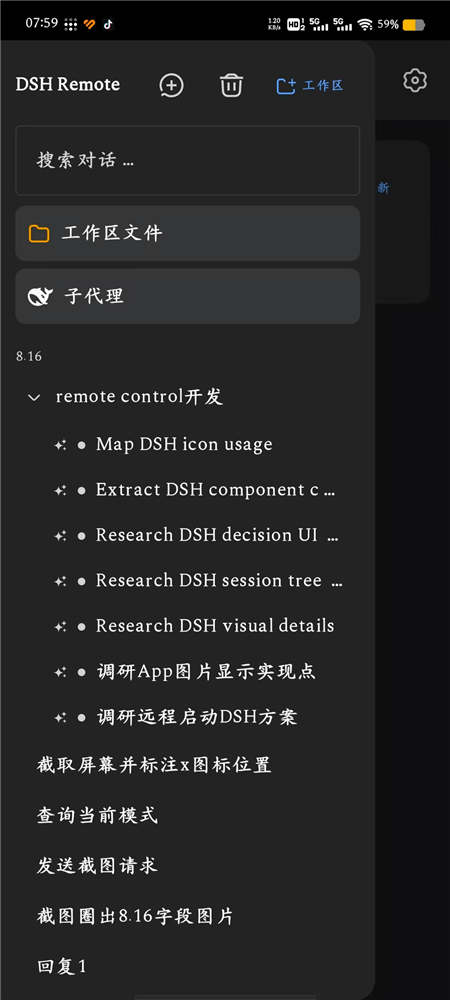
- Session list with live running state.
- New / archive / rename / search sessions.
- Subagents: open the subagent tree, see the children of each parent session and open them separately.
- Workspace: open the file browser (see below).
Chat / Trajectory
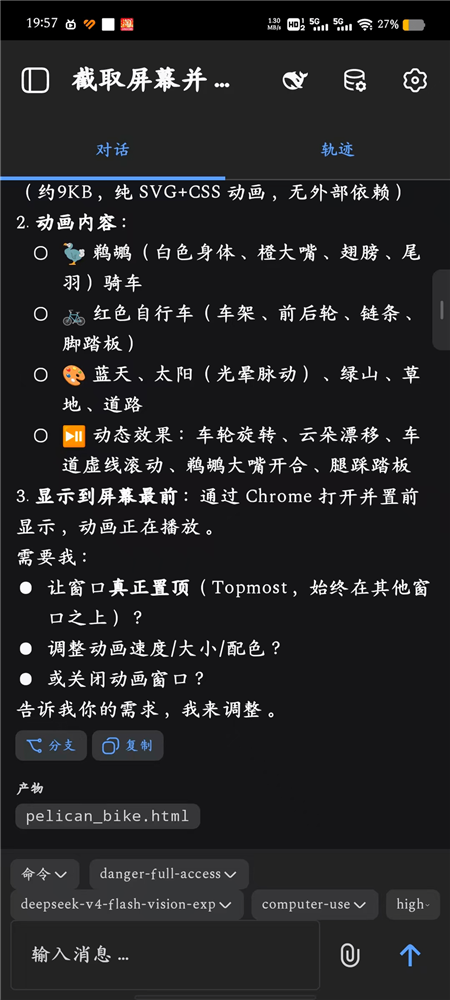
- Chat / Trajectory tabs: switch between the conversation and the trajectory view at the top.
- Streaming output for both the assistant text and its reasoning.
- Markdown rendering: headings, bold, inline code (grey box), code blocks, links, multi-level lists, quotes, task lists.
- Live todo list from the model.
- Tool cards for terminal commands, file edits (diff), search, and web fetches.
- Deliverables: at the end of each turn, the files created/modified are listed (e.g.
image_report.html). - Image thumbnails: images in the conversation render as thumbnails; tap to open the full-resolution original.
- Fork & copy on any message.
Trajectory panel
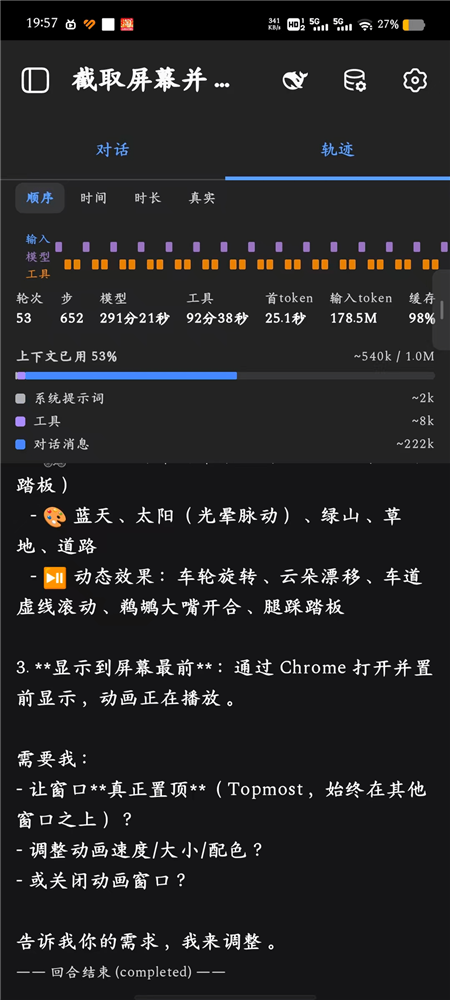
A three-lane (input / model / tools) timeline with per-turn details:
- Stats row: turns, steps, model time, tool time, first-token latency, total input tokens, cache hit rate.
- Context usage: percentage of context used (e.g. 53%), broken down into system prompt / tools / chat messages token usage.
- Timeline: view each step (model / tool) by order / duration / real time.
Composer
- Command / permission selector: switch permission presets (read-only / workspace-write / danger-full-access) and see the active command.
- Model selection: switch provider / model (e.g.
deepseek-v4-flash-vision-exp) and set reasoning effort (e.g.high). - Image send: attach a photo from the gallery or take one with the camera.
- Message input: input box + send button; lines starting with
/go through the host command channel (/plan,/goal,/permission, etc.), not as plain text.
Decision cards (inline)
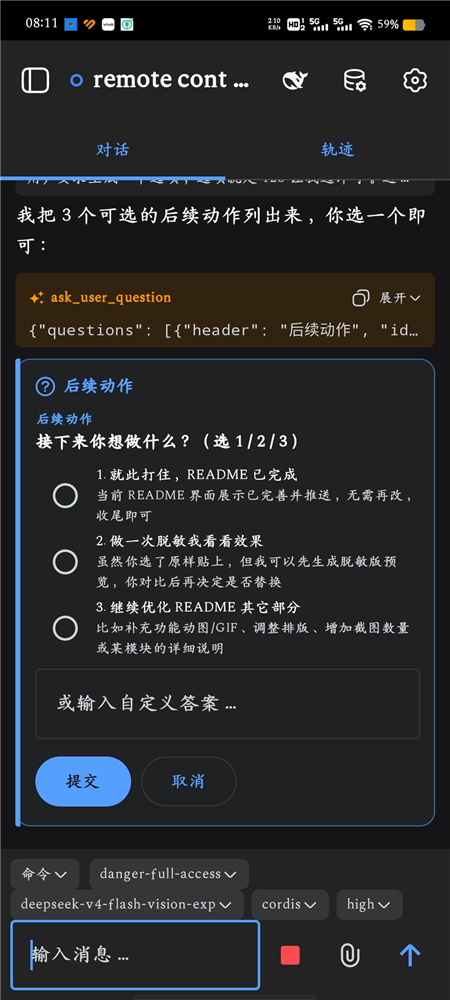
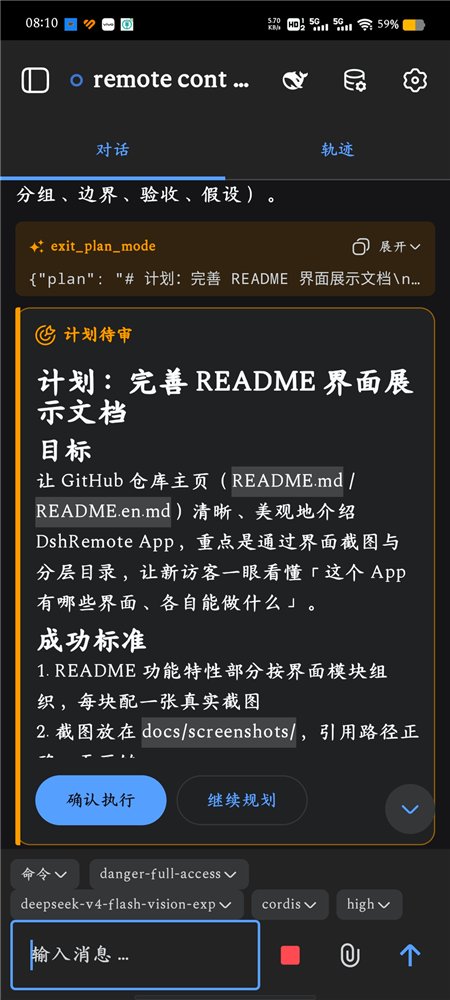
Plan review, tool approval, and AI questions render as inline cards at the bottom of the conversation — never as a modal covering the chat:
- Plan review:
Approve/Keep planning(accent bar + icon, scrollable long plans). - Tool approval:
Allow once/Reject. - AI question: single / multi select + custom answer.
Workspace files
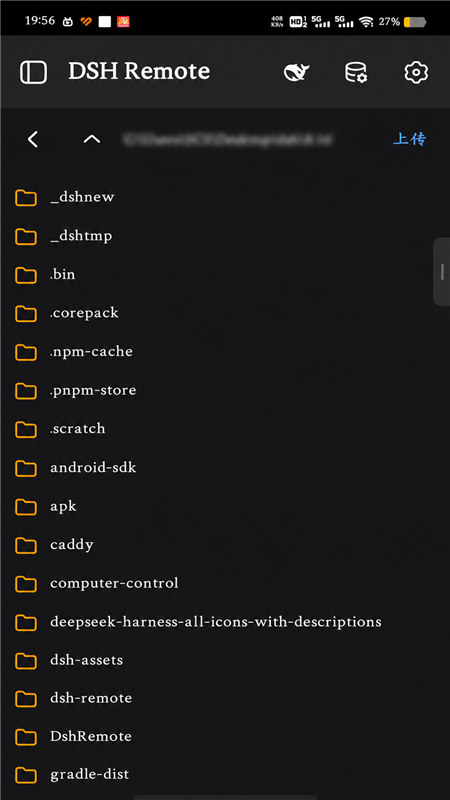
Browse the computer's workspace directory via the dsh-remote-control plugin:
- Directory browsing.
- Upload a file from the phone to the current folder.
- Download / delete / rename / copy files.
Settings
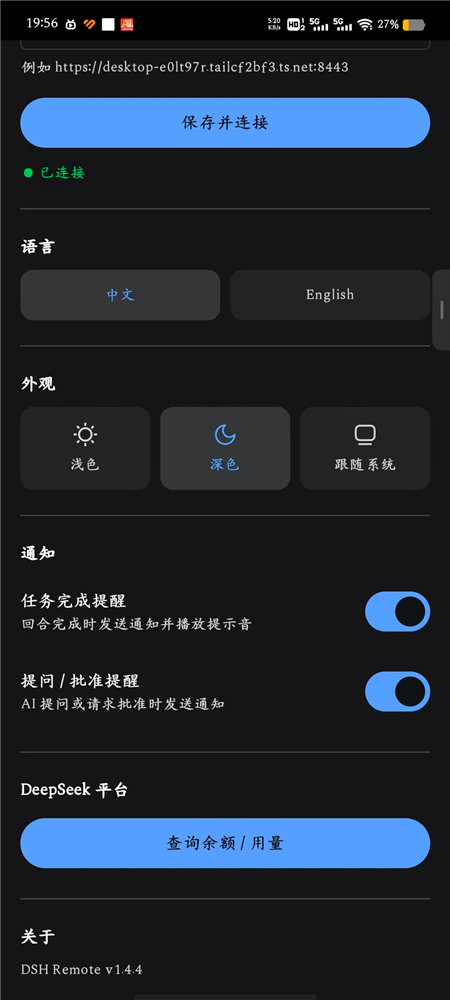
- Server address: fill in the computer's
https://…:8443URL, tap Save & connect; it reconnects automatically when changed. - Language: Chinese / English.
- Appearance: light / dark / follow-system.
- Notifications:
- Task done: sends a notification (with sound) when a turn finishes.
- Ask / approve: sends a notification when the AI asks a question or requests approval.
- DeepSeek platform: check balance / usage.
- About: shows the app version.
Goal / Todo / Background jobs
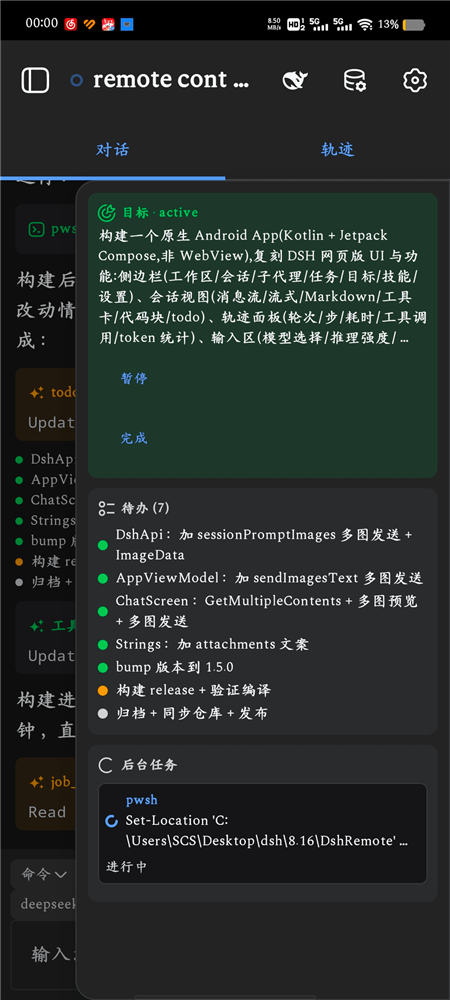
In the conversation, the running goal, its task list, and any background jobs surface as inline cards, live:
- Goal: the current goal title with its status (
active), with Pause / Complete. - Todo: the model's task list, checked item by item (done / in-progress / pending).
- Jobs: shell / commands running in the background, showing the command and a "running" state.
Notifications & background
A foreground service keeps the app alive in the background and posts system notifications for: task done, task error, AI question, and approval requests. Tapping a notification deep-links to the right session.
Repository Layout
dsh-remote/
├── DshRemote/            Android client source (Kotlin + Jetpack Compose)
│   └── app/src/main/java/dev/dsh/remote/
│       ├── data/         models, DSH API, settings store
│       ├── net/          RPC client, WebSocket client
│       ├── ui/           screens (home/chat/trajectory/files/settings…)
│       ├── service/      foreground service (background notifications)
│       └── MainActivity.kt
├── remote-control/       dsh-remote-control server plugin
│   ├── lib/host.js       registers HTTP + SSE routes (/remote/*)
│   ├── cordis.patch.yml  mounts the plugin into the profile
│   └── package.json      bundle declaration
├── web-profile/          DSH web profile deployment template (package.json)
│   (APKs are distributed via GitHub Releases, not committed to git)
├── convert-icons.js      SVG → Android VectorDrawable icon converter
├── render-launcher-whale.js   launcher icon renderer
├── launcher-whale-wifi.svg    launcher icon source
├── keystore.properties.example signing config template
└── README.md / README.en.md
Quick Start
On the computer (Windows example):
# 1) install the DSH harness
mkdir dsh-app && cd dsh-app
npm install @deepseek-ai/dsh

# 2) install plugins (into the web profile)
npx dsh plugin --profile web add dsh-better-sidebar dsh-computer-control
npx dsh plugin --profile web add "file:C:/path/to/dsh-remote/remote-control"

# 3) start
npx dsh web
On the phone: download the latest DshRemote-1.4.4.apk from the Releases page → set the server address in Settings → connect.
For remote access over HTTPS, also do 4. Tailscale and 5. Caddy.
1. Install the DSH Harness
Prerequisites
- Node.js ≥ 20 (nodejs.org).
- npm registry access (in China you may set a mirror:
npm config set registry https://registry.npmmirror.com).
Install
mkdir -p ~/dsh-app && cd ~/dsh-app
npm init -y
npm install @deepseek-ai/dsh
The dsh binary is under node_modules/.bin/:
npx dsh --version
# 0.1.1-rc.2
DSH data (sessions, settings, profiles) lives in ~/.dsh (C:\Users\<you>\.dsh on Windows).
2. Install the Plugins
The web profile is a stack of plugin bundles. This project uses:
| bundle | role |
|---|---|
@deepseek-ai/dsh-base |
DSH core |
@deepseek-ai/dsh-web-app |
web UI (also hosts /api RPC + WebSocket) |
dsh-better-sidebar |
sidebar enhancement |
dsh-computer-control |
computer control (screenshot, mouse & keyboard for the model) |
dsh-remote-control |
this repo: the /remote/* file API for the phone |
Note: vision is natively supported by DSH (
deepseek-v4-flash-vision-expand other vision models);@liustack/modlensis no longer needed.
Option A: official command (recommended)
npx dsh plugin --profile web add dsh-better-sidebar dsh-computer-control
# link this repo's plugin by its absolute path
npx dsh plugin --profile web add "file:C:/path/to/dsh-remote/remote-control"
Option B: manual package.json
Copy web-profile/package.json to ~/.dsh/profiles/web/, set the dsh-remote-control file: path to your local absolute path, then:
cd ~/.dsh/profiles/web
npm install
Check the composed bundle stack with npx dsh --dump-config.
3. Start dsh web
cd ~/dsh-app
npx dsh web
Serves on 127.0.0.1:3080 by default; open http://127.0.0.1:3080.
npx dsh web --port 8080                                   # other port
npx dsh web --trusted-host "desktop-xxxx.tailxxxx.ts.net:8443"  # allow the Tailscale hostname
4. Tailscale Networking
- Install Tailscale on the computer: https://tailscale.com/download.
- Install it on the phone too.
- Sign in with the same account on both.
- Note your computer's MagicDNS name:
desktop-xxxx.tailxxxx.ts.net.
Tailscale's official docs already cover installation and login — it's referenced here, not repeated. Once the two devices can ping each other, networking is done.
5. Caddy HTTPS Reverse Proxy
The app talks HTTPS, so add a Caddy reverse proxy with a self-signed cert (the app trusts it):
{
  servers {
    protocols h1 h2
  }
}

https://desktop-xxxx.tailxxxx.ts.net:8443 {
  tls internal
  reverse_proxy localhost:3080
}
Start it with caddy run --config Caddyfile, then verify the phone browser can open https://desktop-xxxx.tailxxxx.ts.net:8443.
6. Install & Connect on the Phone
- Install the APK from the Releases page (Android 8.0+), or build it yourself.
- Open the app → Settings → set the server address to:
https://desktop-xxxx.tailxxxx.ts.net:8443
- Go back — it connects automatically. Then you can browse sessions, chat, watch the trajectory, approve plans/approvals/questions inline, browse/upload/download files, and receive background notifications.
Building the App Yourself
| dependency | version |
|---|---|
| JDK | 21 |
| Gradle | 8.11.1 |
| Android SDK | compileSdk 35 |
Open DshRemote/ in Android Studio, or build from the command line:
cd DshRemote
keytool -genkey -v -keystore keystore/my-release.keystore \
  -alias myalias -keyalg RSA -keysize 2048 -validity 10000
cp keystore.properties.example keystore.properties
# edit keystore.properties with your keystore path / alias / passwords
gradle assembleRelease
Output: DshRemote/app/build/outputs/apk/release/.
keystore.propertiesis git-ignored — your signing key and passwords never enter the repo.
How It Works
Protocol
- RPC:
POST /api/<method>, envelope{"type":"client-request","rpcId":"<uuid>","method":"...","payload":{...}}, response{"type":"server-response","rpcId":...,"result":{"ok":true,"value":...}}. - Realtime events: WebSocket
/api/events.mux—session/event,session/queue,session/jobs,session/projection,question/requested(AI question / plan review),approval/requested(tool approval), and more. - Commands:
POST /api/commands/executewith{"args":{"agentId":"<sessionId>","line":"/plan"}}to run host commands such as/plan,/goal,/compact,/permission.
App modules
| module | role |
|---|---|
net/RpcClient.kt |
HTTP RPC envelope |
net/WsClient.kt |
WebSocket mux event stream |
data/DshApi.kt |
wraps every DSH method (session/workspace/agentPreset/goal/commands…) |
data/Models.kt |
models + foldChat (event stream → chat items) |
ui/AppViewModel.kt |
connection, session switching, event handling, decision replies |
ui/MainScreen.kt |
home / session views |
ui/ChatScreen.kt |
chat flow + composer + inline decision cards |
ui/TrajectoryScreen.kt |
three-lane trajectory panel |
ui/Markdown.kt |
Markdown rendering |
ui/Strings.kt |
in-app i18n (中文 / English) |
ui/theme/ |
dark/light theme |
service/DshForegroundService.kt |
foreground service + background notifications |
Server plugin (remote-control)
lib/host.js registers routes on the web profile's webServer:
GET /remote/list— list a directoryGET /remote/file— download a filePOST /remote/upload— upload a file (base64)POST /remote/delete/POST /remote/rename/POST /remote/copy— file operations
FAQ
Q: It keeps spinning / won't connect?
Check: ① dsh web is running; ② phone and computer can reach each other over Tailscale; ③ Caddy is running; ④ the address is https://...:8443 (with https).
Q: /plan doesn't enter plan mode?
/plan is a host command — it must go through the command channel (the app's "Commands" menu, or a message starting with /), not as plain text.
Q: Can I see images?
Yes, when DSH runs a vision model (e.g. deepseek-v4-flash-vision-exp). Images in the conversation render as thumbnails; tap to open the full-resolution original.
Q: Can I change the server address? Yes, in Settings; it reconnects automatically.
Security Notes
For users
- Fully local, very safe: all sessions, files, and keys live only on your own computer's DSH host. The app connects back to your computer over a Tailscale private network — your data never leaves your devices, no third-party cloud, no telemetry.
- Download/install warnings are normal: the APK is signed with a personal self-signed certificate (no paid code-signing cert yet), so Chrome/Android may warn "unknown source / may be unsafe". Tap "Install anyway" / "More info → Install anyway" — it's not a virus, it's just an unsigned-by-a-CA app.
- The app connects to your own
https://<your-machine>.ts.net:8443; the "untrusted certificate" prompt is expected for the same reason.
For developers / deployers
- Never commit
keystore.properties,*.keystore,*.jks(signing private key). - Never commit
.credentials.yaml,remote-control.token,settings.yaml, orsessions/under~/.dsh. - Delete the PAT immediately after using it.
- Self-signed cert + TrustAll is for personal LAN convenience; for public deployment, use a real certificate and remove TrustAll.
License
GNU General Public License v3.0 (GPL-3.0) — full text in LICENSE.
- Free to use, modify, and distribute.
- Redistribution (including modifications) must keep the copyright notice and license text and include the complete source code.
- Derivatives must also be open-sourced under GPL-3.0.
- No warranty, as described in the license.
Related plugins
dsh-weknora
 Tencent
/WeKnora/packages/dsh-weknora
把 WeKnora 知识库接入 dsh 的四个只读工具:列出知识库、混合检索原文片段、按顺序还原单篇文档,以及直接取用 WeKnora 自己带引用的 RAG 或 ReAct agent 回答(含可续聊的 session id)。
dsh plugin --profile web add @wxg-prc-cpg/dsh-weknoratreg
 superdesigndev
/treg
给 Agent 的工具目录:按「要做的事」检索约 2,600 个外部接口(SEO 与 SERP、外链、社交、人物与公司信息补全、广告库、抓取),查看参数与单次调用价格后直接调用,凭据由服务端注入。附带技能,MCP 行在未设置 TREG_TOKEN 前保持禁用。
dsh plugin --profile web add github:superdesigndev/tregdsh-anchored-standard
 xiaobright
/dsh-anchored-standard
两阶段 DeepSeek Harness 预设:先 Minimal 对齐的 bootstrap,再切完整 Standard 工具(Project2 98/99)
dsh plugin --profile web add github:xiaobright/dsh-anchored-standardDeepseek-Harness-EAC
 zouyuxuan122
/Deepseek-Harness-EAC
把官方 deepseek-ai/deepseek-harness(@deepseek-ai/dsh,一切皆插件的 agent harness) 封装为开箱即用的 Windows / Linux 桌面客户端,并在其上拥抱社区万象:皮肤、插件、工具、记忆——你所能想到的,一键皆可装。
dsh plugin --profile web add github:zouyuxuan122/Deepseek-Harness-EACDSHA-dshapp
 DSH-APP
/DSHA/app/src/main/assets/app-integration
DSHA 后台任务、网页返回和草稿恢复适配
dsh plugin --profile web add 'github:DSH-APP/DSHA#a6d4de140acc7a085d6afd4b9d413404e004b939&path:/app/src/main/assets/app-integration'deepseek-harness-remote
 liguobao
/deepseek-harness-remote
基于 DeepSeek Harness 插件机制的多端远程访问方案,让桌面端与 Android 端安全连接并操作远程 Harness。(A multi-device remote access solution built on the DeepSeek Harness plugin system, enabling desktop and Android clients to securely connect to and operate a remote Harness.)
dsh plugin --profile web add github:liguobao/deepseek-harness-remote