Tools & Capabilities
dsh-intellisense
aldveylor/dsh-intellisense · ★ 1
 aldveylor
Namespace-based DSML and isolated JavaScript/TypeScript execution with on-demand IntelliSense for DeepSeek Harness
An English summary is not available; the Chinese summary is shown.
安装
dsh plugin --profile web add '@aldveylor/dsh-intellisense@0.3.1'从 npm 安装预构建包
For install and environment setup, plus plugin development tutorials, see DSH community docs ↗
README
Table of contents
dsh-intellisense
English | 简体中文

dsh-intellisense helps you organize and discover tools in DeepSeek Harness. Group tools, give them clear names and descriptions, and save reusable profiles for different tasks. The agent can look up the tools it needs on demand.
Usage
Read the usage guide for tool grouping, agent visibility and interface operations. You can also open it from the plugin configuration page.
Installation
Official DSH Desktop: Open Settings → Plugins in the app, search for @aldveylor/dsh-intellisense, and install it through the app's plugin manager. No command line is needed.
Regular dsh web: Run this command, then restart dsh web:
dsh plugin --profile web add @aldveylor/dsh-intellisense
Custom profile: Replace web in that command with your host's actual profile name:
dsh plugin --profile <profile> add @aldveylor/dsh-intellisense
Follow your host's restart instructions.
The bundle includes Intellisense Preset (intellisense/preset, entry @aldveylor/dsh-intellisense/preset), which registers the Intellisense and Intellisense PTC agent presets. The main component provides namespace services and execution; preset registration is handled separately.
Development
Read the development guide for agent preset config.mode / config.profile settings and builtin tool interfaces.
Requires Node.js >=24 and DeepSeek Harness >=0.2.1-rc.2.
Install from npm
Start DeepSeek Harness once to initialize the profile you want to use, then stop it. In that profile's directory (the directory containing its package.json), run:
npm install @aldveylor/dsh-intellisense
In the same package.json, append "@aldveylor/dsh-intellisense" to the existing dsh.profile.bundles list, keeping the other entries. Restart DeepSeek Harness with that profile.
Ctrlernatively, open Plugins in the DeepSeek Harness sidebar and install @aldveylor/dsh-intellisense from the npm registry, with the bundle enabled. This handles installation and activation for the current profile.
Run from source
From the project root, with pnpm installed, run:
pnpm install --frozen-lockfile
./run.sh
This starts a separate development profile for trying the plugin locally.
Select an exact DSH version to test against a different host:
./run.sh --dsh-version 0.2.1-rc.2
node run.mjs --dsh-version 0.2.2-alpha.2
The first run installs that host under build/dsh_versions/<version>; later runs reuse it and refresh copies of the local plugins. Each version uses a separate development profile. The project dependencies and lockfile stay unchanged. Both entry points accept --plugin <directory> and forward other arguments to DSH; use -- to end launcher options.
Tool management
Read the usage guide, also available from the configuration page. Screenshots below use light mode.
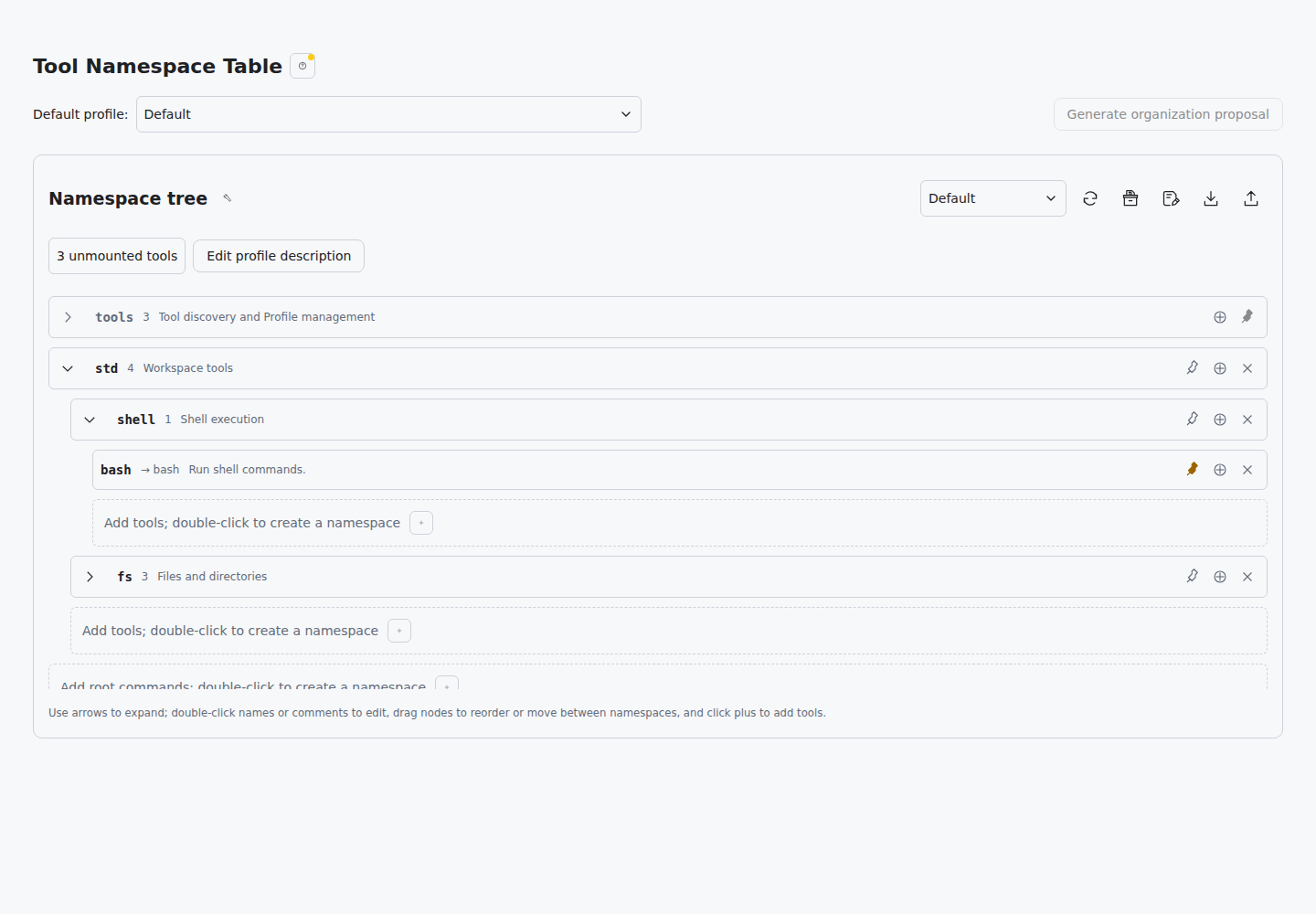
Namespace management
The namespace tree shows tool groups, call names, and descriptions. Hover a namespace for its name, full path, and notes; hover a command for its summary, full documentation, and call totals. Its original command name opens a second tooltip with tool details. Expand groups, double-click names or comments to edit them, drag sibling entries to reorder them, and set pinned hint levels. Use the controls above the tree to switch, save, or save a copy of a profile for reuse across different tool configurations.
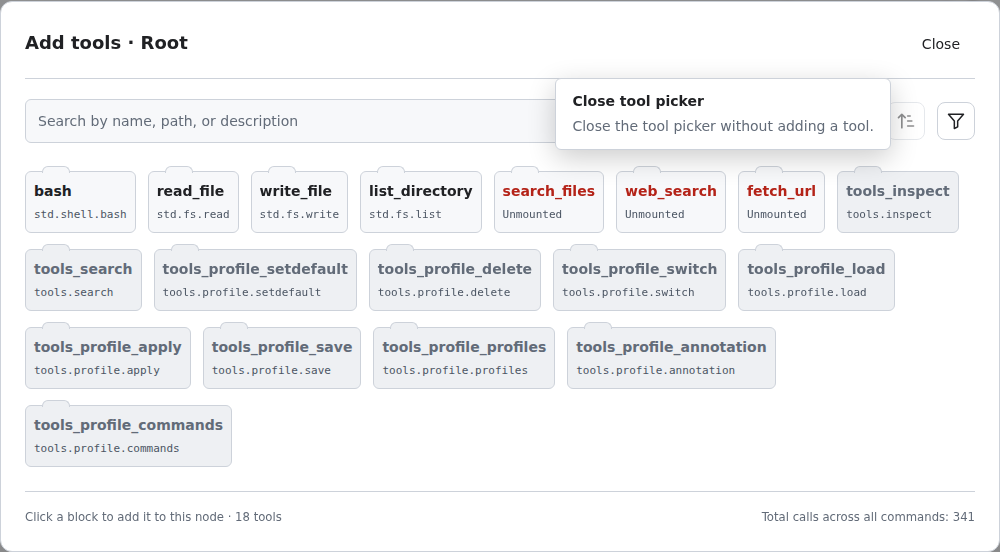
Adding tools
Click the tool icon beside “Namespace tree” to open the tool picker. The unmounted count opens a filtered list. Search by name, path, or description, then click an ordinary tool card to add it to the current node. Built-in plugin commands appear as disabled gray cards.
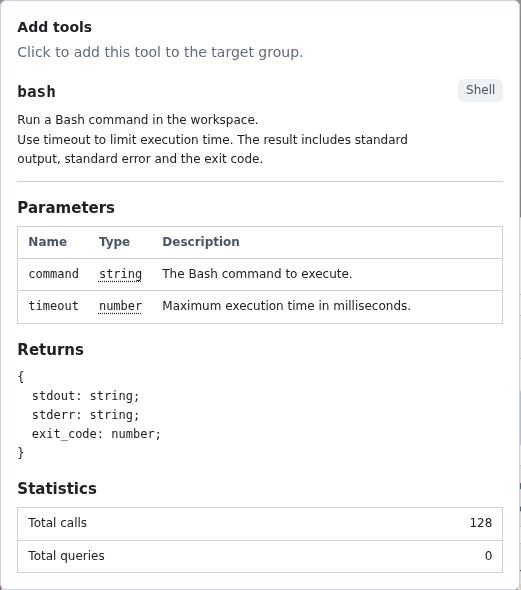
Tool details
Hover a card for its original name, description, parameters, return type, and call totals. Parameter types have nested tooltips showing the type expression directly. Table titles sit outside their tables, and columns size to content. Hold Ctrl to keep a tooltip in place, then move into it to scroll manually.
License
Related plugins
dsh-weknora
 Tencent
/WeKnora/packages/dsh-weknora
把 WeKnora 知识库接入 dsh 的四个只读工具:列出知识库、混合检索原文片段、按顺序还原单篇文档,以及直接取用 WeKnora 自己带引用的 RAG 或 ReAct agent 回答(含可续聊的 session id)。
Added:
dsh plugin --profile web add @wxg-prc-cpg/dsh-weknoratreg
 superdesigndev
/treg
给 Agent 的工具目录:按「要做的事」检索约 2,600 个外部接口(SEO 与 SERP、外链、社交、人物与公司信息补全、广告库、抓取),查看参数与单次调用价格后直接调用,凭据由服务端注入。附带技能,MCP 行在未设置 TREG_TOKEN 前保持禁用。
Added:
dsh plugin --profile web add github:superdesigndev/tregdsh-anchored-standard
 xiaobright
/dsh-anchored-standard
两阶段 DeepSeek Harness 预设:先 Minimal 对齐的 bootstrap,再切完整 Standard 工具(Project2 98/99)
Added:
dsh plugin --profile web add github:xiaobright/dsh-anchored-standardDSHA-dshapp
 DSH-APP
/DSHA/app/src/main/assets/app-integration
DSHA 后台任务、网页返回和草稿恢复适配
Added:
dsh plugin --profile web add 'github:DSH-APP/DSHA#a6d4de140acc7a085d6afd4b9d413404e004b939&path:/app/src/main/assets/app-integration'Deepseek-Harness-EAC
 zouyuxuan122
/Deepseek-Harness-EAC
把官方 deepseek-ai/deepseek-harness(@deepseek-ai/dsh,一切皆插件的 agent harness) 封装为开箱即用的 Windows / Linux 桌面客户端,并在其上拥抱社区万象:皮肤、插件、工具、记忆——你所能想到的,一键皆可装。
Added:
dsh plugin --profile web add github:zouyuxuan122/Deepseek-Harness-EACAI-Novel-Writer
 EthanYoQ
/AI-Novel-Writer
本地优先 AI 小说创作工作台,提供 Windows/macOS 桌面版与 DeepSeek Harness 插件开发预览,支持角色、大纲、章节蓝图、审稿修稿和本地模型。
Added:
dsh plugin --profile web add github:EthanYoQ/AI-Novel-Writer