
Tools & Capabilities
dsh-easyssh
chenw2759-wq/dsh-easyssh · ★ 43
 chenw2759-wq
dsh-IDE — an all-in-one development environment for the DSH Web GUI (JupyterLab-style workspace + SSH remote development).
安装
dsh plugin --profile web add github:chenw2759-wq/dsh-easysshGitHub 源码安装:首次需按提示配置 allowBuilds 构建授权后重试
For install and environment setup, plus plugin development tutorials, see DSH community docs ↗
README
Table of contents
- Feature Overview
- ⚙️ Right-side Workspace Settings (inside the system settings)
- 🖼️ Markdown Preview (Three Layouts)
- 🌳 Left File Tree
- 📊 Status Bar
- ✏️ Live Code Editing
- 🔴🟢 Red/Green Annotations (Trae-style Edit Diff)
- 🎨 Color Markers (Type-colored Tabs)
- ⌨️ Terminal & Run
- 📜 Log Preview
- 🖼️ Image / 📋 CSV / 🌐 HTML Previews
- 🖥️ Right Sidebar (dockable drawer · drag to detach / dock)
- 🧬 R Language Support
- 📓 Notebook (.ipynb read & edit)
- 📄 Office Preview (docx / xlsx / pptx)
- ✏️ In-frame Rich Editing (Office)
- 🎨 HTML / Markdown Visual Editing (Word-style in-place)
- 🚀 SSH Remote Development (Local Brain, Remote Hands)
- Quick Start
- Repository Layout
- Installation
- Step 3: seam switch (automatic — nothing to edit)
- Step 4: restart
- Usage
- Security
- Credits
- License
Current version: v0.2.0 (Notebook read & edit · 2026-08) — full history in CHANGELOG.md
中文 | English
Turn the DeepSeek Harness (DSH) Web GUI into an all-in-one development environment with four core capabilities:
- 🖥️ Right sidebar: a dockable right-hand drawer — file tree + preview/editor in one pane; drag a tab out into a floating window, drag it back to the right edge to auto-dock (bottom / right drawer / float / triple-IDE)
- 📄 Preview: Markdown / HTML / image / CSV / Notebook (.ipynb) / Office (docx / xlsx / pptx) / log rendered in place
- ✏️ Edit: live code editing (syntax highlight + line numbers + zebra stripes) + Word-style visual editing for Markdown/HTML + in-frame rich-text Office editing
- 🧩 IDE: file tree, terminal, Trae-style red/green diffs, type-colored tabs, Git badges, watch paths — an out-of-the-box JupyterLab-style workspace
It also ships with an SSH remote workspace mode: configure an SSH host (password / key, reusing
~/.dsh/dsh-ssh.json) from the top-right corner (left of the session log); once connected, the right
panel switches to the remote file tree, and the model's local read / write / edit / glob / grep and
bash / terminal execute transparently on the remote server while the LLM and agent loop stay local —
"local brain, remote hands".
Feature Overview
⚙️ Right-side Workspace Settings (inside the system settings)
"Settings" → "Right-side Workspace" manages the workspace's feature toggles (8: auto-diff / watch dots / Git badges / syntax highlight / zoom / triple-IDE / terminal dock / session isolation) and the editor toolbar tools (9, for rich-text editing), rendered as rounded cards with switches — changes apply immediately and persist.
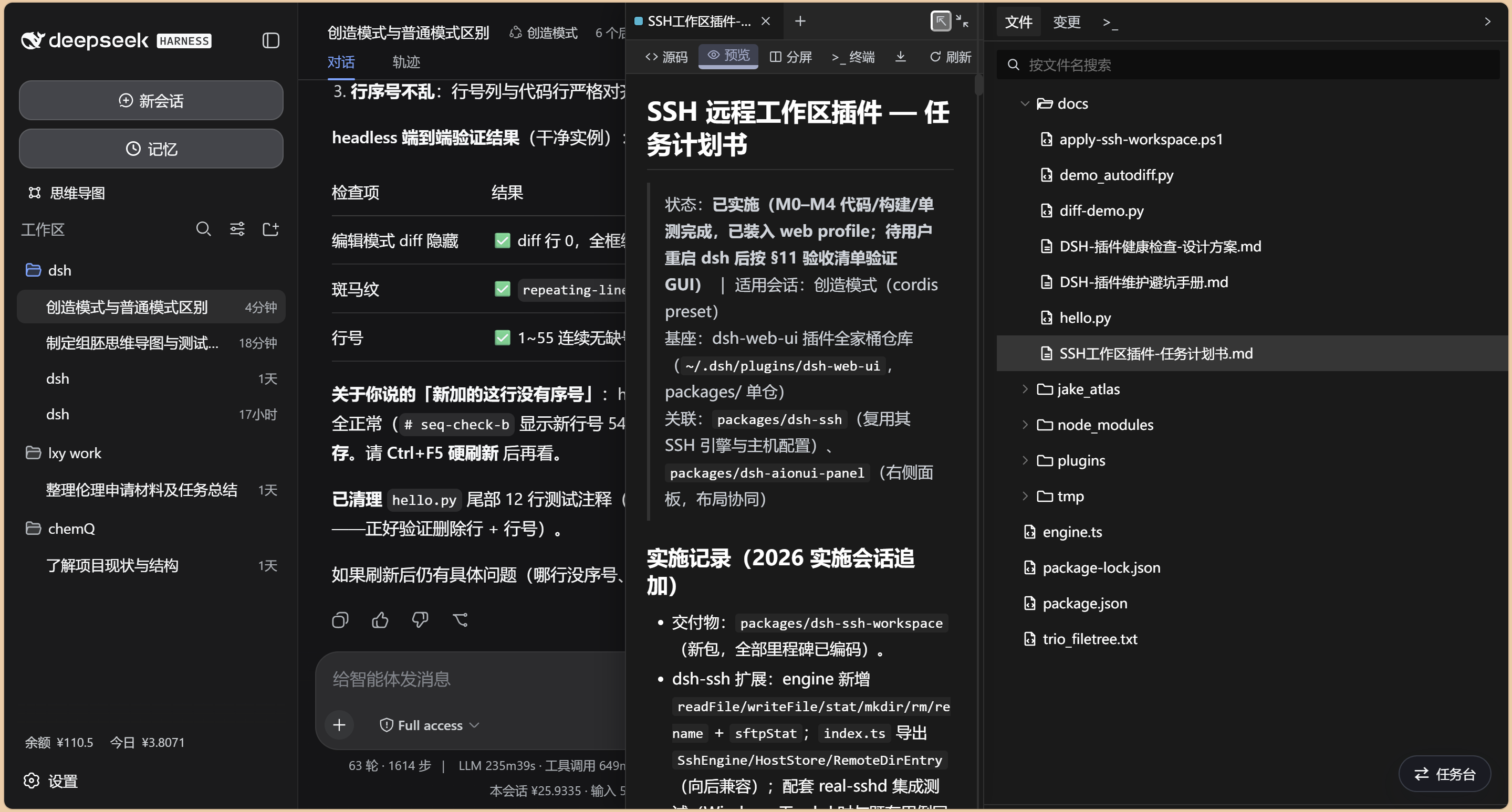
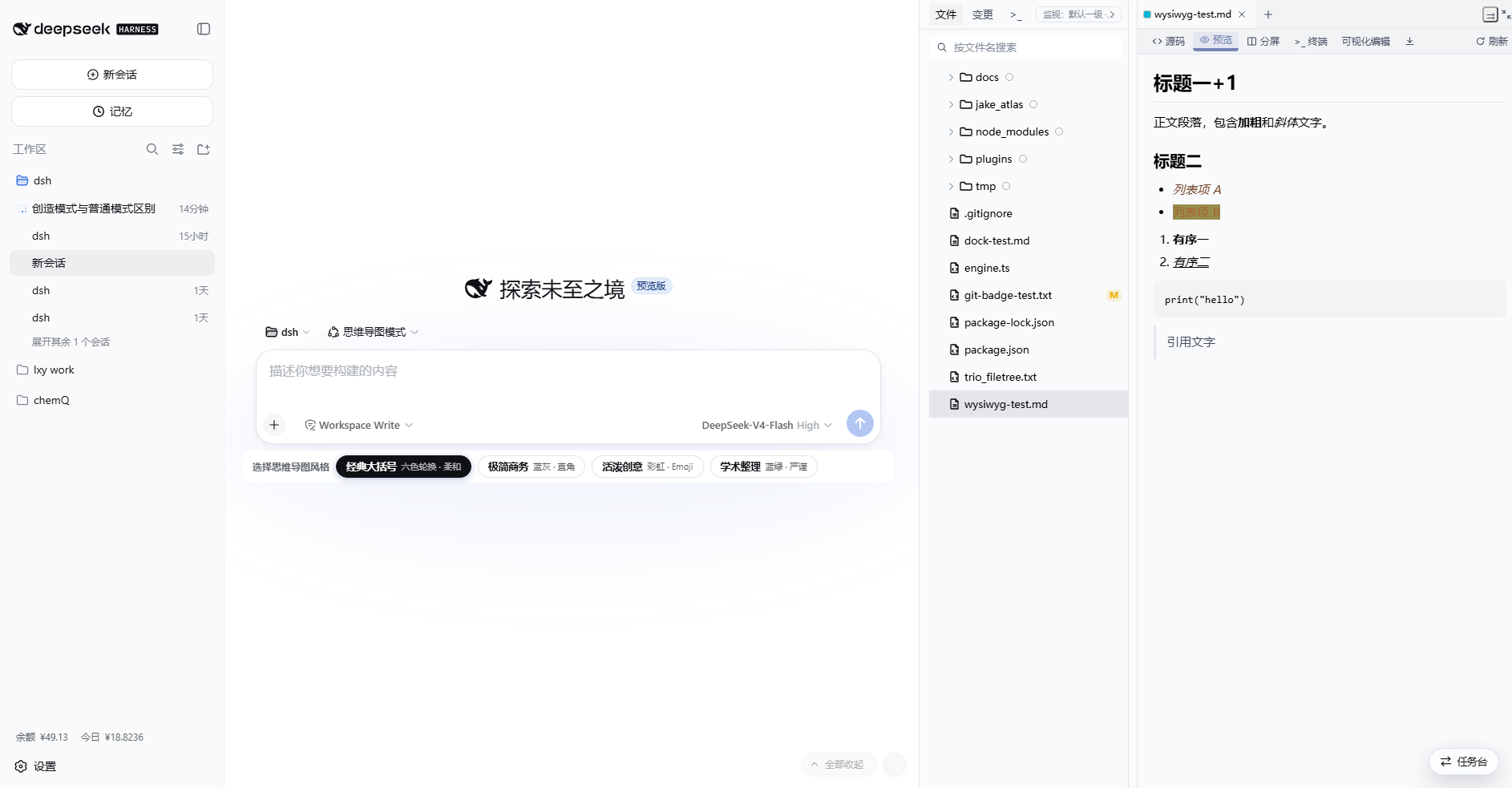
🖼️ Markdown Preview (Three Layouts)
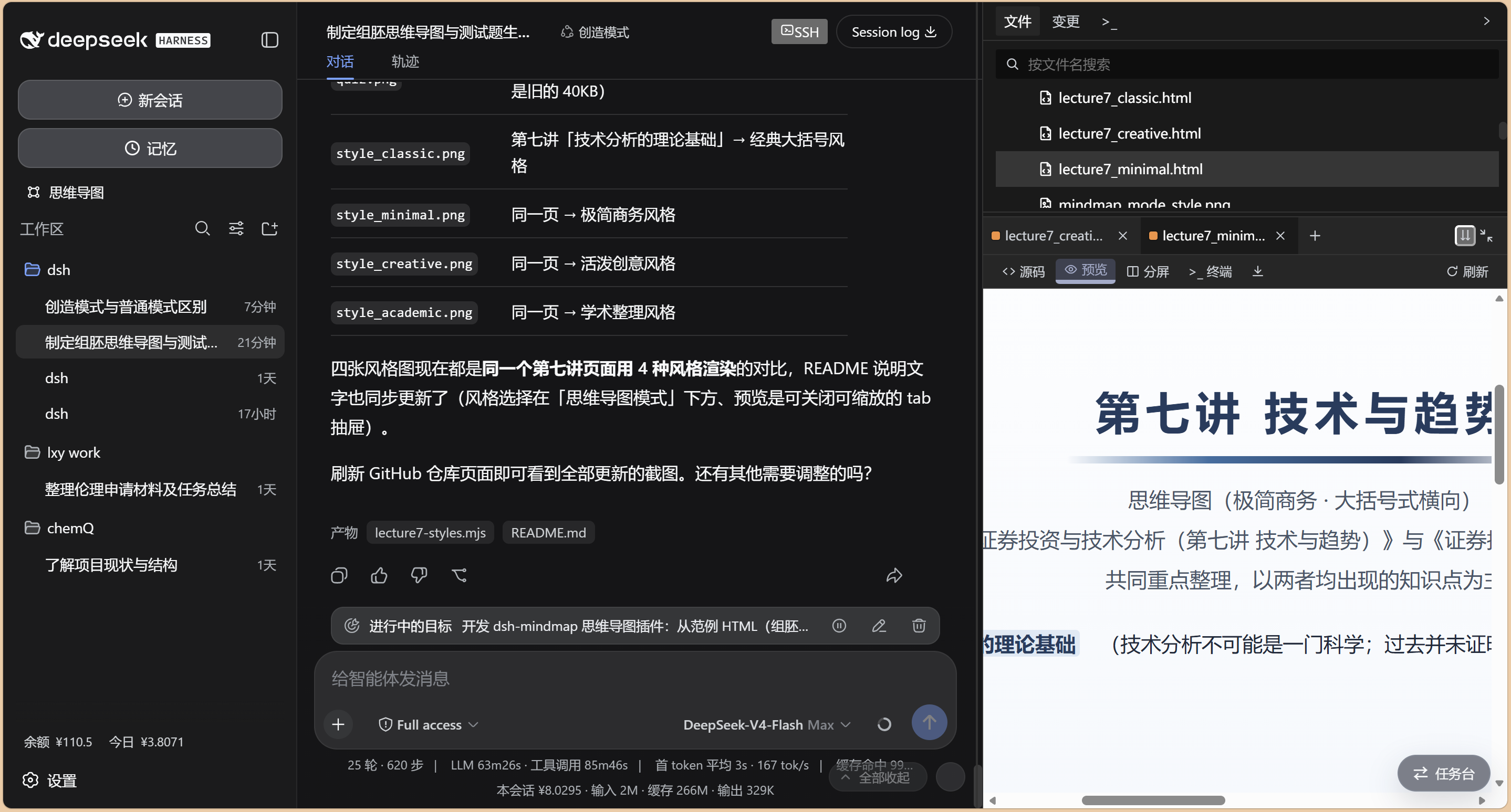
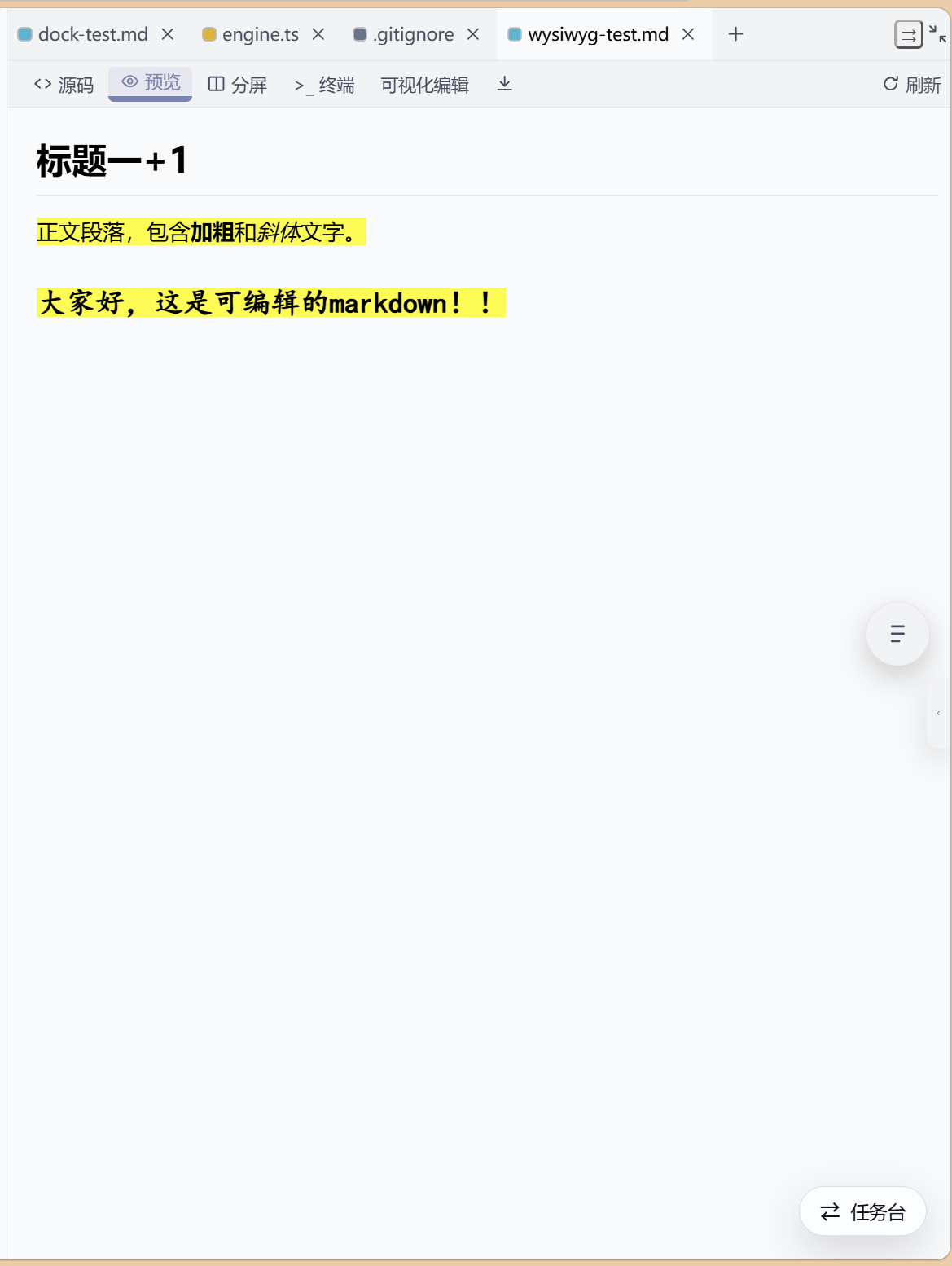
Markdown files render directly in the panel (cyan tab), switchable between three layouts:
- Bottom pane (⇊): preview shown in the lower pane
- Right pane (⇉): preview shown in the right code column
- Floating overlay (⇱): floats over the chat, wider
🌳 Left File Tree
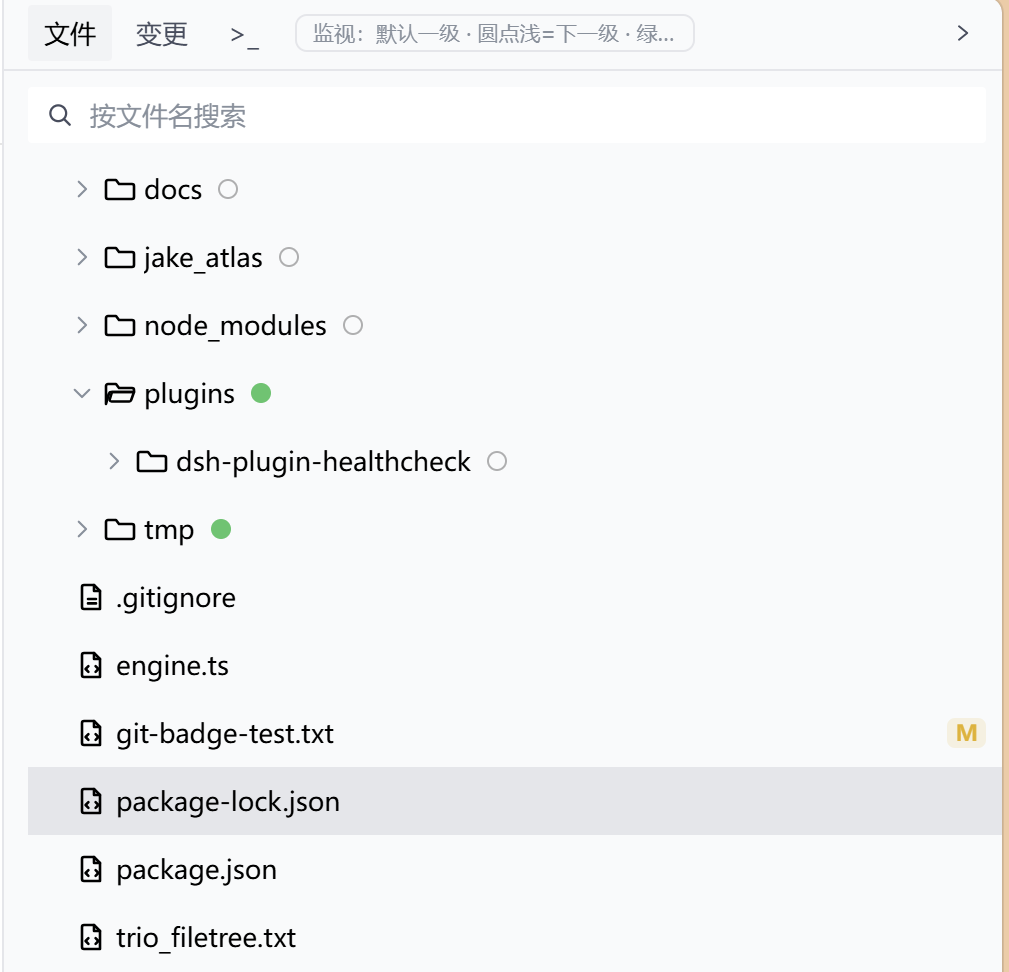
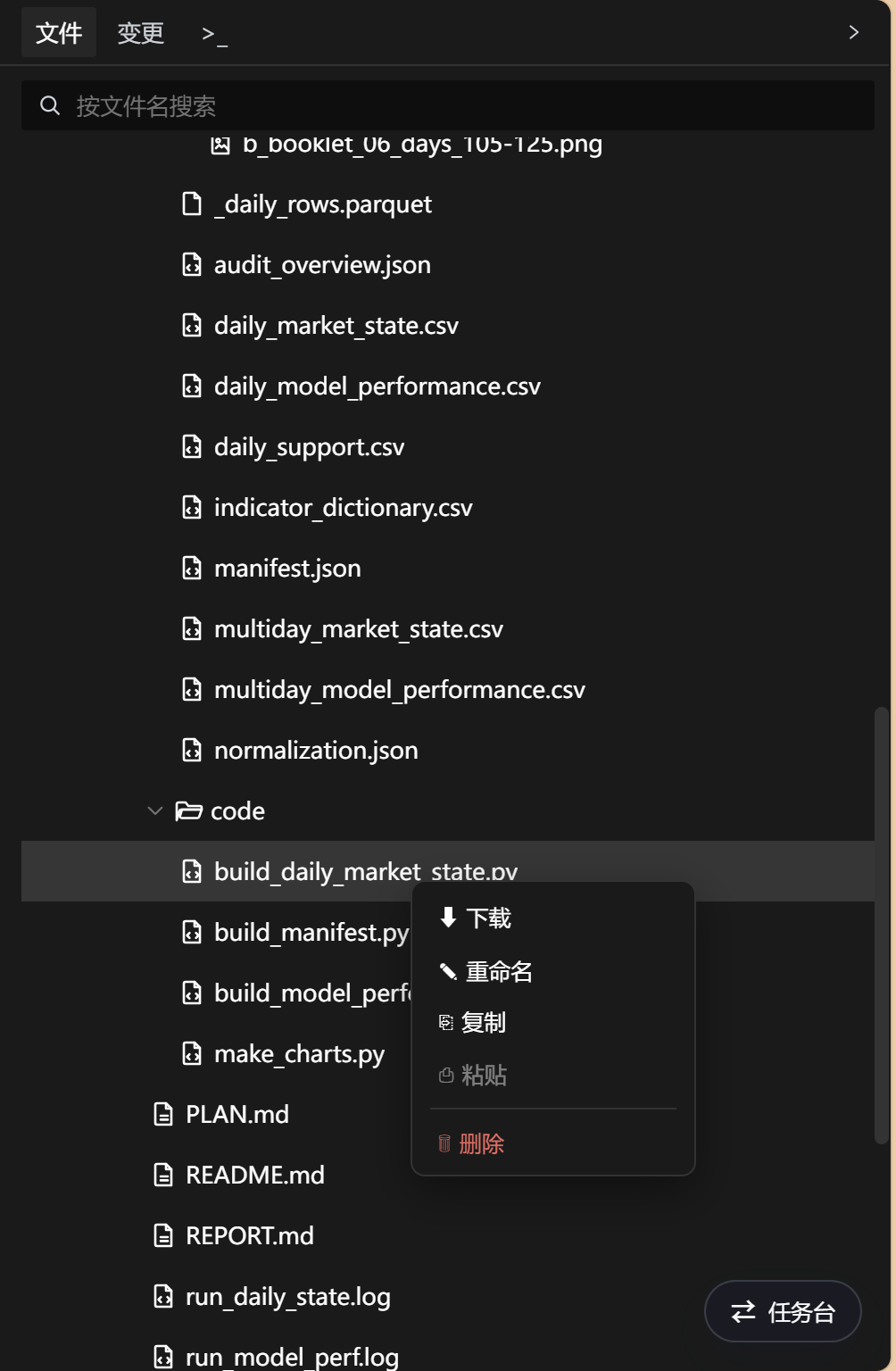
Lazy-loaded file tree with filename search, Git status badges (A/M/D/R/U/C), a context menu (New File / New Folder / download / inline rename / copy / paste / delete to Recycle Bin), auto-switching between the local working directory and the SSH remote directory. An already-open file never opens twice — external changes refresh its tab in place.
🔍 Watch paths (auto-open scope): by default only the FIRST level is watched (files directly under the root and its first-level dirs). Click the dot on a directory row to switch: amber = watch the next level of this directory, green = watch ALL levels (n) under it, click again to reset; marks are remembered per session. A rule explainer box sits in the tab bar (right of Files / Changes / >_). Build artifacts, temp files and lockfiles NEVER pop regardless of marks.
📊 Status Bar
The bottom status bar shows the workspace state.
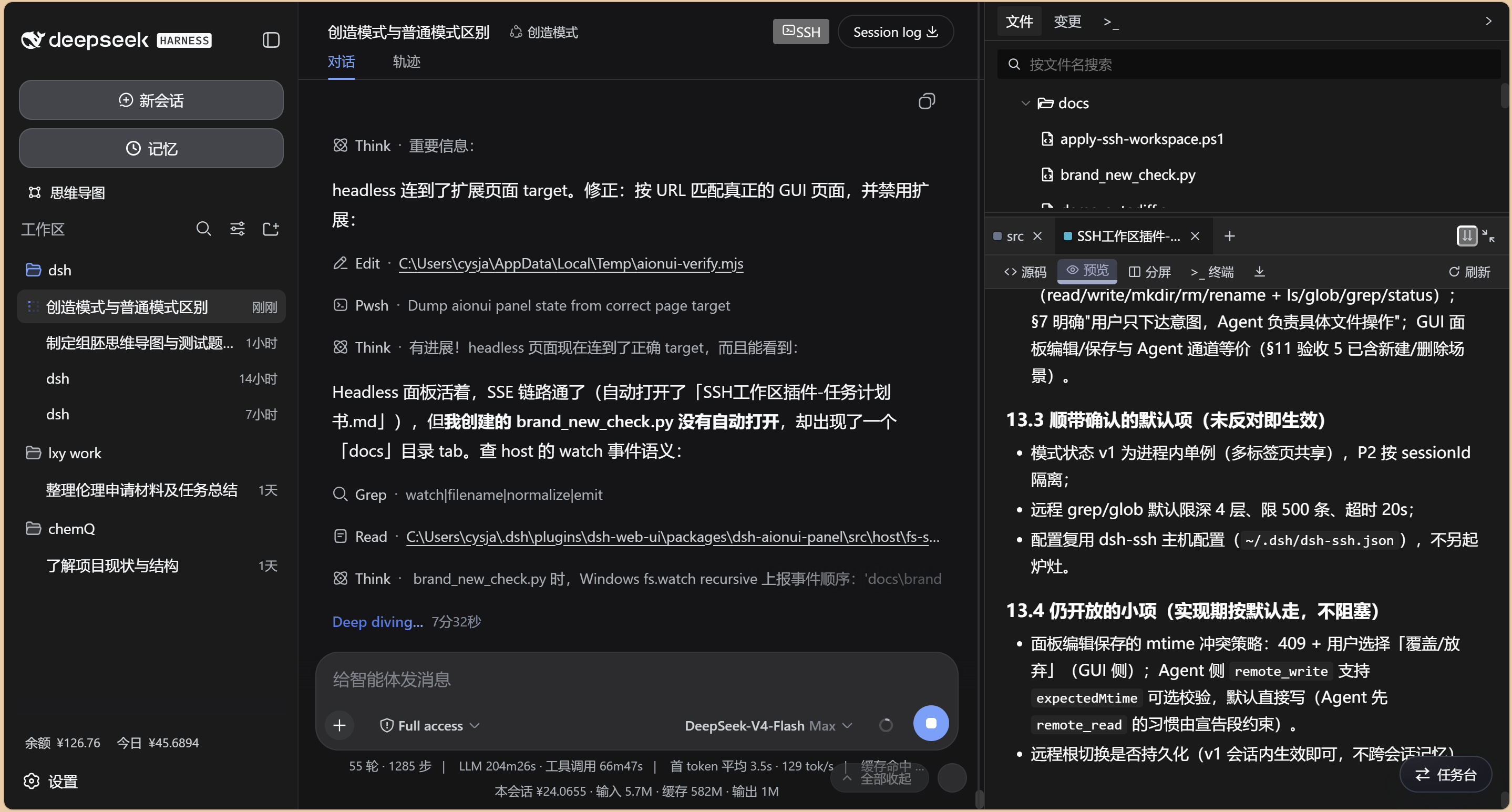
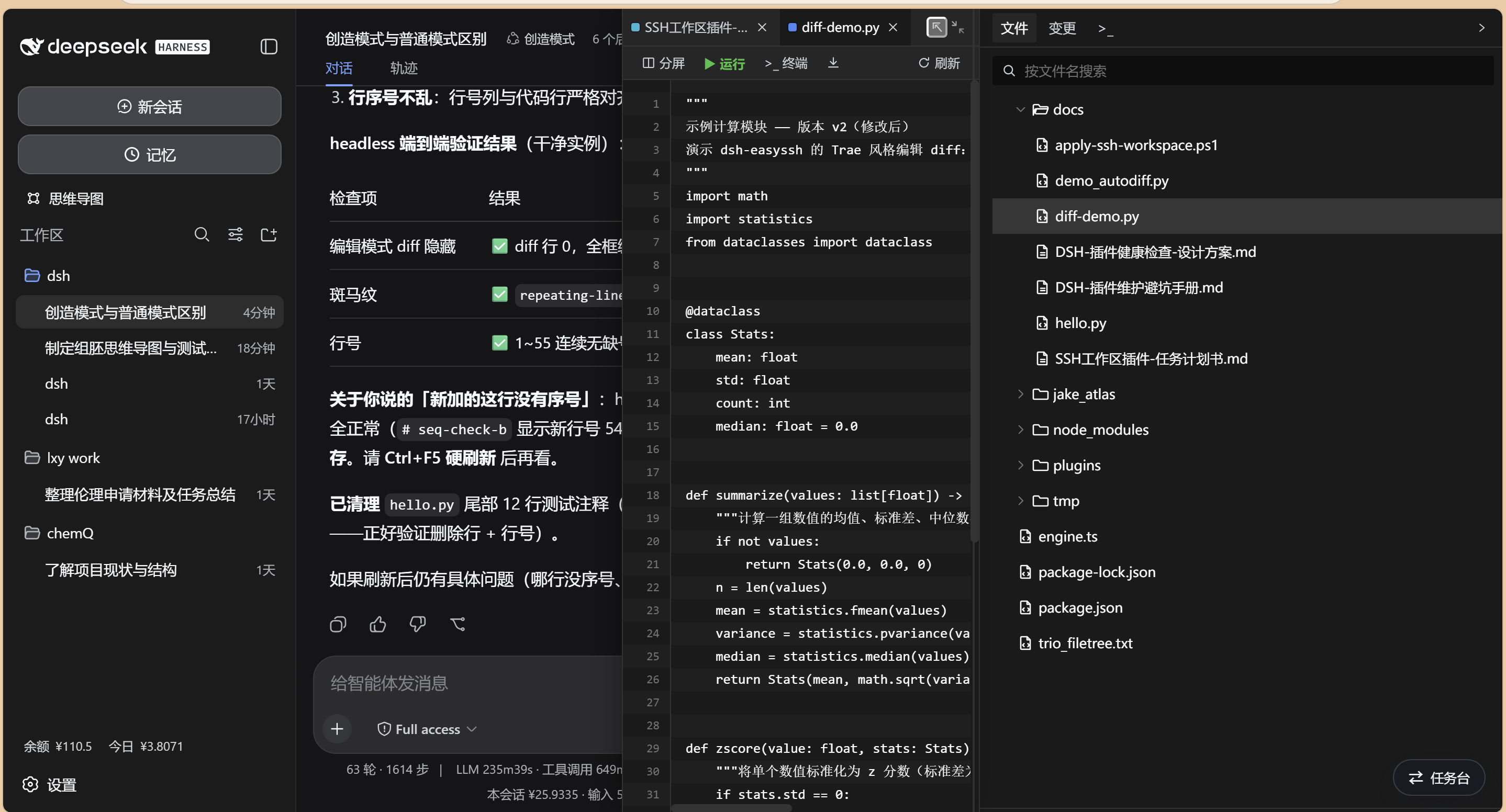
✏️ Live Code Editing
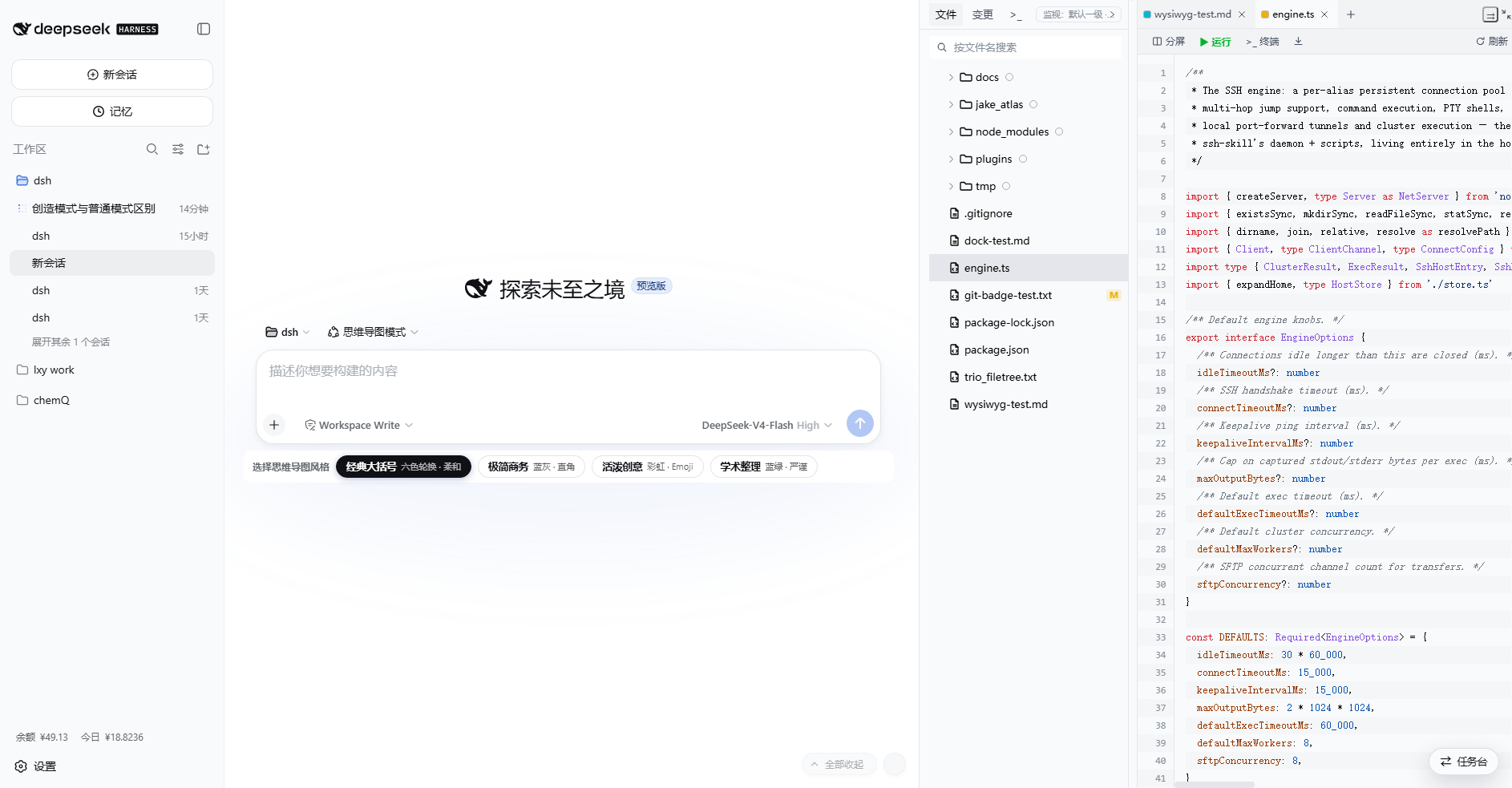
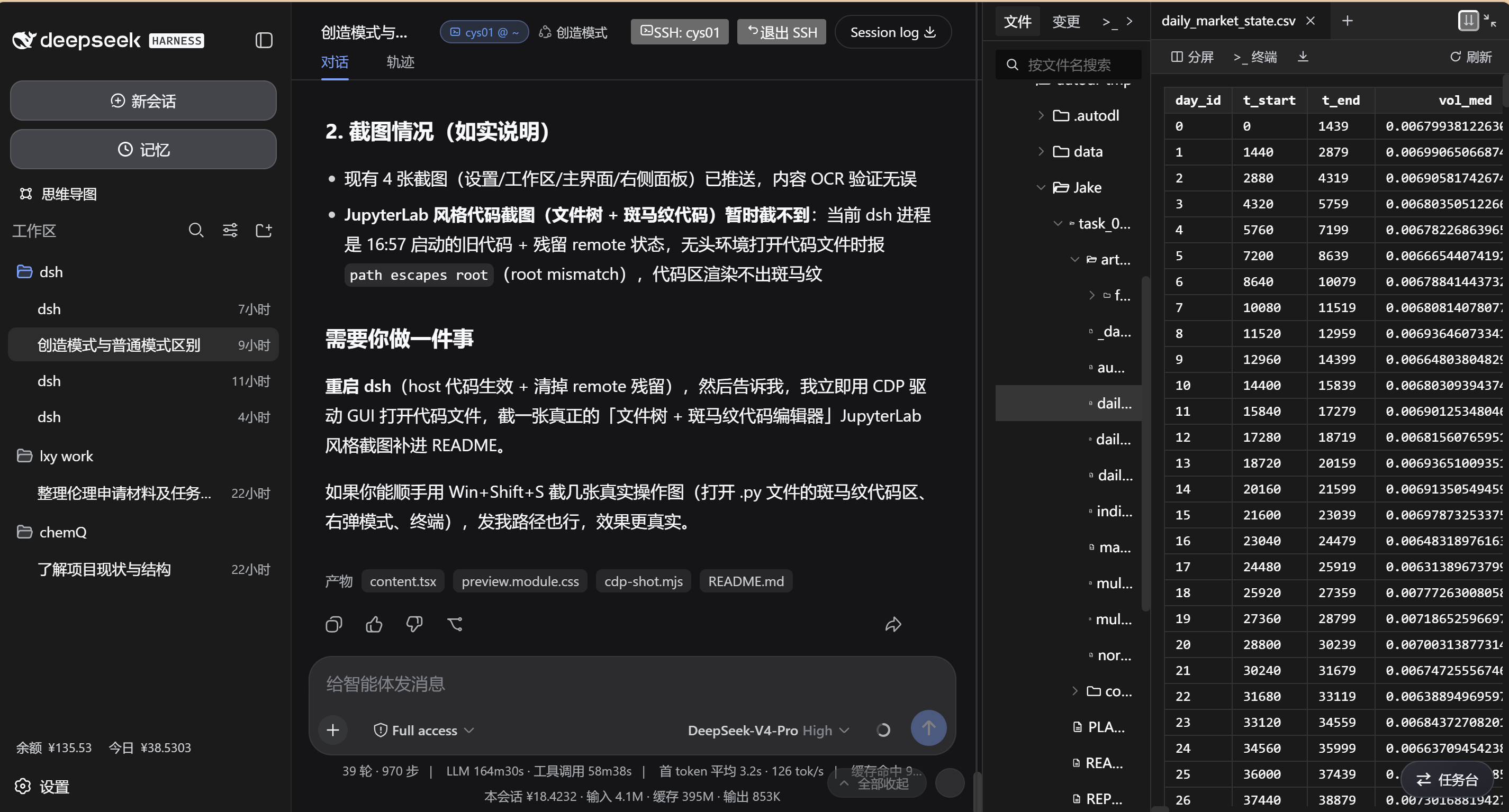
Editable code area with colorful syntax highlighting (Trae-style palette, auto-switching with the light/dark theme), line numbers and zebra striping (aligned to code lines and following scroll), Ctrl+S save with mtime conflict detection; the toolbar offers split (editor | preview), refresh, and more.
🔴🟢 Red/Green Annotations (Trae-style Edit Diff)
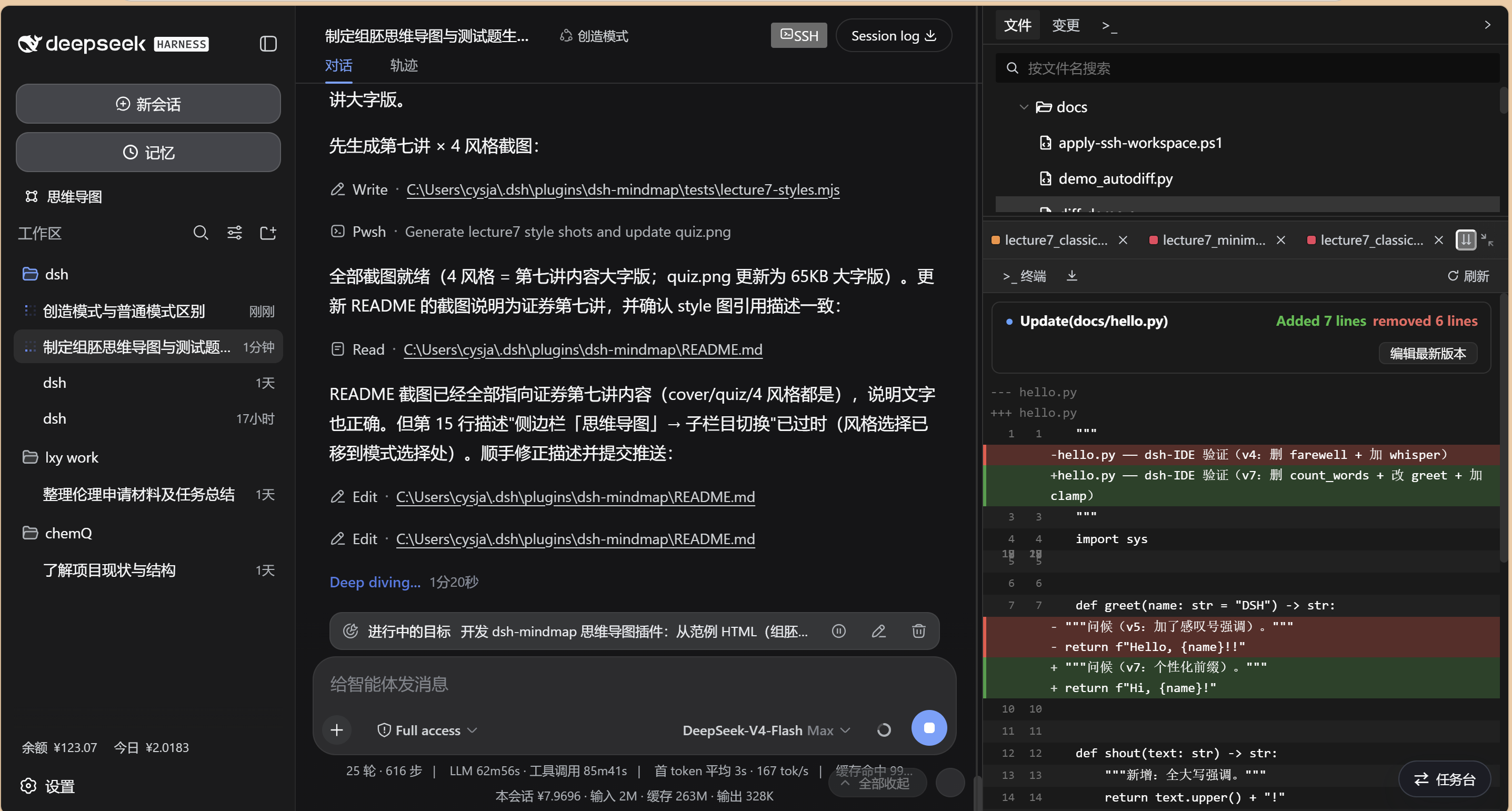
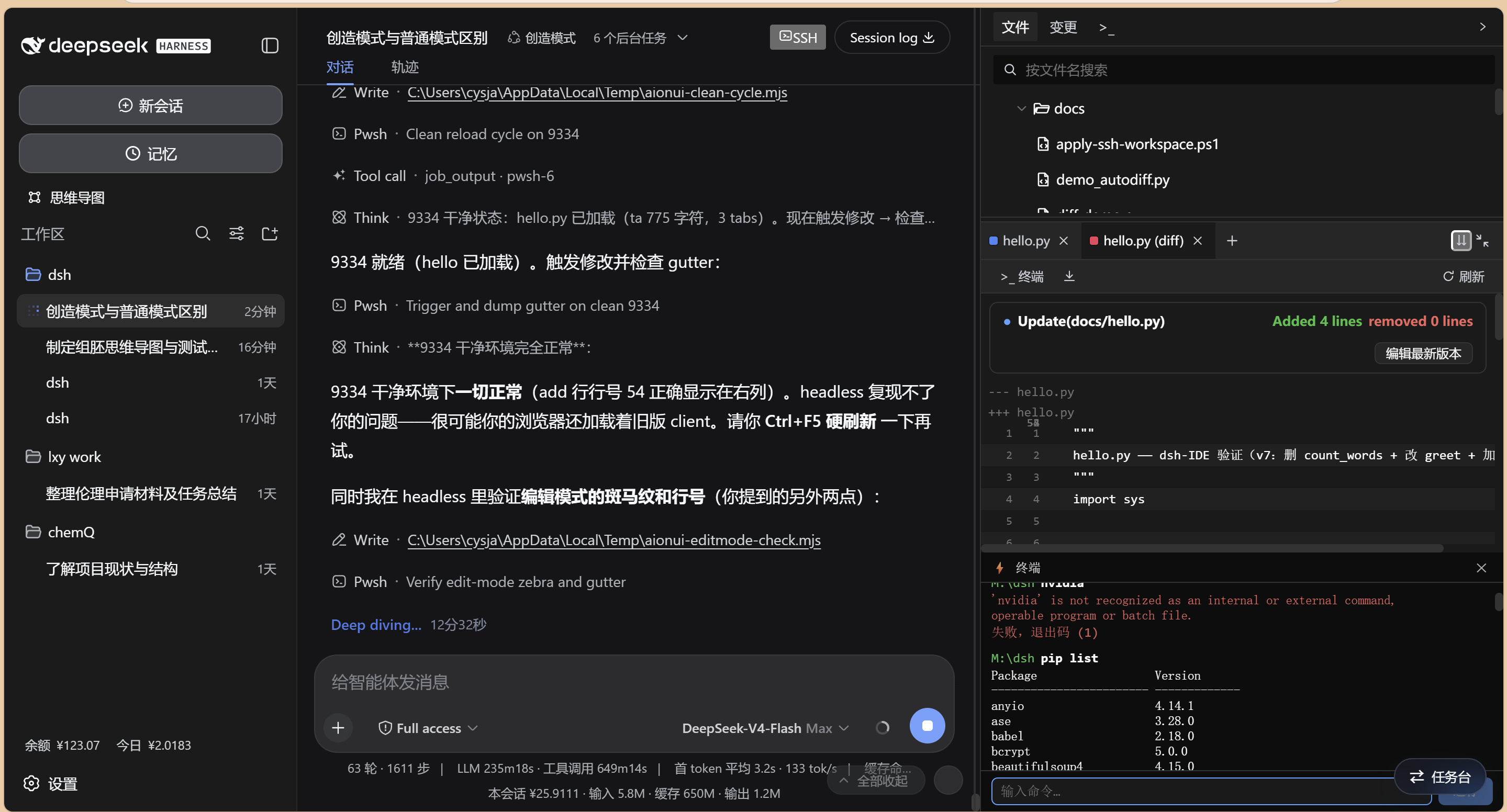
Any external edit (agent tool writes, other processes) automatically pops an "Update(path)" card into the bottom pane — Added/removed stats, deleted lines in red, added lines in green; every edit pops its own card (baseline auto-advances, no repeats, no misses). Saving pops one too:
- Brand-new files (no baseline) pop an all-GREEN card (the whole file counts as added)
- Deleted files pop an all-RED card (the whole file counts as removed)
- The card carries a fixed two-column line-number gutter (old / new aligned), zebra-striped unchanged rows
- Click "Edit latest version" — the editor covers the whole frame so you can modify and save the latest code directly (red/green refresh automatically); clicking "Refresh" never loses the colors
🎨 Color Markers (Type-colored Tabs)
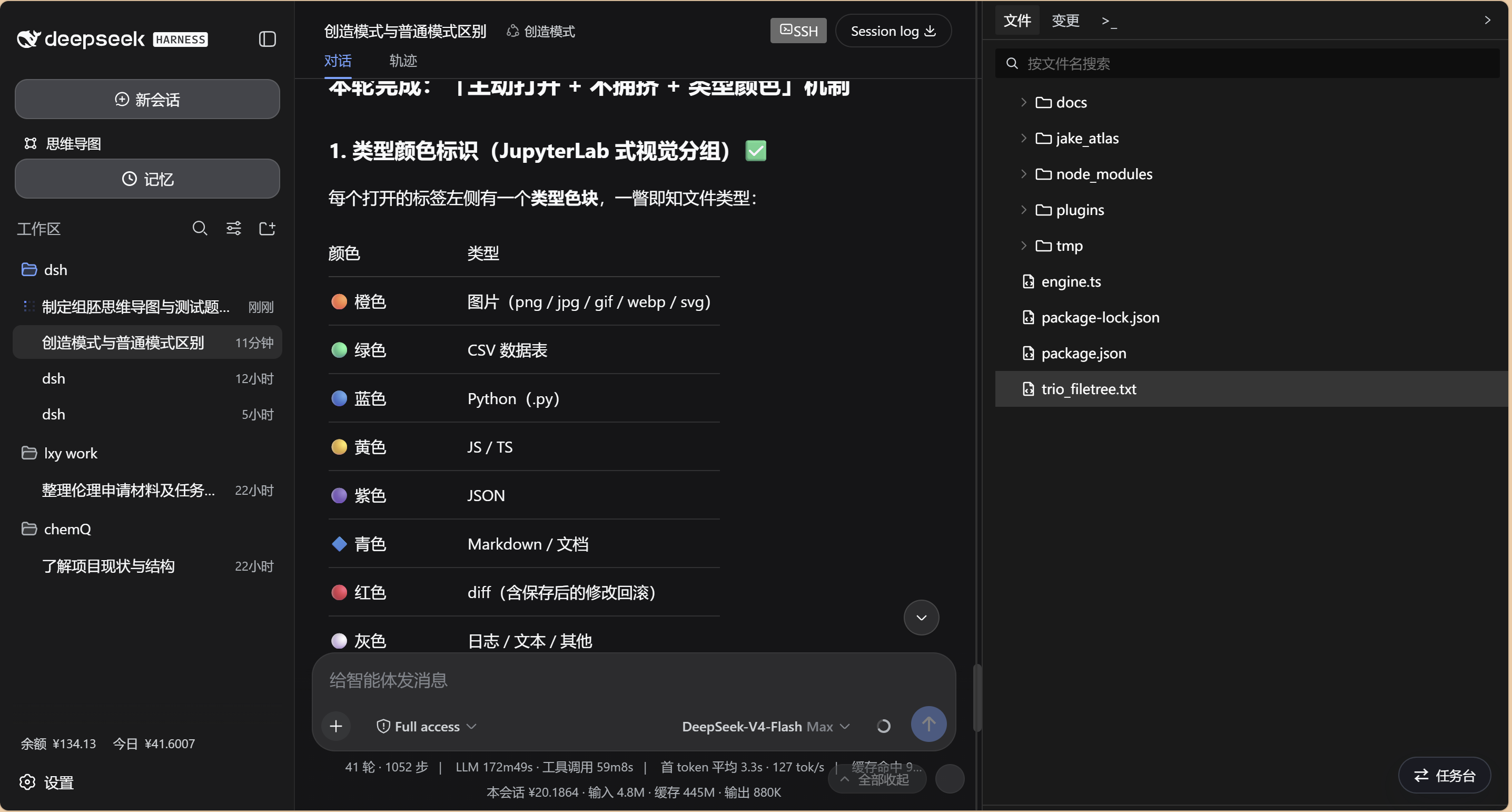
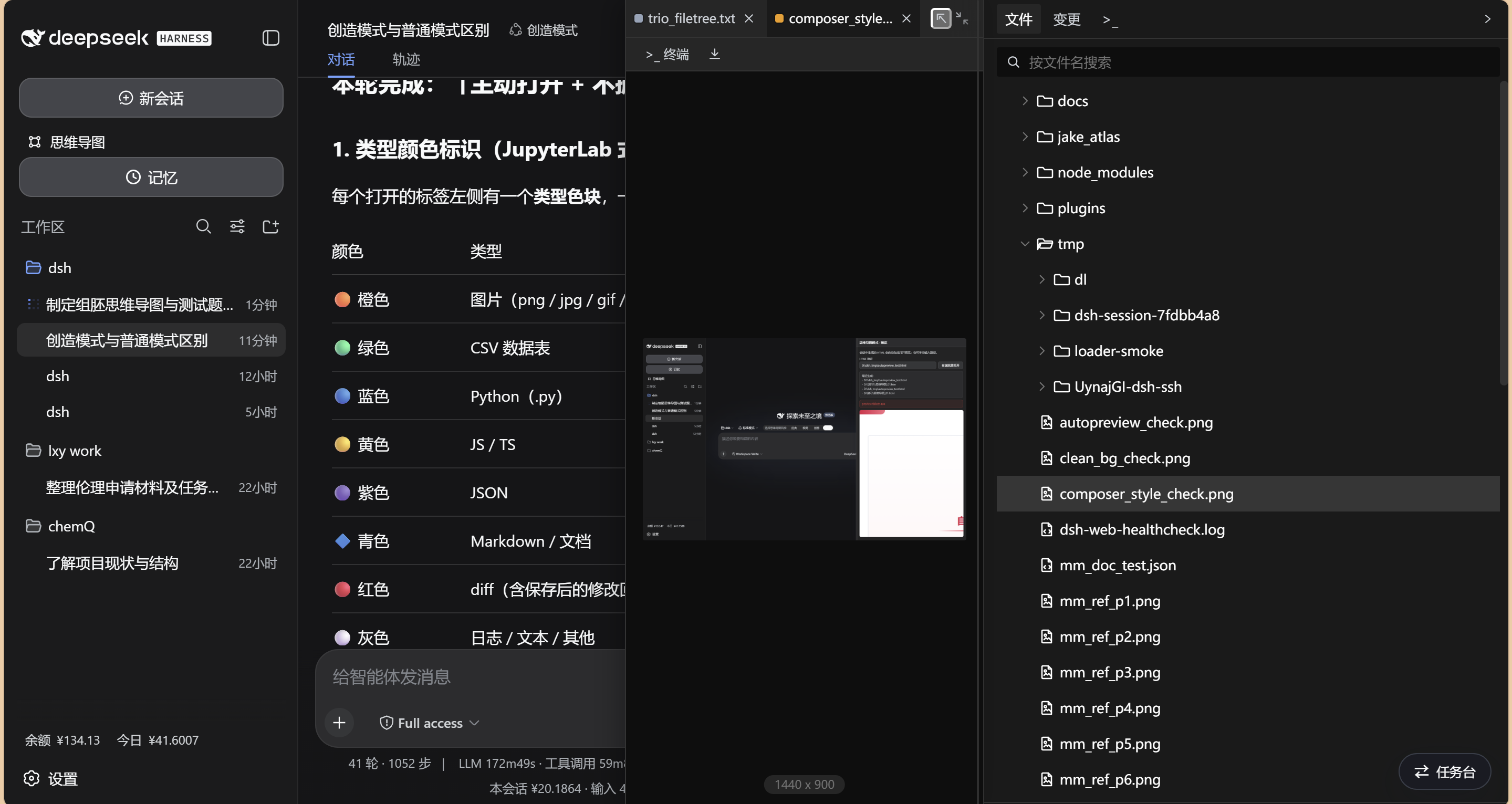
Every open tab carries a type color — orange = image, green = CSV, blue = Python, yellow = JS/TS, purple = JSON, cyan = Markdown, red = diff, gray = log — scannable at a glance even with many tabs; newly opened files and diffs auto-scroll into view, and the tab bar scrolls horizontally with truncated titles.
⌨️ Terminal & Run
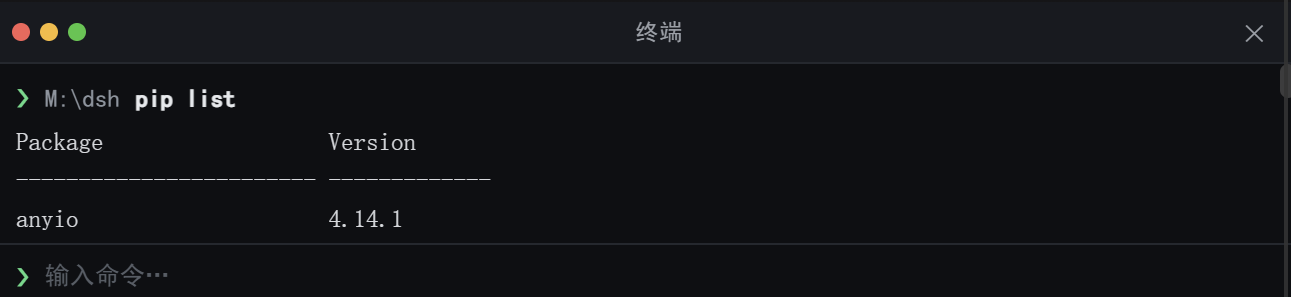
Built-in command-line terminal: "▶ Run" executes the current file directly (python / node / bash etc.), ">_ Terminal" opens a command panel for ad-hoc commands (both run remotely in SSH mode); a standalone terminal entry also lives on the file tab bar. The terminal docks at the BOTTOM FIFTH of the chat column in a faithful terminal look (SimHei font, macOS traffic-light dots, ❯ prompt, green caret) without overlapping the conversation.
📜 Log Preview
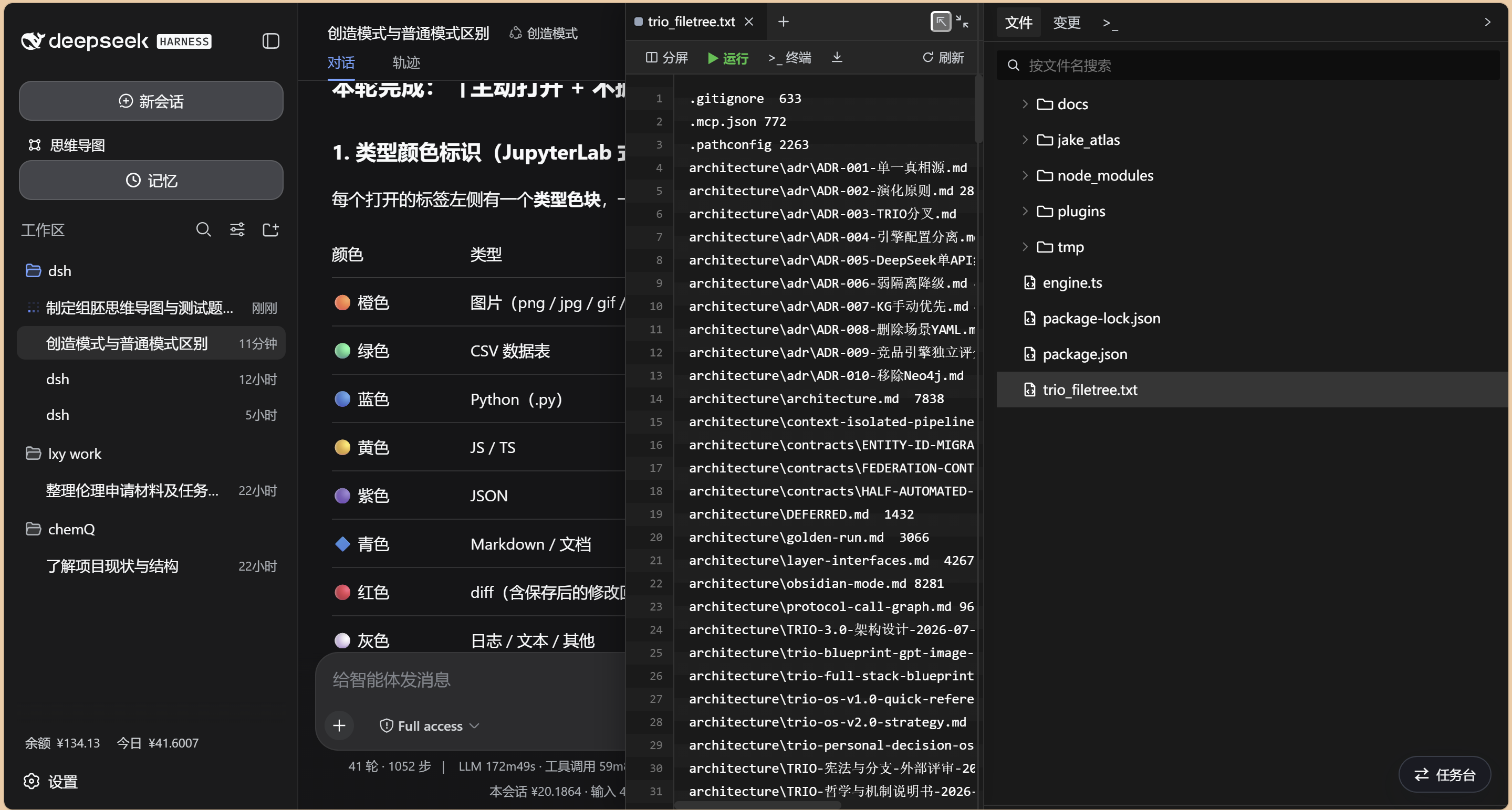
Log files (gray tab) preview directly in the panel.
🖼️ Image / 📋 CSV / 🌐 HTML Previews
- Images (orange tab) and HTML (purple tab) previews support zoom: toolbar − / % / + / 1:1 / fit-width, or Ctrl+wheel
- CSV data renders as a table (green tab)
🖥️ Right Sidebar (dockable drawer · drag to detach / dock)
- Right drawer (default): the preview docks in the right-hand column (file tree + preview in one drawer); four modes cycle — bottom (⇊) / right drawer (⇉) / float (⇱) / triple IDE (⿻) — chat | files | preview side by side
- Drag a tab out into a float: in ANY layout, grab the preview tab bar / toolbar empty area and drag to pull the preview out into a floating window; it follows the pointer 1:1 with smooth, jank-free animation
- Drag to the right edge to dock back: release the float flush against the screen's right edge to auto-dock back into the right drawer; release near "cover the file tree (tree auto-collapses to a round button) / below the tree / chat-below" to snap to that preset, or drag out of a zone to free-float again
- Resize the float: drag the bottom-right grip to change width + height (size remembered, kept across snap)
- Focus rail: with the preview open, collapse the file tree — it shrinks to a round floating button + a far-right drawer handle; the preview keeps its width. Click the round button to toggle the floating file-tree popup; click the far-right handle to re-dock the drawer
🧬 R Language Support
.R / .r scripts run with Rscript (▶ Run), R tabs use the official R blue; .Rmd (R Markdown)
renders as Markdown; syntax highlighting supports R natively.
📓 Notebook (.ipynb read & edit)
- Opening an
.ipynbrenders it structurally (nbformat ≥ 4): markdown cells rendered, code cells syntax-highlighted withIn [n]counts, outputs shown (text / error tracebacks / PNG·JPEG images / HTML / markdown) - Per-cell "Edit" edits the source inline (Ctrl/Cmd+Enter to save); saving rewrites only
source— outputs / metadata / nbformat / execution_count are kept verbatim. No kernel: cells are not executed.
📄 Office Preview (docx / xlsx / pptx)
- docx: paragraphs / tables / bold / italic / underline / color / size / highlight / alignment / fonts (incl. CJK
w:eastAsia) / paragraph & run shading / inline images & shape photos (w:drawing/a:blip, incl.mc:AlternateContentshapes) / content controls (w:sdt) / headers & footers (letterhead logos fromheader1.xmletc.) rendered - xlsx: first worksheet rendered as a table (shared strings resolved)
- pptx: one card per slide
- Client-side ZIP parsing — no host dependencies, no dsh restart
✏️ In-frame Rich Editing (Office)
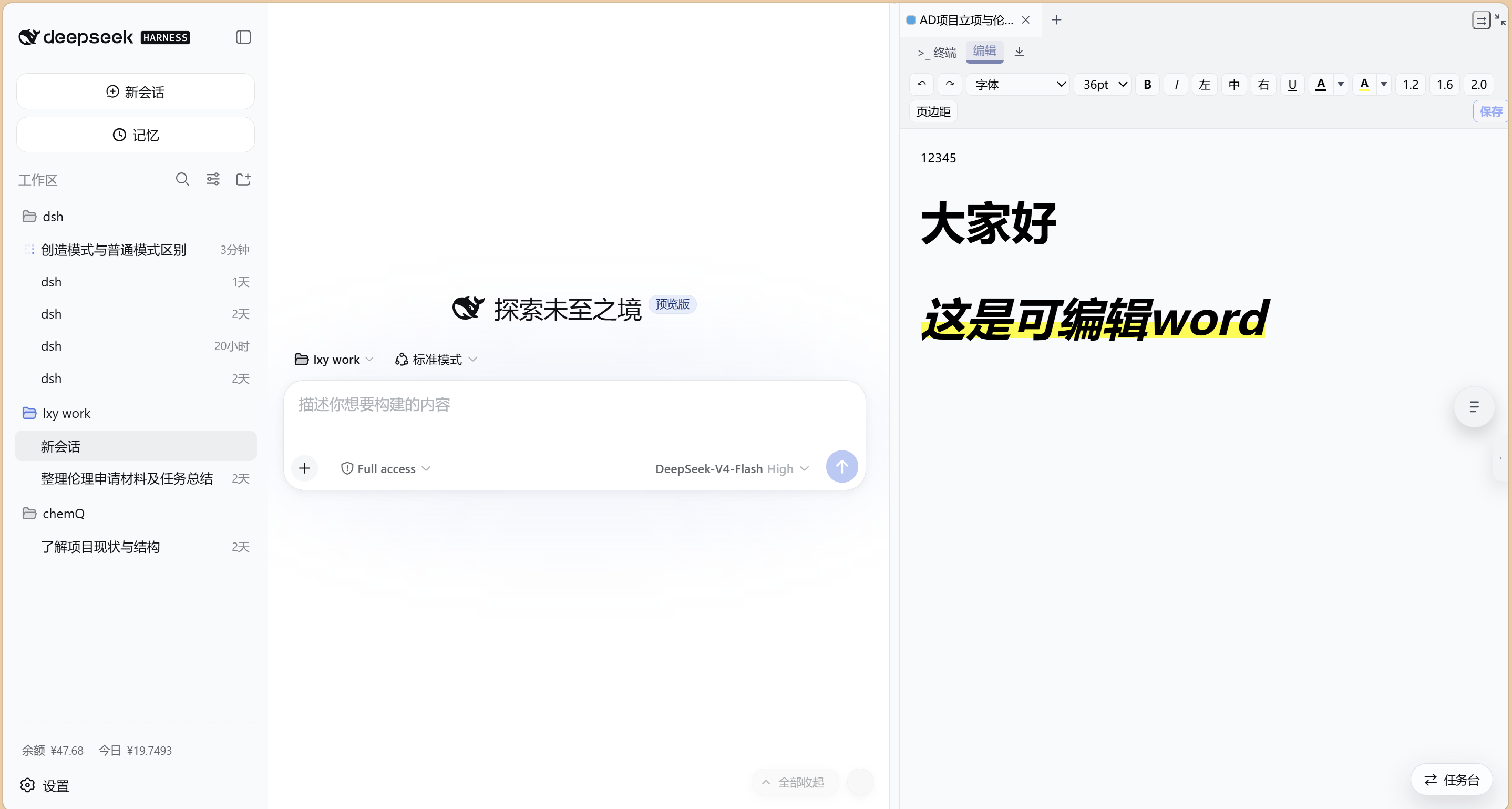
The toolbar's "Edit" arms contenteditable editing: the toolbar shows only the tools checked in
Settings (font / size / bold-italic / align / underline / color / highlight / spacing / margins); saving
rebuilds the docx/xlsx/pptx from the edited HTML and writes it back as binary (mtime-conflict guarded;
run formatting — bold / italic / underline / color / size / font / highlight — survives edit + save).
Known limit: charts (word/charts/*) and embedded objects (embedded Excel) are not parsed or preserved.
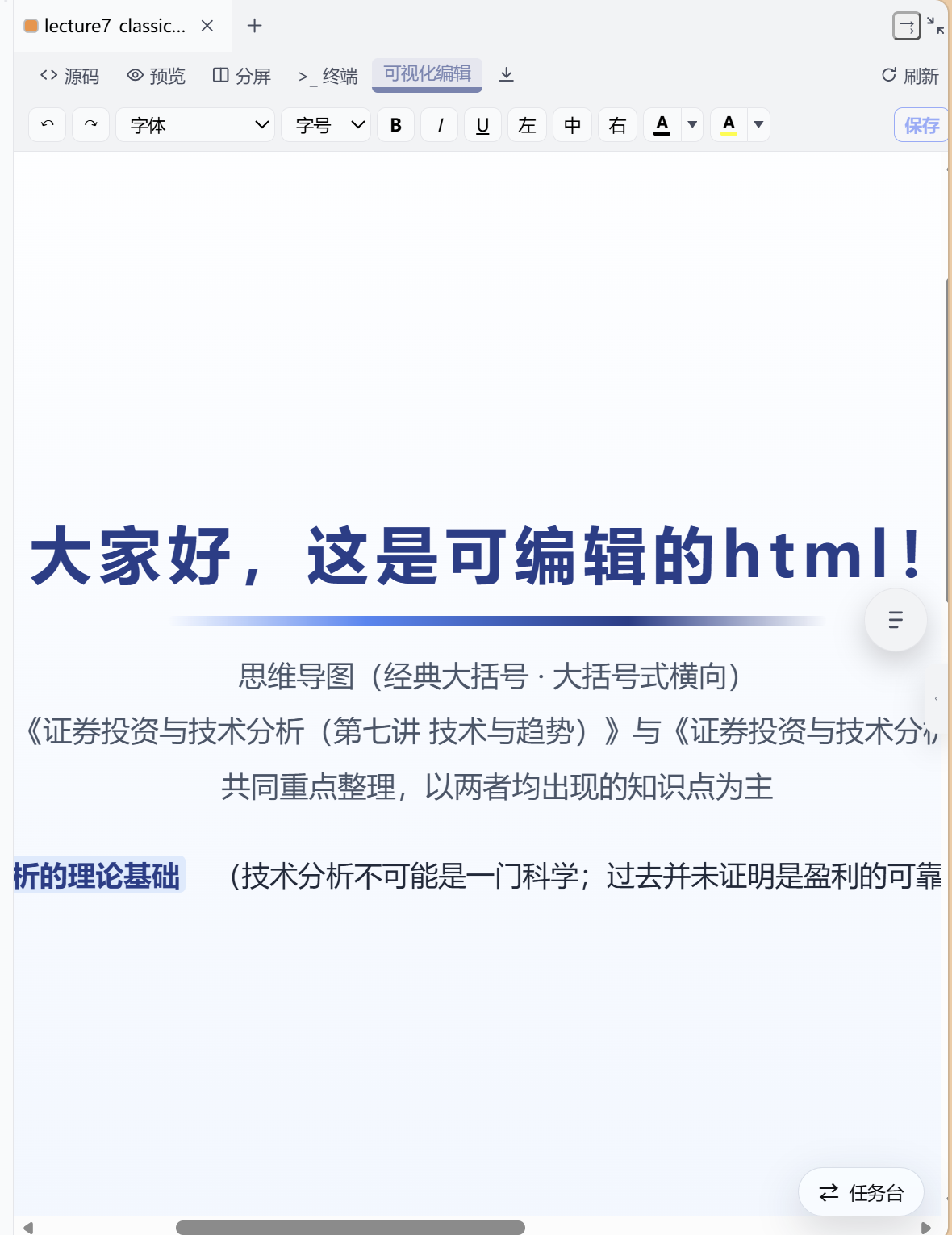
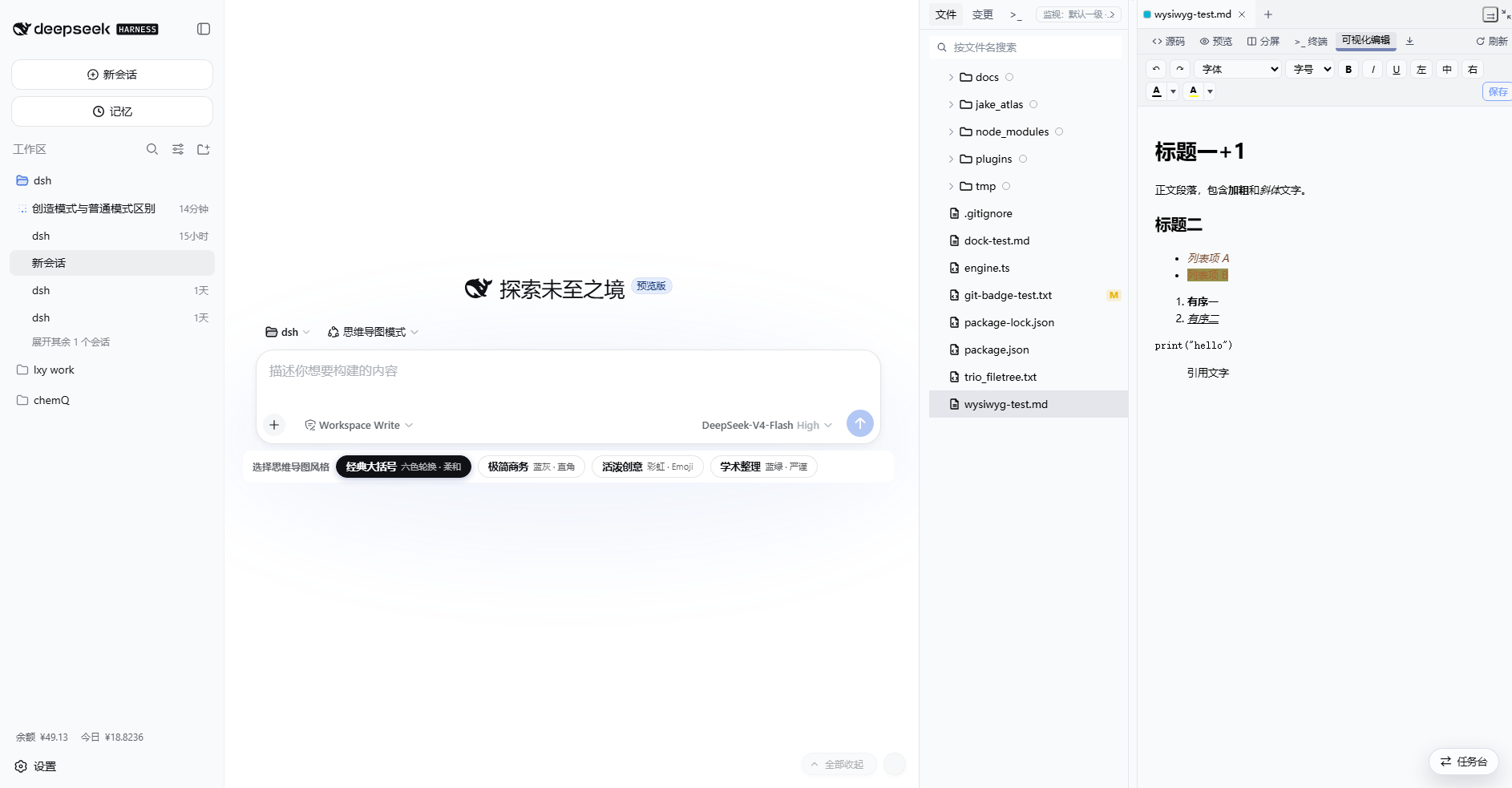
🎨 HTML / Markdown Visual Editing (Word-style in-place)
The toolbar's "Visual editing" makes the rendered result itself the editable document (no more floating
text boxes) — edit directly on the rendered page like Word. Markdown edits the compiled HTML and
converts back to Markdown on save (titles with hyphens stay mojibake-free, code fences keep their
language); color / font-size / font-family / underline / highlight persist as a strictly-sanitized
inline-HTML subset, so changing the text color no longer paints the background and bold/italic/size
survive saving. HTML edits the FULL document in a design-mode iframe (PPT-style rich editing: color
/ size / bold-italic / align / underline / highlight) — the original <style> and canvas background
render as-is, and saving serializes the whole document (no more single-column body-fragment overlay).
The toolbar provides bold / italic / underline / color / highlight / font / size / align / undo / redo. Text color and highlight are Word-style buttons: one click on the "A" applies the currently remembered color to the selection (a bar under the A shows the current color), and the small "▾" opens a palette where picking a swatch both remembers and applies it — no more multi-click color picking, and color can now be combined with bold/italic on the same selection. The toolbar lights up the buttons matching the current selection's formatting (bold / italic / underline / align / color / highlight get a shadow), so you can see at a glance what formatting the selected text carries.
🚀 SSH Remote Development (Local Brain, Remote Hands)
- Seam switching: a profile patch routes
ctx.fs/ctx.subprocessthrough a mode facade — local mode delegates to the deployment's sandboxed implementations, SSH mode to SFTP/SSH remote implementations (atomic writes, version checks, CRLF handling, streaming output, PTY terminals). Model tools run remotely with zero changes. - Remote filesystem: a full
@deepseek-ai/dsh-fsimplementation — paths / versions / atomic writes / CRLF / canonical path transfer. - Remote subprocess: a full
@deepseek-ai/dsh-subprocessimplementation — exec + PTY terminal with overflow spooling to local disk. - Multiple hosts: configure many hosts in the GUI (ProxyJump chains, passphrase keys), one-click
switching; a settings-page management section (add / edit / delete / test / enter-exit) persists to
~/.dsh/dsh-ssh.json. - Rounded pill buttons + multi-host picker: the session-header SSH button is a rounded pill (brand-tinted while remote); the connect dialog lists saved hosts on top — click to enter any of them.
- Per-session SSH isolation: every session remembers its own device and mode; switching sessions restores it (different sessions can be remote on different hosts or local). Limitation: the host-side fs/subprocess seams route on the global mode; isolation applies to the panel and explicit remote_* tools.
- Symlink following: the remote file tree resolves symlinked directories correctly (e.g. AutoDL's
/root/autodl-tmp). - Explicit remote tools:
remote_status/remote_ls/remote_read/remote_write/remote_mkdir/remote_rm/remote_rename/remote_glob/remote_grep, plusssh_exec/ssh_upload/ssh_download.
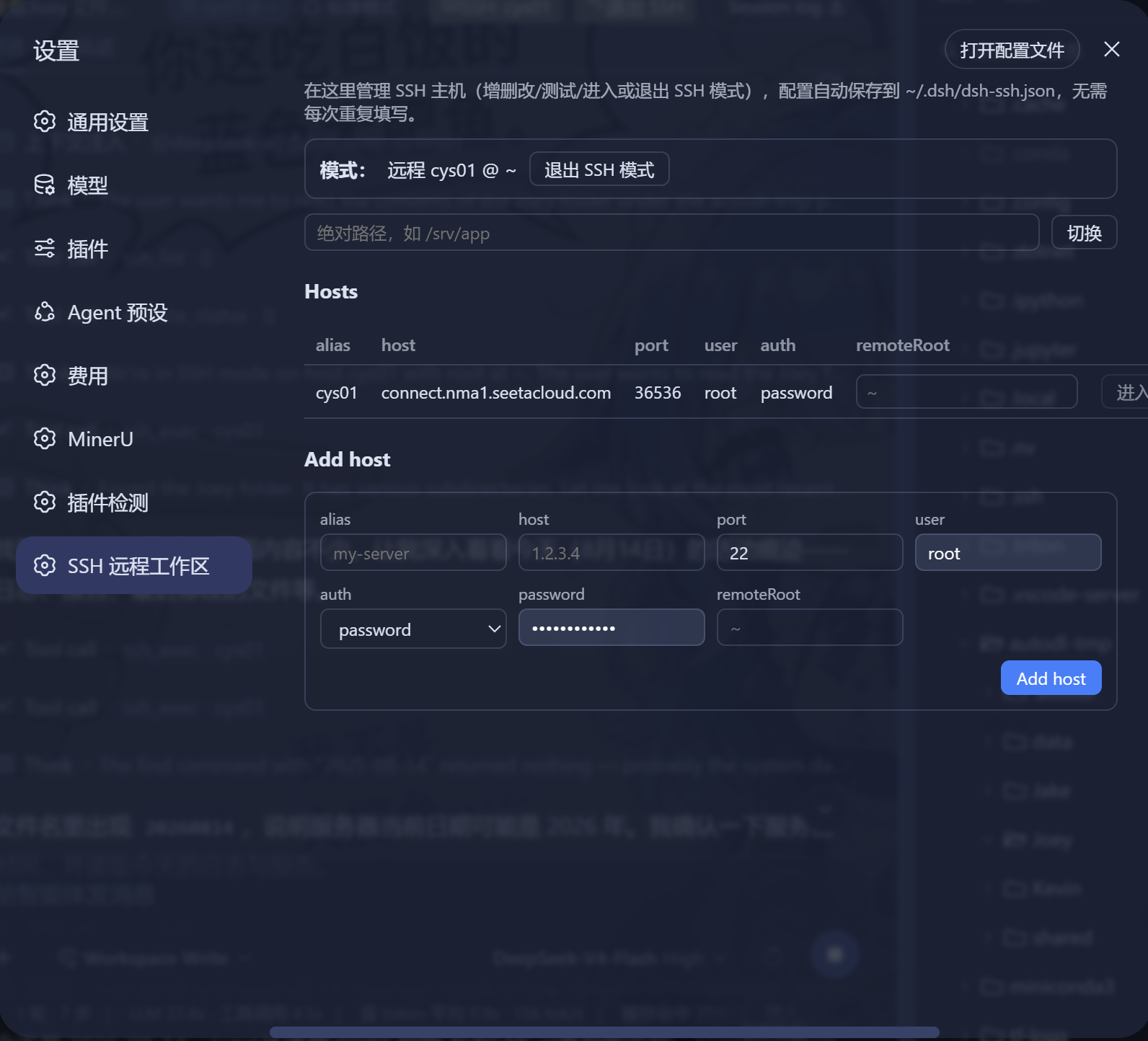
SSH host configuration: alias / host / port / user / password or key / remote root — save, test the connection, then enter SSH mode in one click.
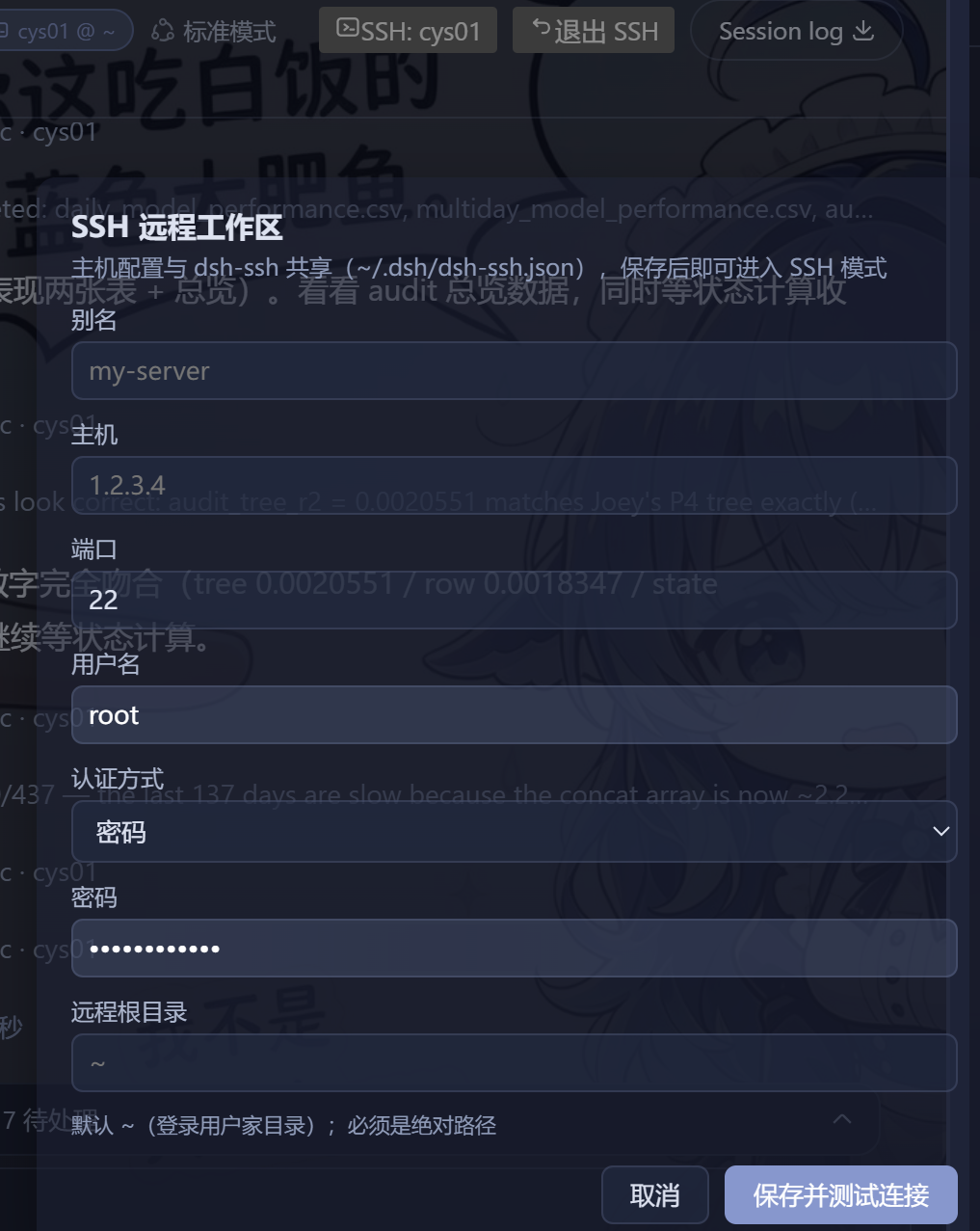
In SSH mode the right panel switches to the remote file tree, and read / write / edit / glob / grep and the terminal execute transparently on the remote server.
Quick Start
- Switch layout: the "⇊ / ⇉ / ⇱" button on the preview tab bar cycles bottom pane / right drawer (default) / floating overlay (wider).
- Drag to detach / dock: grab the tab bar or toolbar empty area to pull the preview out into a float; drag it flush to the right edge and release to dock back into the right drawer.
- Edit files: open
.py/.md/.jsetc. → type directly → Ctrl+S (mtime conflict check). - Run code: open
.py/.js/.shetc. → "▶ Run" in the toolbar (runs on the remote host in SSH mode). - Open a terminal: ">_ Terminal" in the preview toolbar, or the ">_" button on the file tab bar (works without opening a file).
- See diffs: cards pop automatically on external edits / saves; "Edit latest version" to modify directly, "Refresh" keeps the colors.
- File context menu: download / rename / copy / paste / delete (same locally and remotely).
Repository Layout
dsh-IDE/
├── packages/
│   ├── dsh-aionui-panel/ # Right-panel system: file tree/preview/terminal/edit diff/type colors
│   ├── dsh-ssh/          # SSH engine: ssh2 pool, exec/PTY/SFTP/tunnel/cluster
│   └── dsh-easyssh/      # SSH remote workspace: mode state machine, seam facades, remote impl, GUI
└── README.md
The right file panel (file tree / preview / terminal / context menu / edit diff) is provided by dsh-aionui-panel, maintained in this repo alongside dsh-IDE; dsh-easyssh drives it through the
sshWorkspaceModecross-plugin service. SSH remote development is only one of dsh-IDE's capabilities — local directories enjoy the full IDE workspace too.
Installation
Prerequisites: Node.js ≥ 22, pnpm, and dsh installed (npx @deepseek-ai/dsh).
# 1) Clone and build
git clone https://github.com/chenw2759-wq/dsh-IDE.git
cd dsh-IDE
pnpm install
pnpm --filter "./packages/dsh-aionui-panel" build
pnpm --filter "./packages/dsh-ssh" build
pnpm --filter "./packages/dsh-easyssh" build

# 2) Install the three packages into the web profile (use your own absolute paths)
dsh plugin --profile web add file:C:/your-path/dsh-IDE/packages/dsh-aionui-panel
dsh plugin --profile web add file:C:/your-path/dsh-IDE/packages/dsh-ssh
dsh plugin --profile web add file:C:/your-path/dsh-IDE/packages/dsh-easyssh
The repo is branded dsh-IDE; the core plugin package keeps the install id
dsh-easyssh.
💡 pnpm build approval (one line): dsh-ssh depends on native libraries (ssh2 / cpu-features) that need to be built. pnpm 10+ blocks dependency build scripts by default, so
dsh plugin addreportsERR_PNPM_IGNORED_BUILDS: Ignored build scripts: cpu-features@0.0.10, ssh2@1.17.0and writes placeholders automatically into<profile>/pnpm-workspace.yaml:allowBuilds: cpu-features: set this to true or false ssh2: set this to true or falseChange both
set this to true or falsetotrue, then re-run thedsh plugin addcommand from step 2 (re-running is idempotent). This is the standard pnpm flow — the same for any plugin with native dependencies.
Step 3: seam switch (automatic — nothing to edit)
Installing dsh-easyssh automatically applies its bundled cordis.patch.yml (declared via
dsh.bundle.patch) as a profile bundle layer: it disables the deployment's fs-sandbox /
subprocess and mounts the mode-routing facades easyssh-fs / easyssh-subprocess (in SSH mode the
model's tools execute remotely; in local mode the facades delegate back to the same sandboxed local
implementations). No manual <profile>/cordis.patch.yml editing is required.
⚠️ Upgrading users must read: hand-writing the seam patch belongs to versions before 0.1.0 only. If you wrote the patch into
<profile>/cordis.patch.yml(Windows defaultC:\Users\<you>\.dsh\profiles\web\cordis.patch.yml) following the old docs, you MUST delete it (restore the file to[]) after upgrading — otherwise the automatic patch and the hand-written one each insert the samessh-workspace-fs/ssh-workspace-subprocessrows and the loader fails with aduplicate loader entry iderror on startup. Delete it and restart; the automatic patch is identical to the old hand-written one (same row ids).
Step 4: restart
# restart dsh
npx @deepseek-ai/dsh web
Open http://127.0.0.1:3080 → Ctrl+F5 hard refresh (required when the browser caches old client
bundles) → configure a host via the SSH button → enter SSH mode.
Rollback = restore
cordis.patch.ymlto[]and restart.
Usage
- Click SSH at the top right of the session (left of the session log) → fill in host (alias / host / port / user / password or key / remote root) → save & test → enter SSH mode.
- The right panel switches to the remote file tree automatically; just tell the agent "read/change remote files" or "run a command on the server" — ordinary tools execute remotely.
- Path rules: use remote absolute paths directly; relative paths resolve against
remoteRoot(default~); do not use Windows local paths. - The top-right toggle returns to local mode any time.
Security
- Routes are loopback-only (same-origin checked); credentials live in
~/.dsh/dsh-ssh.json(0600). - Remote operations consume real remote resources — confirm before acting; the local sandbox does not apply to remote execution in SSH mode.
- Remote grep/glob/realpath rely on GNU find/grep/coreutils.
Credits
The remote ctx.fs / ctx.subprocess implementations are ported and adapted from
UynajGI/dsh-ssh (MIT, see file headers and NOTICE), extended with a
full Web GUI frontend and runtime mode switching.
License
BSD-3-Clause. The MIT copyright of the remote implementations belongs to the UynajGI/dsh-ssh authors (see NOTICE).
Related plugins
dsh-weknora
 Tencent
/WeKnora/packages/dsh-weknora
把 WeKnora 知识库接入 dsh 的四个只读工具:列出知识库、混合检索原文片段、按顺序还原单篇文档,以及直接取用 WeKnora 自己带引用的 RAG 或 ReAct agent 回答(含可续聊的 session id)。
dsh plugin --profile web add @wxg-prc-cpg/dsh-weknoratreg
 superdesigndev
/treg
给 Agent 的工具目录:按「要做的事」检索约 2,600 个外部接口(SEO 与 SERP、外链、社交、人物与公司信息补全、广告库、抓取),查看参数与单次调用价格后直接调用,凭据由服务端注入。附带技能,MCP 行在未设置 TREG_TOKEN 前保持禁用。
dsh plugin --profile web add github:superdesigndev/tregdsh-anchored-standard
 xiaobright
/dsh-anchored-standard
两阶段 DeepSeek Harness 预设:先 Minimal 对齐的 bootstrap,再切完整 Standard 工具(Project2 98/99)
dsh plugin --profile web add github:xiaobright/dsh-anchored-standardDeepseek-Harness-EAC
 zouyuxuan122
/Deepseek-Harness-EAC
把官方 deepseek-ai/deepseek-harness(@deepseek-ai/dsh,一切皆插件的 agent harness) 封装为开箱即用的 Windows / Linux 桌面客户端,并在其上拥抱社区万象:皮肤、插件、工具、记忆——你所能想到的,一键皆可装。
dsh plugin --profile web add github:zouyuxuan122/Deepseek-Harness-EACDSHA-dshapp
 DSH-APP
/DSHA/app/src/main/assets/app-integration
DSHA 后台任务、网页返回和草稿恢复适配
dsh plugin --profile web add 'github:DSH-APP/DSHA#a6d4de140acc7a085d6afd4b9d413404e004b939&path:/app/src/main/assets/app-integration'deepseek-harness-remote
 liguobao
/deepseek-harness-remote
基于 DeepSeek Harness 插件机制的多端远程访问方案,让桌面端与 Android 端安全连接并操作远程 Harness。(A multi-device remote access solution built on the DeepSeek Harness plugin system, enabling desktop and Android clients to securely connect to and operate a remote Harness.)
dsh plugin --profile web add github:liguobao/deepseek-harness-remote