
Tools & Capabilities
dsh_kline
ftshare-lab/dsh_kline · ★ 37
 ftshare-lab
Interactive candlestick analysis plugin for DeepSeek Harness with natural-language access to markets, indicators, news, fundamentals, and sidebar charts.
安装
dsh plugin --profile web add github:ftshare-lab/dsh_klineGitHub 源码安装:首次需按提示配置 allowBuilds 构建授权后重试
For install and environment setup, plus plugin development tutorials, see DSH community docs ↗
README
Table of contents
简体中文 | English




Analyze, draw, and revise a K-line chart through natural language in DeepSeek Harness—or pick anchors yourself on the chart. Chat and the drawing workbench share the current chart and its protected objects: levels, trend lines, channels, range boxes, Fibonacci retracements, ABC labels, and selected drawable indicators.
Quotes and technical analysis are for research and education only, not investment advice.
Features · Live drawing preview · Install and start · Sidebar compatibility · Drawing tools · Data sources · FAQ
What it helps you do
- Start with a sentence: ask for a chart, a trend read, or an indicator analysis in natural language.
- Explore on your own: open the K-line workspace, search a name or ticker, and switch among daily, weekly, monthly, quarterly, yearly, and available intraday views.
- Read trend and momentum: use MA, volume, MACD, KDJ, RSI, BOLL, ATR, and VWAP.
- Put your analysis on the chart: create horizontal/trend lines, parallel channels, range boxes, Fibonacci retracements, and ABC polylines by chat or point selection. Preview first; save only when the result looks right.
- Explore TA-Lib: search and run all 201 TA-Lib 0.8.2 functions read-only on the loaded chart. Only selected SMA, EMA, and BBANDS results are directly drawable in this release; the other functions are not advertised as chart objects.
- Find price areas: identify support and resistance, or draw and save your own levels and notes.
- Compare and review: overlay indices or symbols, then select a period to inspect return, range, drawdown, and activity.
- Add context: use Market, Sectors, News, Company, and Dragon & Tiger List views for indices, sector rankings, capital-flow events, news, company profiles, fundamentals, and ownership data.
- Build a watchlist: save symbols, create or rename groups, sort, import, and open several at once. Watchlists stay in your current browser.
Preview
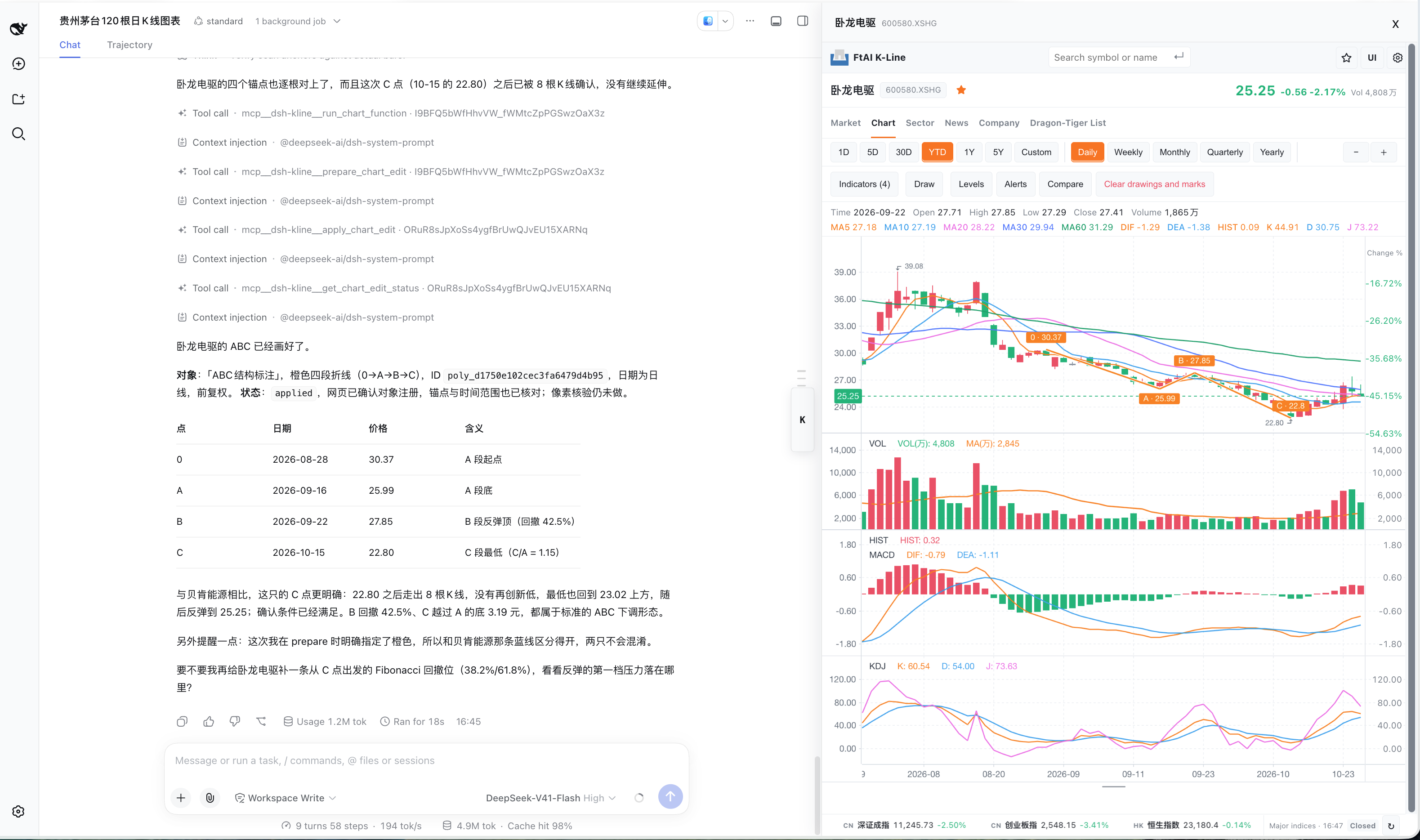
Live natural-language example: DeepSeek screened the watchlist for an ABC candidate in Wolong Electric, checked the four 0/A/B/C anchors against candles, and used the plugin to draw them. This unedited full-page capture shows the conversation, application result, and visible chart together. The host interprets the pattern; a rules-based candidate is not a verified Elliott-wave conclusion.
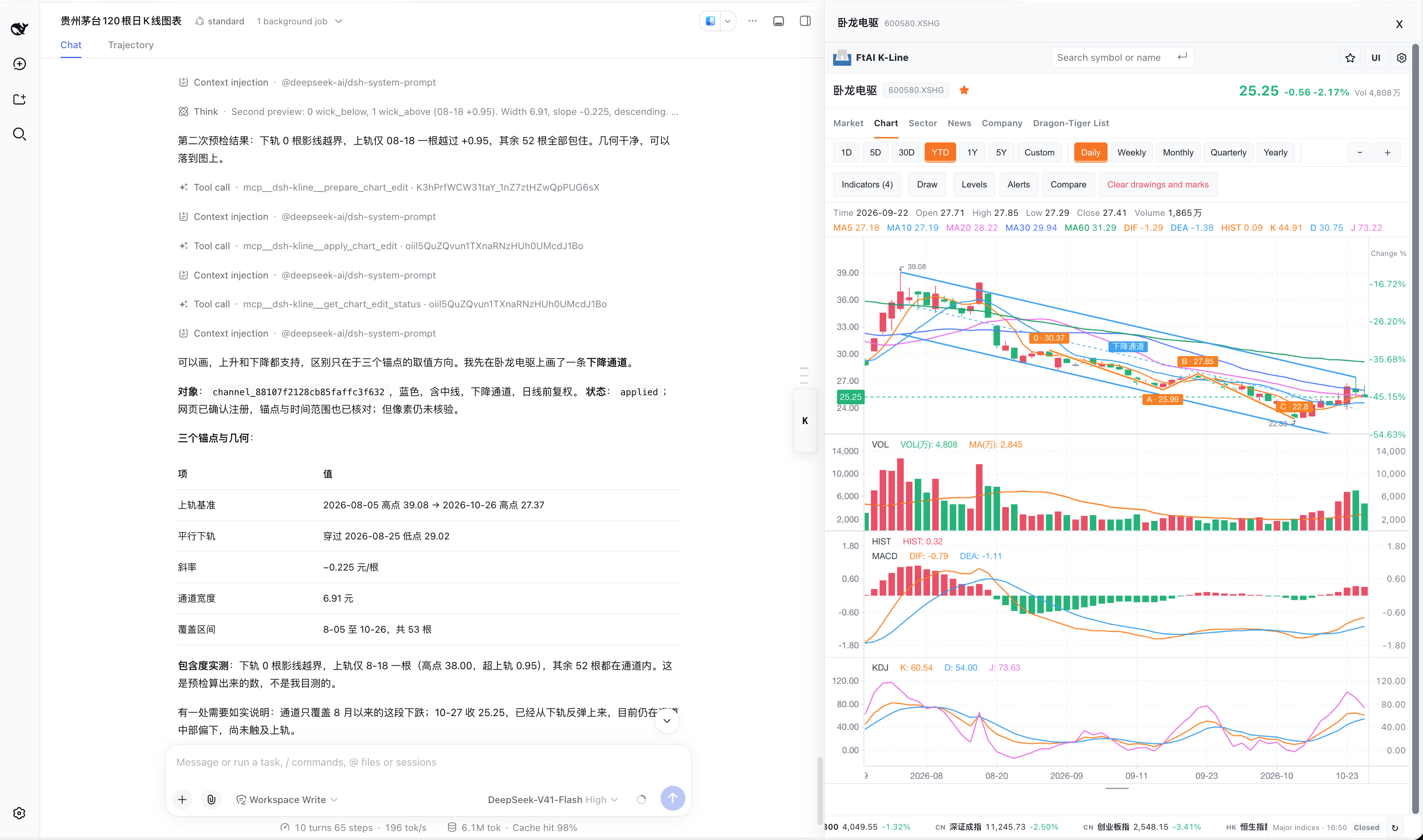
In the same chart, a follow-up natural-language request adds a descending channel. DeepSeek checks its three-anchor geometry and price deviations; the plugin applies it as a separate object while preserving the ABC labels. The lines are visible, but their trading relevance still requires independent judgment.
Get started
1. Install and enable
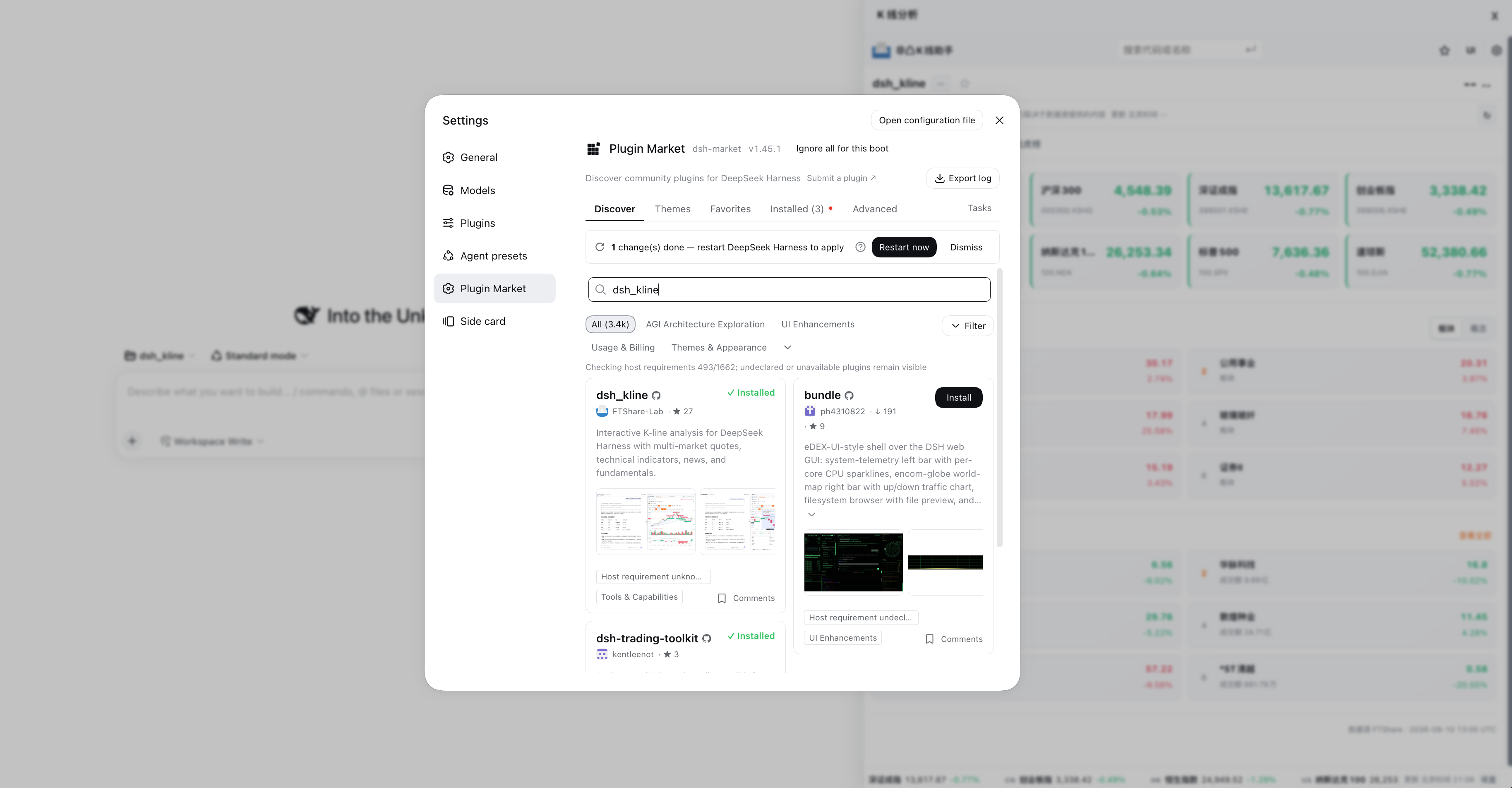
Find dsh_kline in the DeepSeek Harness plugin marketplace. If the catalog has not refreshed yet, install directly from GitHub:
dsh plugin --profile web add github:FTShare-Lab/dsh_kline
The first launch prepares its runtime automatically. Later, update from the marketplace or Settings when a new version is available.
The plugin supports macOS, Linux, and native Windows. Install a working DSH Web host and Python 3.11 or newer first. On Windows, use the python.org installer with the Python Launcher enabled. Git Bash and WSL are not required. First-launch details are stored in dsh_kline/bootstrap.log under the user cache directory; the Windows default is %LOCALAPPDATA%\dsh_kline\bootstrap.log.
2. Choose either entry point
Ask AI in a conversation, for example:
Show the K-line chart for Zijin Mining and its trend over the last monthShow Tencent's daily chart and mark support and resistanceAnalyze NVIDIA's volume, MACD, and RSI over the past monthWhat recent news and fundamentals should I know about this company?Draw a blue level at 1300 on the current chart, then change that object to greenPropose three anchors for a descending channel; explain the deviation and wait for my confirmationScreen my watchlist for ABC candidates; verify one symbol's 0/A/B/C pivots on its daily chart before drawing, and tell me whether C is confirmed
Open the workspace directly: click the K button on the right, or choose 非凸 K 线助手 / dsh_kline from the + menu where workspace Tabs are available. Search by name or ticker; exchange suffixes are not required.
Both entry points can operate on the same new drawing objects in the active chart. In the chart toolbar, Draw opens the drawing workbench: choose a tool, click candles or enter parameters, preview, then confirm. Conversations retain separate chart states; watchlists remain user-level data.
Using the chart
- Search for a company or ticker at the top.
- Pick a time range and candle timeframe. Intraday availability depends on the market and data entitlement.
- Enable the indicators you need, then pan, zoom, or use the crosshair for detail.
- Select Key levels for support and resistance, or Draw to choose a drawing tool, pick anchors or enter parameters, and save the preview. Manage your own price lines under Levels.
- Click two candles in sequence to review return, range, drawdown, and trading activity for that interval.
- Select the star beside a symbol to add it to a watchlist.
Where a UI menu is available, choose Automatic, Classic sidebar, or workspace Tab. Automatic uses the best interface your current Harness supports; when Tabs are unavailable, the regular K-line sidebar continues to work.
Sidebar compatibility
DeepSeek Harness provides its own right sidebar, so Better Sidebar is not required to open the K-line sidebar. When a compatible Better Sidebar is installed, the plugin can also open the chart as a workspace Tab. This is an optional UI integration, not a requirement for quotes, indicators, or drawing. Use UI to choose Automatic, sidebar, or Tab; Automatic selects from the interface capabilities exposed by the current host. Installing Better Sidebar alone does not mean every version and layout has been validated.
Quotes and data sources
FTShare is the default optional source. After you configure an API key, the plugin exposes the quote, intraday, news, and company-data capabilities available to your account. Availability differs by market and plan.
Only unadjusted (none) single-session one-minute requests for regular A-share stocks prefer FTShare's raw realtime feed. Forward/backward requests (including qfq/hfq) use history with the matching adjust_kind; failure never silently falls back to raw realtime rows. Indices, ETFs and multi-session history retain their applicable endpoints. Full-session returns and adjustment-isolated caching are unchanged; routing is not independent verification of vendor-adjusted prices.
Explicit source minute size survives ingestion, local redraw and workspace state. Missing/invalid metadata stays unknown; it is not inferred from timestamp spacing, UI labels or the previous symbol. Unconfirmed sources still cannot authorize guarded drawing.
The plugin reuses FTShare credentials in this order: an FTSHARE_API_KEY already injected into the current DSH service, an explicitly configured FTSHARE_API_KEY_FILE, a Key saved in the DSH FTShare settings, and a local credential previously saved by this plugin. If the key is already available to the process that starts DSH, it is used automatically. Installing the FTShare SDK alone, or storing a key in another app's private configuration, is not enough for the plugin to read it.
When the DSH FTShare settings plugin is installed, the host publishes its Key to the MCP server, which re-reads it before every request — so adding, rotating, or clearing the Key in the settings page needs no dsh restart. That Key belongs to the settings page; this plugin never displays or clears it.
For safety, the plugin never scans .env files, shell configuration, keychains, or other apps' configuration files, and never displays a key or path. Settings → Data source identifies the active source; use Manage FTShare configuration to paste and test a replacement key, either for the current session or saved locally for future launches.
Theme and language follow the DSH host by default. Settings → Theme/Language also offers manual choices and a way back to Follow host (default).
FTShare's free-plan endpoints still require a registered API key. With no key at all, the plugin has an independent free-data fallback only for selected broad-market indices; fresh individual-stock and ETF charts are not guaranteed. Existing valid OHLCV data, including rows supplied by the host, can still drive local indicators and drawing. The UI reports the applicable source or error when data is rate-limited, unavailable, or outside the account's entitlement.
Frequently asked questions
Why is an intraday chart unavailable? Intraday access depends on the symbol's market, your account plan, and the source's currently supported coverage. Test the connection in Data source first. Daily, weekly, and monthly views do not require the intraday entitlement, but individual-stock candles still need a working data source; FTShare's free plan requires an API key too.
What if the first launch fails on Windows?
Run py -3.11 --version in a terminal (a newer version is also supported) to confirm that the Python Launcher can find Python, then inspect %LOCALAPPDATA%\dsh_kline\bootstrap.log. For a custom Python location, set DSH_KLINE_PYTHON to the full python.exe path before starting DSH Web. Installing DSH Web itself and troubleshooting its Windows sandbox remain host-level concerns covered by the DSH documentation.
Why do two conversations show different charts? This is intentional: each chart belongs to its conversation, so an analysis in one conversation cannot replace another's chart. Search or start a new analysis in the other conversation when needed.
Why can data differ slightly from another platform? Quotes can be delayed and may differ with adjustment policy, exchange conventions, market-close state, and upstream services. Use appropriately licensed feeds for commercial, high-frequency, or latency-sensitive work.
For AI and developers
Drawing through chat and the workbench
On a source-checked current chart, the host can interpret a request and use the plugin's calculate → prepare → apply → verify flow. The workbench exposes the same protected objects for manual selection, preview, and editing. Selected families are horizontal levels, two-anchor trend segments, three-anchor finite parallel channels, rectangular ranges, two-anchor Fibonacci retracements, manually supplied or host-proposed-and-checked ABC anchors, and standalone SMA/EMA lines or BOLL three-line bands. Names, four colors, channel midlines, and rectangle fills are supported. The plugin draws ABC labels; it does not automatically recognize Elliott waves, and candidates are not definitive conclusions.
Try “draw a blue level at 31.2 called support”, “move support to 30.8; leave everything else”, or “propose a descending channel with three anchors and explain deviations; wait for approval”.
The host interprets language, analyzes candles and selects anchors. The plugin observes, measures, executes and reports; it does not embed another AI or replay predefined drawing skills. Explicit parameters may execute directly; proposal-first requests must wait for approval. Host explanations and professional anchor selection can be wrong and require user judgement.
Foundation scope and limitations:
- Daily/weekly paths are the main acceptance scope. Anchors must match actual loaded bars. The plugin does not guess missing dates, snap anchors or fetch extra candles to repair edits.
- Trend segments and channels are finite, with no automatic extension or logarithmic geometry. Channels and rectangles retain their creation interval.
- Guarded edits target stable IDs without resetting candles, indicators or the viewport. Manual drawings, automatic annotations and AI objects remain separate.
- Confirmed drawings can restore and be edited after browser refresh within the same host run. Conversations are isolated. Returning to a conversation restores its last confirmed drawing checkpoint, not necessarily its last manually selected interval, range or viewport.
- Workbench point selection and form editing are supported; AI mouse dragging, undo, cross-process old-chart editing and complete automatic failure recovery are not supported. Unknown outcomes stop automatic retries.
- Clear drawings and annotations asks for confirmation, then removes AI objects, analysis annotations, manual drawings, and custom levels for the current symbol and interval. Indicators and alerts remain. Request an exact AI target when you want to delete only one object.
- An object may be outside the visible time/price range. Object state and application receipts do not prove screen pixels, professional pattern quality or vendor quote correctness.
- Minute availability depends on source/permissions; not all markets, minute sizes or operation combinations are accepted. Channels, boxes and ABC labels are not automatically recognized professional patterns. Chan analysis is not included. The 201 TA-Lib functions are primarily read-only; only the selected SMA/EMA/BBANDS outputs have a guarded drawing conversion.
Host integration uses get_chart_context → prepare_chart_edit → apply_chart_edit → get_chart_edit_status.
Read fresh context after approval and verify against independently retained approved parameters.
A context_ref is not a chart_session. Read-only preview_chart_channel and verify_chart_drawings
measure geometry/check parameters; neither selects patterns or grants drawing permission.
Legacy per-family tools manipulate explicit snapshots, not the guarded live-chart workflow.
Run pnpm build:sidebar and pnpm test for the build and complete Node/Python regression suite.
See the v0.5.0 candidate acceptance notes for scope, evidence, and remaining release gates. The full function guide separates read-only calculations from drawable results.
First-time automatic dependency preparation needs network access and may take several minutes.
Host-provided Python runtime
Ordinary installs default to DSH_KLINE_RUNTIME_MODE=auto, preserving existing Python/venv selection and dependency preparation. Desktop applications, containers, and other hosts can set these variables before starting DSH:
| Environment variable | Meaning |
|---|---|
DSH_KLINE_PACKAGE_ROOT |
Optional absolute plugin package directory; defaults to the existing profile-relative installation location. |
DSH_KLINE_PYTHON |
Path to the Python interpreter provided by the host. |
DSH_KLINE_RUNTIME_MODE |
auto (default) or external. |
external requires Python 3.11+ with the required dependencies already available. It only validates and launches the service: no venv creation, dependency installation, or interpreter fallback. The host must repair failures. This mode rejects DSH_KLINE_VENV, --prepare-project, and --bootstrap-runtime. DSH_KLINE_DEFER_BOOTSTRAP does not trigger background installation in this mode.
The host owns the interpreter, dependency search paths, and isolation settings (such as PYTHONPATH, PYTHONNOUSERSITE, or Windows embedded Python's ._pth); the plugin does not infer the host's directory layout. Set DSH_KLINE_CHART_PORT=0 for a dynamic port. The MCP patch explicitly forwards the runtime variables without changes to DSH core. When running the Node launcher directly, its own location determines the package root.
Updates and license
See Releases for version history. This project is released under the MIT License; frontend provenance is in PROVENANCE.md.
Related plugins
dsh-weknora
 Tencent
/WeKnora/packages/dsh-weknora
把 WeKnora 知识库接入 dsh 的四个只读工具:列出知识库、混合检索原文片段、按顺序还原单篇文档,以及直接取用 WeKnora 自己带引用的 RAG 或 ReAct agent 回答(含可续聊的 session id)。
dsh plugin --profile web add @wxg-prc-cpg/dsh-weknoratreg
 superdesigndev
/treg
给 Agent 的工具目录:按「要做的事」检索约 2,600 个外部接口(SEO 与 SERP、外链、社交、人物与公司信息补全、广告库、抓取),查看参数与单次调用价格后直接调用,凭据由服务端注入。附带技能,MCP 行在未设置 TREG_TOKEN 前保持禁用。
dsh plugin --profile web add github:superdesigndev/tregdsh-anchored-standard
 xiaobright
/dsh-anchored-standard
两阶段 DeepSeek Harness 预设:先 Minimal 对齐的 bootstrap,再切完整 Standard 工具(Project2 98/99)
dsh plugin --profile web add github:xiaobright/dsh-anchored-standardDeepseek-Harness-EAC
 zouyuxuan122
/Deepseek-Harness-EAC
把官方 deepseek-ai/deepseek-harness(@deepseek-ai/dsh,一切皆插件的 agent harness) 封装为开箱即用的 Windows / Linux 桌面客户端,并在其上拥抱社区万象:皮肤、插件、工具、记忆——你所能想到的,一键皆可装。
dsh plugin --profile web add github:zouyuxuan122/Deepseek-Harness-EACDSHA-dshapp
 DSH-APP
/DSHA/app/src/main/assets/app-integration
DSHA 后台任务、网页返回和草稿恢复适配
dsh plugin --profile web add 'github:DSH-APP/DSHA#a6d4de140acc7a085d6afd4b9d413404e004b939&path:/app/src/main/assets/app-integration'deepseek-harness-remote
 liguobao
/deepseek-harness-remote
基于 DeepSeek Harness 插件机制的多端远程访问方案,让桌面端与 Android 端安全连接并操作远程 Harness。(A multi-device remote access solution built on the DeepSeek Harness plugin system, enabling desktop and Android clients to securely connect to and operate a remote Harness.)
dsh plugin --profile web add github:liguobao/deepseek-harness-remote