
Tools & Capabilities
dsh-git-worktree
wloops/dsh-git-worktree · ★ 22
 wloopsCurated
Domi-grade git worktree isolation and delivery: permanent worktrees under .dsh-worktrees, ready-for-review / apply / finish / discard lifecycle with conflict handling and safe cleanup (ported from Domi's production system).
Manifest details
安装
dsh plugin --profile web add github:wloops/dsh-git-worktreeGitHub 源码安装:首次需按提示配置 allowBuilds 构建授权后重试
For install and environment setup, plus plugin development tutorials, see DSH community docs ↗
Screenshots
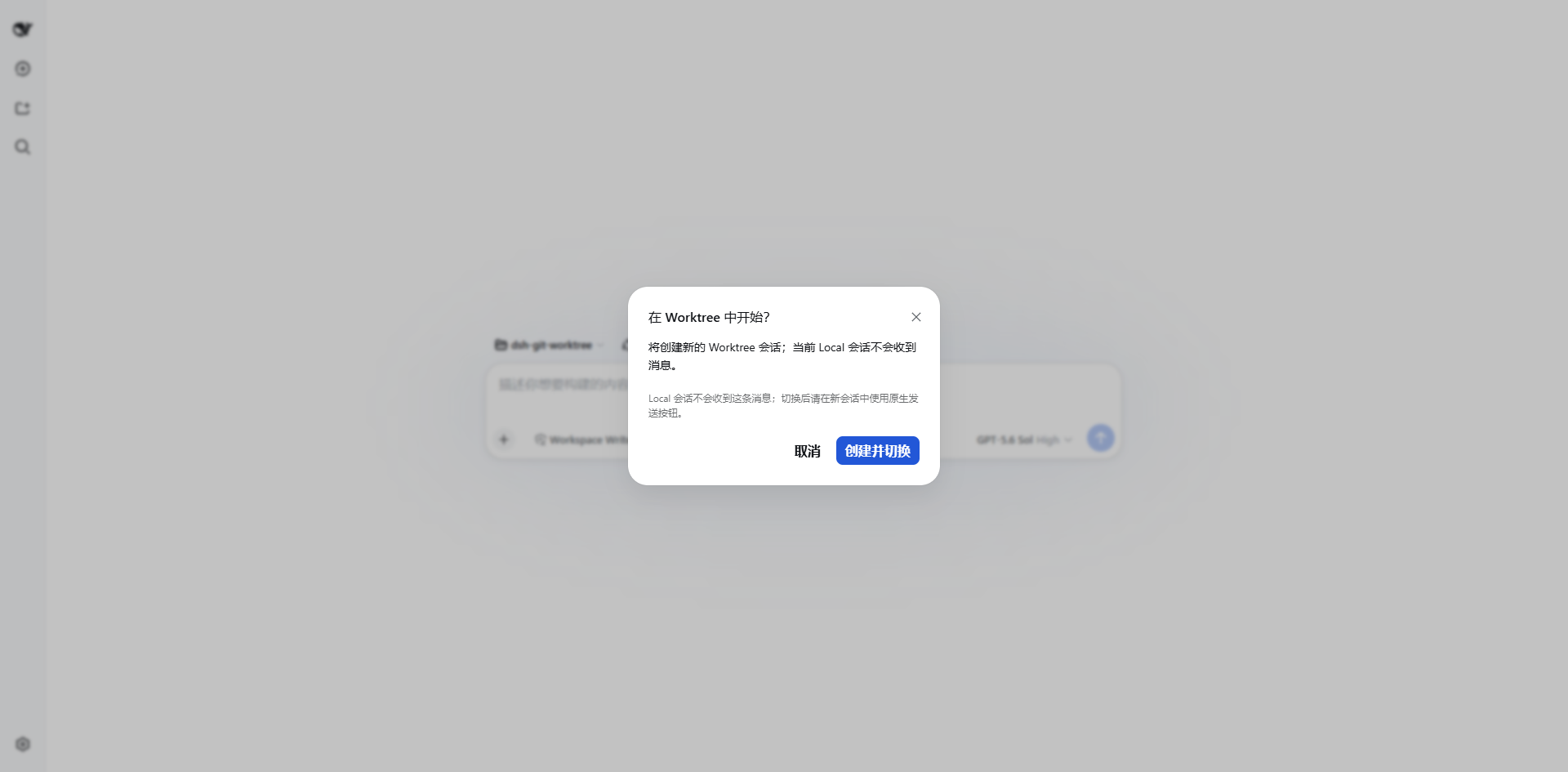
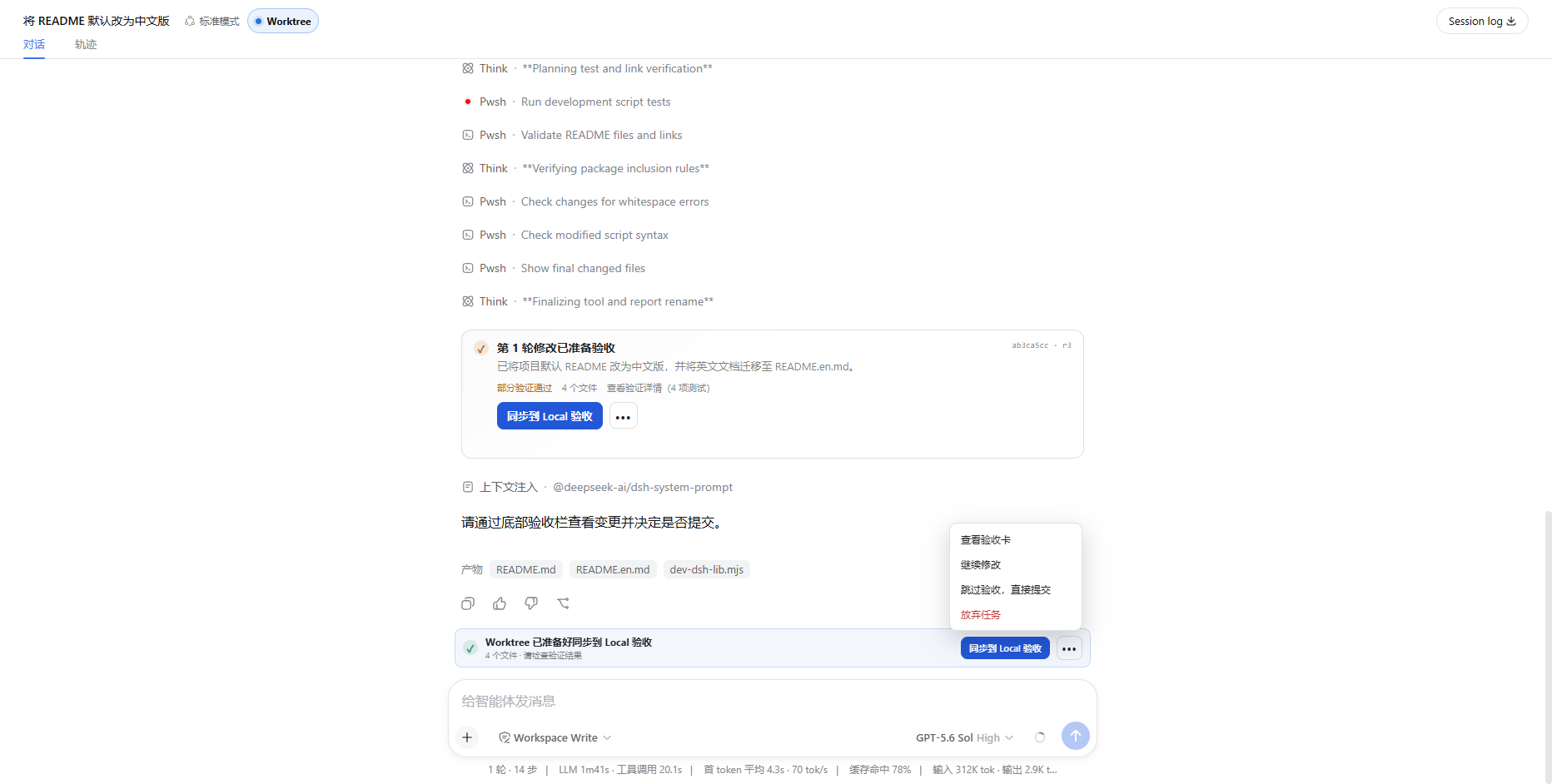

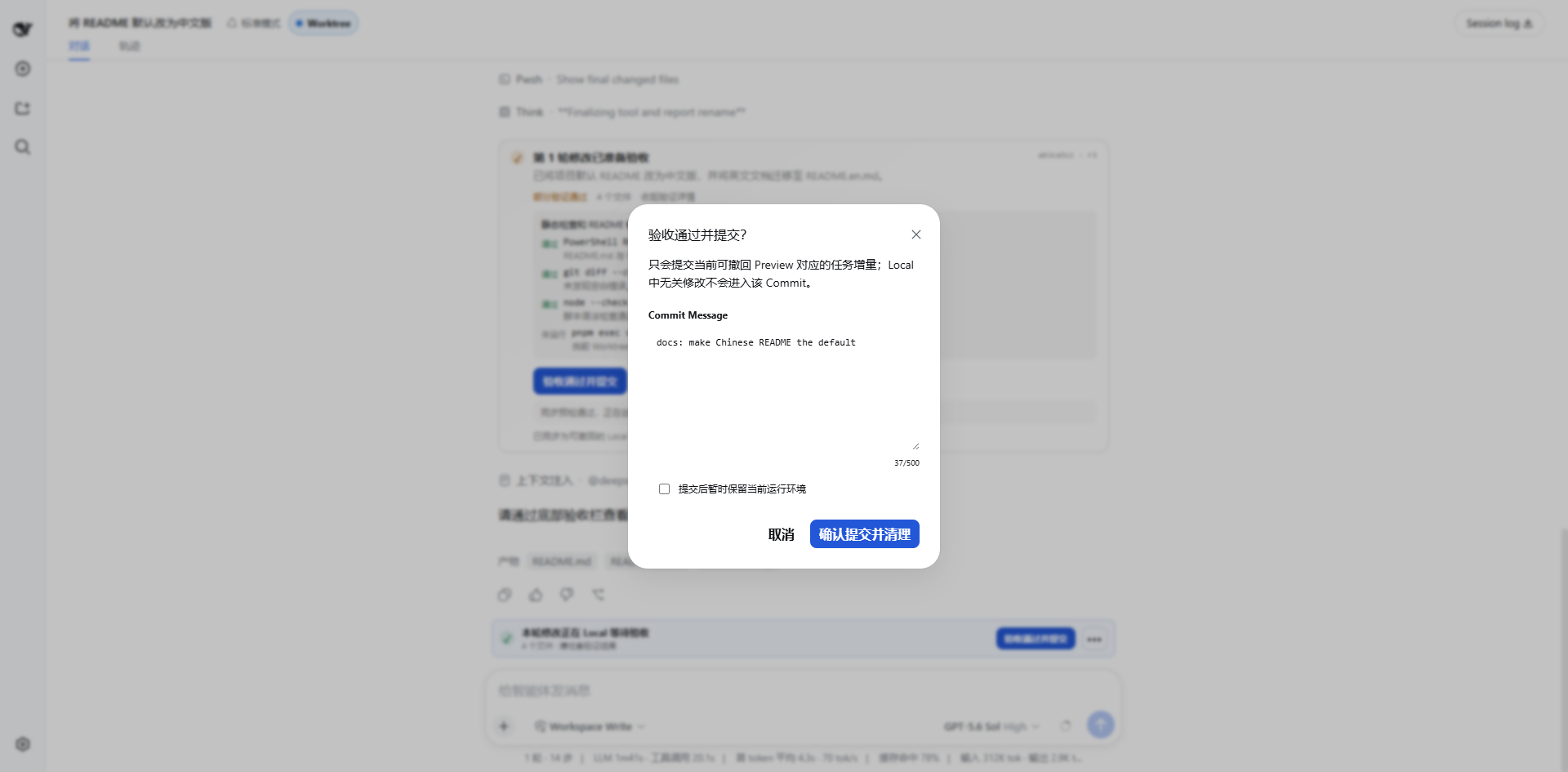


README
Table of contents




Let agents complete tasks in independent Git Worktrees, then review the changes before deciding whether to save them.
dsh-git-worktree is a Git Worktree plugin for DeepSeek Harness. It creates a separate Worktree (working directory) for each isolated task, where the agent edits and tests code. The plugin writes task changes back to the current project only when you start a preview or confirm saving. When the task is complete, you can preview the result and then save it, send it back for changes, or discard it.
This Git Worktree workflow originated in Domi, an open-source desktop coding workbench powered by the Pi Agent Runtime. This plugin is independently adapted for DeepSeek Harness and can be installed and used on its own.
中文 · Full usage guide · Architecture
Why use it?
When an agent edits the current project directly, its changes can mix with your unfinished work. Running multiple tasks at once can also make them interfere with one another. With this plugin:
- every task is edited and tested in its own Git Worktree (an independent working directory);
- multiple isolated tasks can develop in parallel in separate working directories; only one task per project can enter the review write-back flow at a time;
- when the agent finishes, you can temporarily show the changes in the current project and inspect them;
- changes are saved only after confirmation, and conflicts never overwrite your work automatically.
Highlights
- Git Worktree isolation: every task gets its own working directory and its own agent conversation.
- Run multiple Worktrees: develop several tasks in parallel; to avoid mixing changes, review one task at a time per project.
- Preview before committing: inspect the real result in the current project without immediately creating a Git commit.
- Send it back safely: undo the current preview and ask the agent for more changes without disturbing unrelated local work.
- Save only this task: confirmation commits only the current task instead of pulling unrelated changes into it.
- Preserve progress on long tasks: save the current stage and keep developing; the stages still become one final delivery.
- Protect the working state: branch changes, conflicts, and interrupted operations stop safely and leave the state available for recovery.
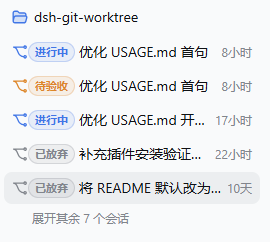
- See related tasks together: current and historical Worktrees are grouped under their Host-provided project navigation owner; ambiguous tasks conservatively remain where they are.
- Inspect review details in one place: open a read-only view from the review bar for changed files, validation records, and version details without searching tool messages.
- Start safely from an empty repository: after explicit confirmation, an unborn repository can receive an empty initial commit that excludes user files before the isolated Worktree is created.
- Carry project Skills: the first Worktree and each next iteration receive one snapshot of
.dsh/skills,.agents/skills, and.claude/skills, while auxiliary files stay separate from Git delivery. - Continue in the same conversation: after delivery, begin another task without opening a new conversation.
The current version manages Git Worktrees within one project. It does not yet provide a global cross-project manager.
Workflow
flowchart LR
    A[Current project] -->|Create isolated task| B[Independent Git Worktree]
    B --> C[Agent edits and tests]
    C --> D[Review the result]
    D -->|Preview changes| E[Inspect them in the current project]
    E -->|Confirm and save| F[Create the task commit]
    F --> G[Continue in the same conversation]

    D -.->|Save current progress| H[Keep developing]
    E -.->|Undo this preview| I[Return for changes]
    D -.->|Skip preview| F
Which action should I choose?
| Goal | Action |
|---|---|
| Inspect the result in the current project | Preview changes |
| The preview looks correct | Confirm and save |
| Preserve progress during a long task | Save checkpoint and continue |
| Ask the agent for more edits | Continue editing or Undo this preview |
| Save without inspecting it first | Skip preview and save |
See the full usage guide for detailed actions, recovery scenarios, and commands.
Quick start
Requirements
- Node.js
^22.19.0 || >=24.0.0 - DeepSeek Harness Web Client
- A Git Workspace
- A plugin version matching your Harness version, as listed below
Choose a version
| DeepSeek Harness | Plugin version |
|---|---|
0.2.1-rc.2 |
0.11.0 |
0.2.0-rc.2 |
0.10.0 |
0.1.x |
See the historical 0.9.x compatibility records; not every 0.1.x version has been verified |
Match the plugin version to your Harness version rather than installing the latest plugin on an older Harness.
The DSH 0.2.1-rc.2 adaptation included in 0.11.0 passed pre-release source compatibility checks. Browser, real AI conversation, desktop and Windows end-to-end acceptance for this combination remain incomplete. See the compatibility notes and validation report for the scope. Historical validation records remain valid for their original combinations, not as acceptance evidence for newer ones.
Install
For DSH 0.2.1-rc.2, install through the dsh Web Profile:
dsh plugin --profile web add dsh-git-worktree@0.11.0
For other Harness versions, choose the matching plugin version from the table above first.
Open a Git Workspace and enable Worktree when creating a Session. An existing Local Session can also let the agent call worktree_create to create a separate isolated Session.
For the first run, complete one full create → Preview changes → Confirm and save → clean up the Worktree cycle.
Upgrades and troubleshooting
- Back up your data and check version compatibility before upgrading Harness. See the compatibility notes for legacy data migration requirements.
- If the UI shows Failed to load plugins, first check that the plugin and Harness versions match, then follow the troubleshooting guide.
- Harness's supply-chain guard (
minimumReleaseAge) may skip a freshly published release and fall back to an older one. Specify the matching exact version explicitly or retry after the guard window passes.
For Git-source installation, pnpm build approval and other troubleshooting steps, see Installation and troubleshooting.
Screenshots
Project grouping and task status
Prepare the review
See the full usage guide for the complete flow.
Safety boundary
Before writing task changes back to the current project, the plugin checks again that the task version, project location, and file state still match the review. If you switched branches, changes conflict, or a previous operation was interrupted, it stops and preserves the working state instead of guessing and overwriting files.
Worktree separation is designed to prevent tasks from accidentally changing one another's files. It is not a system sandbox for running untrusted code.
For the detailed state checks and recovery rules, see:
Current limitations
- A task is grouped under its original project only when that relationship is clear. Uncertain tasks remain in their original location so they are never hidden.
- Isolated tasks can be renamed and archived, but a new task cannot yet be forked directly from the task conversation.
- Child agents share the parent task's working directory; a separate Worktree is not created for every child agent.
- Saved stage records cannot yet be edited, deleted, reordered, or rolled back to an arbitrary stage.
- The broader cross-project management, direct repair of the current project, dependency reuse, and collaboration handoff features in Domi are outside this plugin's current scope.
Local development
pnpm install
pnpm run typecheck
pnpm test
pnpm run build
pnpm run check:publish
Run the local end-to-end environment:
pnpm run dev:dsh
See the full usage guide for more development commands and the release checklist before publishing.
Documentation
- Full usage guide
- Worktree Console architecture
- Session Target porting notes
- UI development notes
- Release checklist
- Changelog
License
Language
The plugin follows DSH’s language selection without a separate switch. Explicitly select English in DSH to use English in the UI, tools, and /worktree messages. If automatic browser detection has not produced a saved DSH preference, tools and commands fall back to Chinese. See language transport and translation contributions.
Related plugins
dsh-weknora
 Tencent
/WeKnora/packages/dsh-weknora
把 WeKnora 知识库接入 dsh 的四个只读工具:列出知识库、混合检索原文片段、按顺序还原单篇文档,以及直接取用 WeKnora 自己带引用的 RAG 或 ReAct agent 回答(含可续聊的 session id)。
dsh plugin --profile web add @wxg-prc-cpg/dsh-weknoratreg
 superdesigndev
/treg
给 Agent 的工具目录:按「要做的事」检索约 2,600 个外部接口(SEO 与 SERP、外链、社交、人物与公司信息补全、广告库、抓取),查看参数与单次调用价格后直接调用,凭据由服务端注入。附带技能,MCP 行在未设置 TREG_TOKEN 前保持禁用。
dsh plugin --profile web add github:superdesigndev/tregdsh-anchored-standard
 xiaobright
/dsh-anchored-standard
两阶段 DeepSeek Harness 预设:先 Minimal 对齐的 bootstrap,再切完整 Standard 工具(Project2 98/99)
dsh plugin --profile web add github:xiaobright/dsh-anchored-standardDeepseek-Harness-EAC
 zouyuxuan122
/Deepseek-Harness-EAC
把官方 deepseek-ai/deepseek-harness(@deepseek-ai/dsh,一切皆插件的 agent harness) 封装为开箱即用的 Windows / Linux 桌面客户端,并在其上拥抱社区万象:皮肤、插件、工具、记忆——你所能想到的,一键皆可装。
dsh plugin --profile web add github:zouyuxuan122/Deepseek-Harness-EACDSHA-dshapp
 DSH-APP
/DSHA/app/src/main/assets/app-integration
DSHA 后台任务、网页返回和草稿恢复适配
dsh plugin --profile web add 'github:DSH-APP/DSHA#a6d4de140acc7a085d6afd4b9d413404e004b939&path:/app/src/main/assets/app-integration'deepseek-harness-remote
 liguobao
/deepseek-harness-remote
基于 DeepSeek Harness 插件机制的多端远程访问方案,让桌面端与 Android 端安全连接并操作远程 Harness。(A multi-device remote access solution built on the DeepSeek Harness plugin system, enabling desktop and Android clients to securely connect to and operate a remote Harness.)
dsh plugin --profile web add github:liguobao/deepseek-harness-remote